Popular Content
Membrain for:
AI Prompts define how Membrain’s AI generates content, what information it uses, and how it communicates. By structuring prompts effectively, you can ensure that AI-generated output is relevant, consistent, and aligned with your sales approach.
This article explains how to view, create, and configure AI Prompts so they fit your workflow and use case as well as manage them from an admin view.
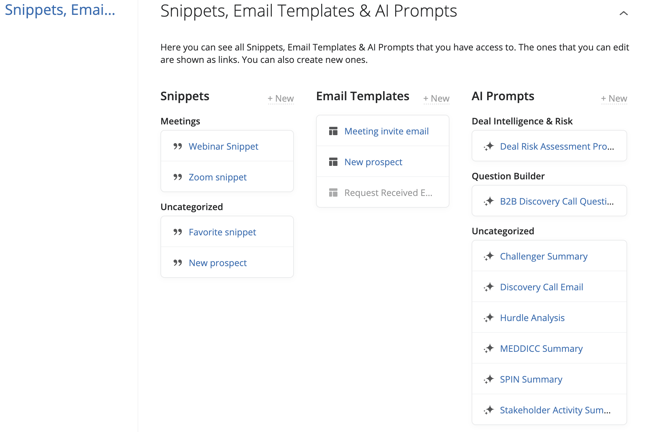
AI Prompts that you have created yourself or that have been shared with you by other users and/or your administrator can be viewed by clicking on your profile picture (bottom-left of Membrain) and scrolling all the way down to the Snippets, Email Templates & AI Prompts tab of My Settings.
This provides a centralized place to view and manage snippets, email templates, and AI prompts you have access to.
Prompts that you can edit appear as clickable links and open directly in the prompt editor. You can also create new AI Prompts from this view using the + New option.
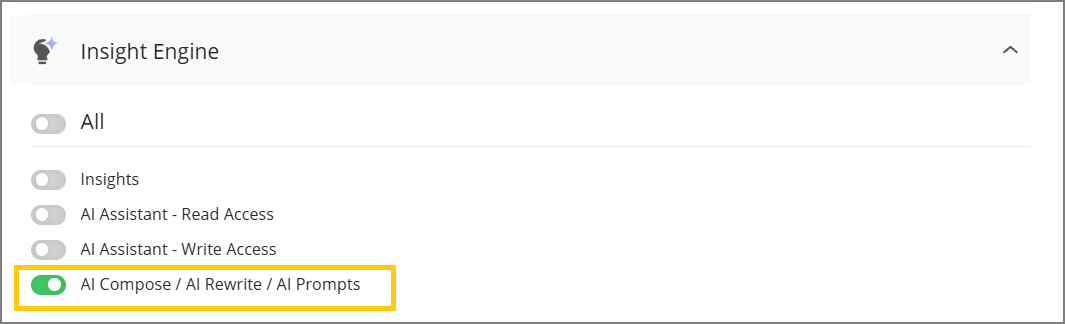
First off, make sure you have the right permissions so you can start creating new AI Prompts.
Please ask your administrator to turn on the "AI Compose / AI Rewrite / AI Prompts" toggle in the Insight Engine section found under System Setup > Users > Permission Groups.
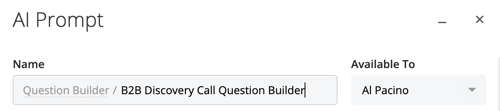
When creating a new prompt, start with a clear Name so it's easy to identify later. Next to the name, you can assign it to an existing AI Prompt Category, or create a new one if you have the appropriate permissions. AI Prompt Categories help keep prompts organized, especially as the number of available prompts grows.
The Available To setting determines who can view or edit the prompt. You can limit access to yourself, specific users, teams, permission groups, or open it to everyone. This ensures that prompts are only visible to the people who need them.
Once these settings are defined, you can begin building the prompt itself.
AI Prompts are built using a structured set of components. This allows you to separate what the AI should do from the data it should use, giving you more control over how the final output is generated.
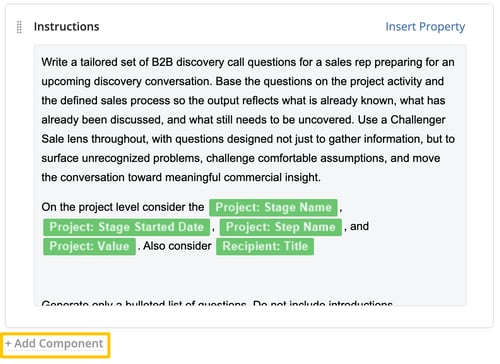
At the core of every prompt is the Instructions component. This is required and forms the foundation of the prompt. It defines what the AI should generate or accomplish. Within this component, you can insert dynamic properties to personalize the output, such as project context, company details, stakeholders, or messaging elements like value proposition, ideal customer profile, sales methodology, and tone of voice. These properties make the output more relevant and aligned with your sales approach.
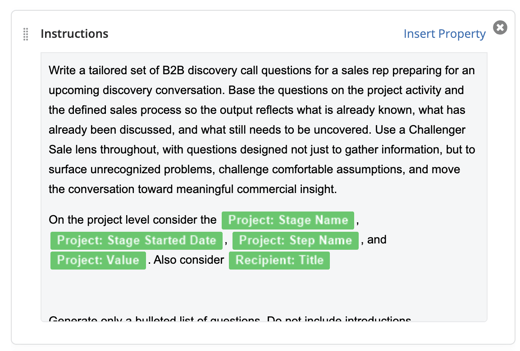
In more advanced scenarios, you can include multiple instruction components to structure the prompt in stages. This allows you to break down more complex use cases into manageable parts.
Below the Instructions component, you can add additional components to control what data is passed to the AI. This is done through the Add Component button, where you can select from several types of structured inputs. Review the list below to see more information on each component that can be included in a prompt.
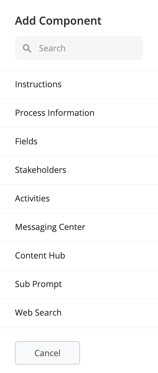
Process Information provides high-level context about the project, such as the project type, process name, current stage, and key dates. This helps the AI understand where the project is in the workflow and generate more context-aware responses.
Fields allow you to include field values from the project. By default, all custom fields are included, but you can limit the selection to specific fields if needed. You can also define a maximum value age to ensure that only recent and relevant data is used.
Stakeholders include information such as name, title, role, influence, and notes. This is useful when the AI needs to reflect stakeholder dynamics or tailor communication accordingly.
Activities provide access to historical interactions within the project, such as meetings, notes, calls, or tasks. You can choose specific activity types and define how far back the AI should look, helping you focus on relevant activity data.
Messaging Center allows you to include structured messaging elements such as value proposition, ideal customer profile, sales methodology, and tone of voice. This ensures that AI-generated content stays aligned with your organization’s messaging.
Content Hub enables the AI to reference content from content rooms and content cards, adding additional context and supporting material to the output.
Sub Prompts allow you to reuse another AI Prompt as part of your current prompt. This is useful for building more advanced and modular prompt structures, where one prompt can contribute structured input to another.
Web Search allows the AI to include external information when generating a response. If you need the AI to focus on specific sources or regions, this should be specified in your instructions. Only one Web Search component can be added to a prompt.
The order of components determines how the AI processes information. Components are executed from top to bottom, and you can rearrange them by dragging and dropping each component into position.
This gives you control over how context is introduced. For example, if Process Information is placed above the Instructions component, that context is provided to the AI before it generates a response. If it is placed below, the instructions will run without that context first. Adjusting this order allows you to fine-tune how the AI interprets and uses the available data.
Each AI Prompt can be configured with a Reasoning Level, allowing you to balance response speed, AI credit usage, and the quality of the generated output based on what the prompt needs to accomplish.
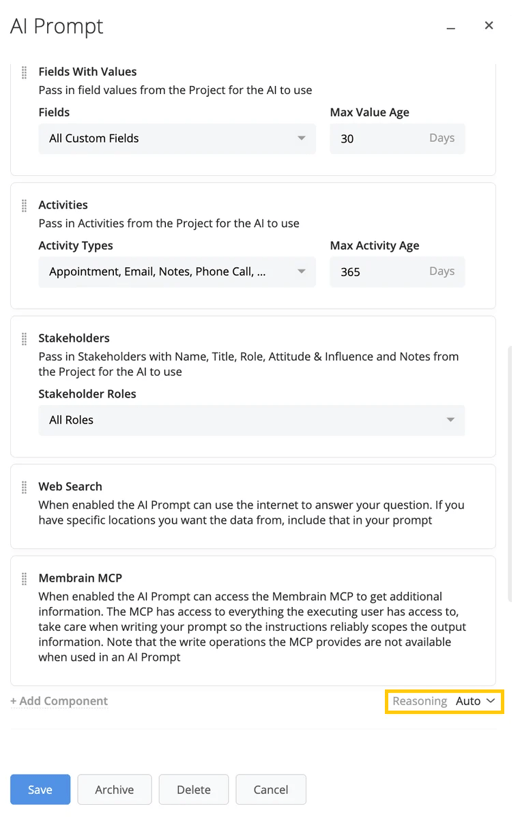
The Reasoning Level selector appears to the right of the last component in your prompt. You can choose from three options:
The selected Reasoning Level will be used whenever that AI Prompt runs. Consider the complexity of what you're asking the prompt to accomplish when selecting a level; a straightforward drafting task may not require the same level of reasoning as a prompt designed to analyze a complex sales situation.
Once your prompt is created, you can define where it should be available in the platform. Membrain AI Prompts can be enabled for several use cases, depending on your needs:
Automations: Makes the prompt available in AI Prompt Steps and Autofill Automations.
If you’re setting up AI Autofill specifically, refer to the AI Autofill Automation article for more detailed guidance.
You can copy existing AI Prompts to quickly create variations without starting from scratch. To do this, right-click a prompt from the AI Prompts list in System Setup or from the Templates section in My Settings, then select Copy.
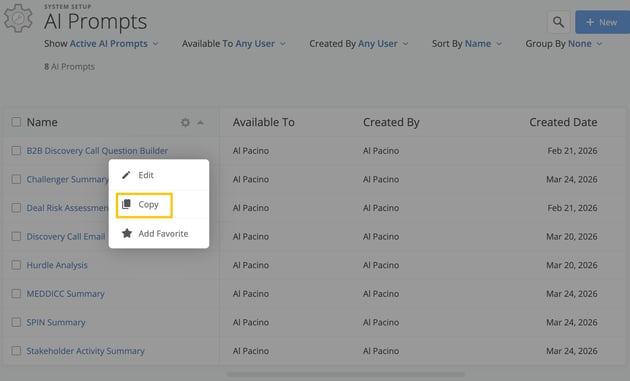
The copied prompt opens immediately in edit mode as an unsaved draft and retains the original components, categories, permissions, and availability settings. This makes it easy to reuse existing prompt structures while tailoring them for different teams, workflows, or use cases.
A well-written AI Prompt produces better, more relevant output. While Membrain AI will do its best with any prompt, the following tips can help you get more consistent, high-quality results.
First off, make sure you have the right permissions so you can manage all AI Prompts that exist in your Membrain instance.
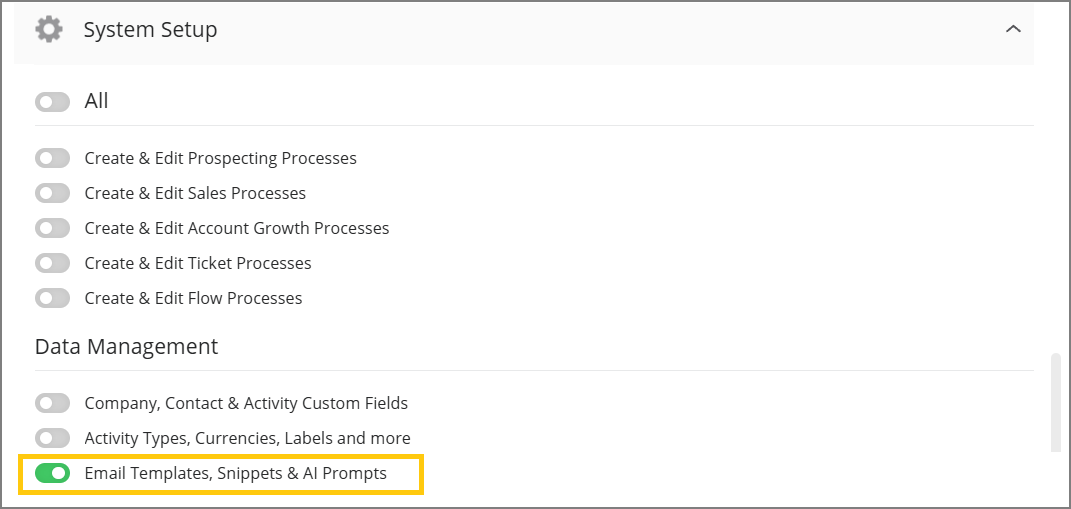
If you're not an Administrator yourself, you will need to ask them to turn on the "Email Templates, Snippets & AI Prompts" toggle in the Data Management section found under System Setup > Users > Permission Groups.
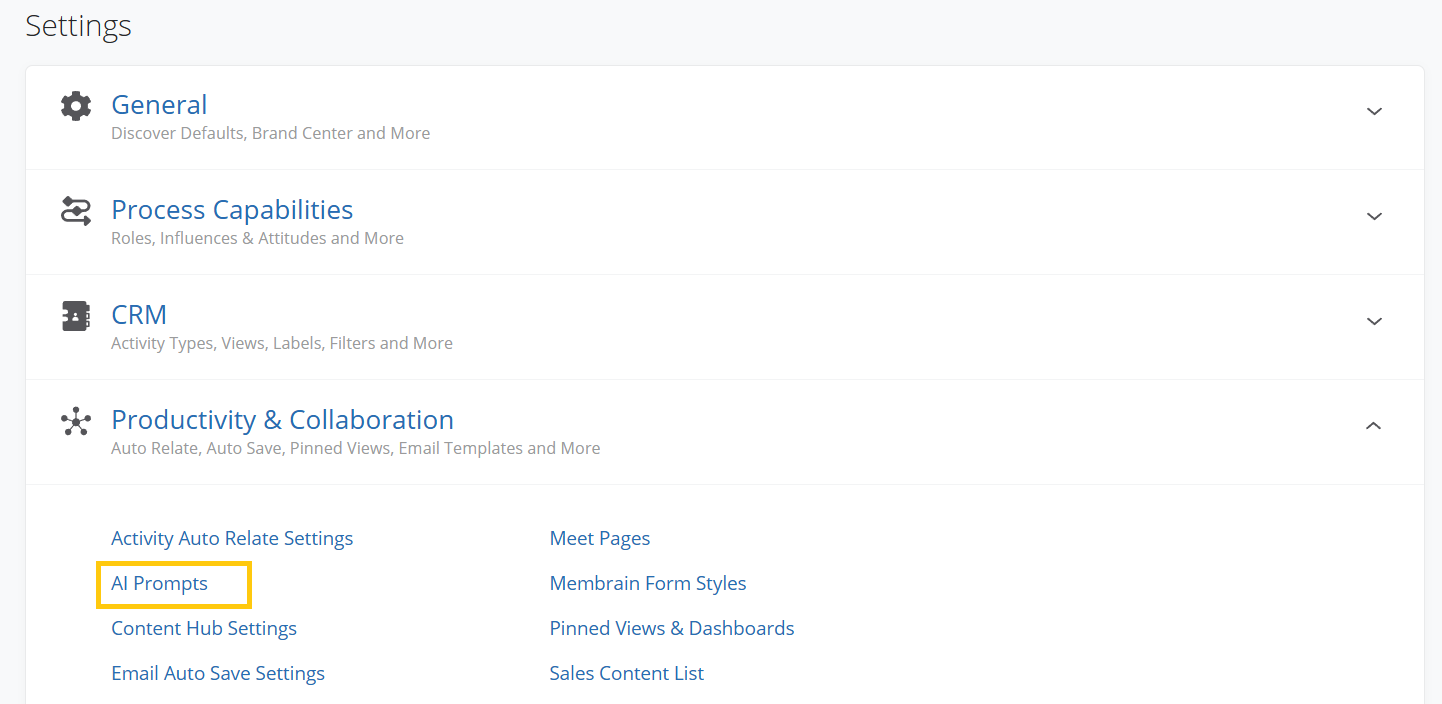
AI Prompts can be then managed from an admin view from System Setup > Settings > Productivity and Collaboration
The list view shows all existing prompts in your system and provides tools for filtering, sorting, and organizing them. You can filter by availability (such as active or archived), visibility, or creator. You can also group and sort the list based on different properties.
To search for a specific prompt, use the search bar in the top right corner or press F on your keyboard. You’ll also see an option to manage prompt categories, which can help organize your prompts by purpose, team, or function.
To create a new prompt, click the New button in the top right.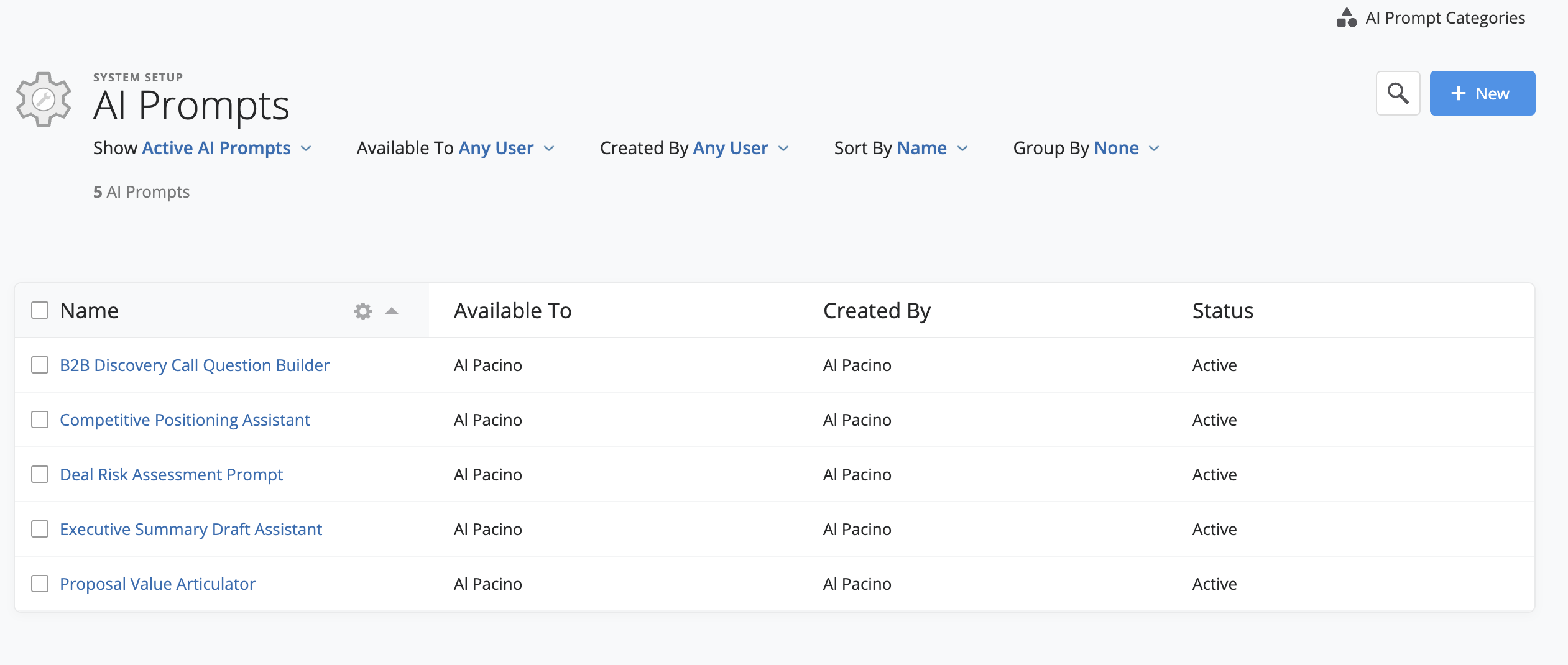
AI Prompts allow you to customize how Membrain AI behaves and communicates across your sales process. By carefully selecting the data to include and configuring prompt settings, you ensure that AI-generated content is both relevant and on-brand.
If you're unsure how best to structure a prompt or decide what information to include, reach out to your Membrain administrator or contact our support team at support@membrain.com.




