Popular Content
Membrain for:
Meet Page Styles allow administrators to control the visual appearance of Meet Pages.
A style can be applied to one or multiple Meet Pages to ensure consistent branding across booking experiences. When a style is updated, all Meet Pages using that style are updated automatically.
If you need to configure booking rules or scheduling behavior, see Meet Pages.
To create or manage Meet Page Styles:
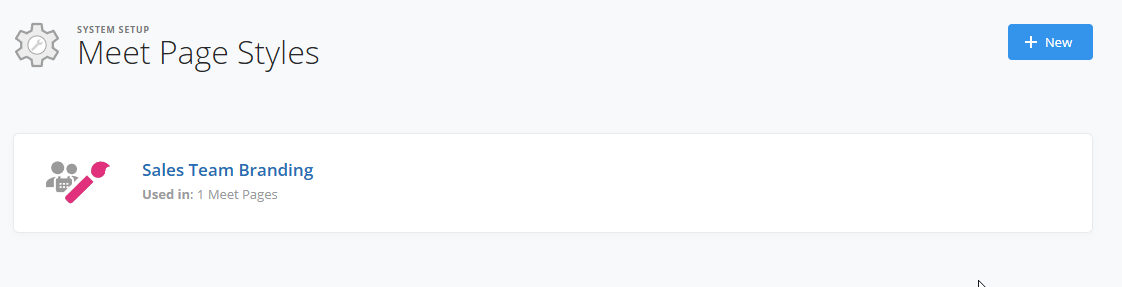
Click New to create a style.
On the left-hand side, configure the style settings. On the right-hand side, a live preview shows how the Meet Page will appear to visitors.
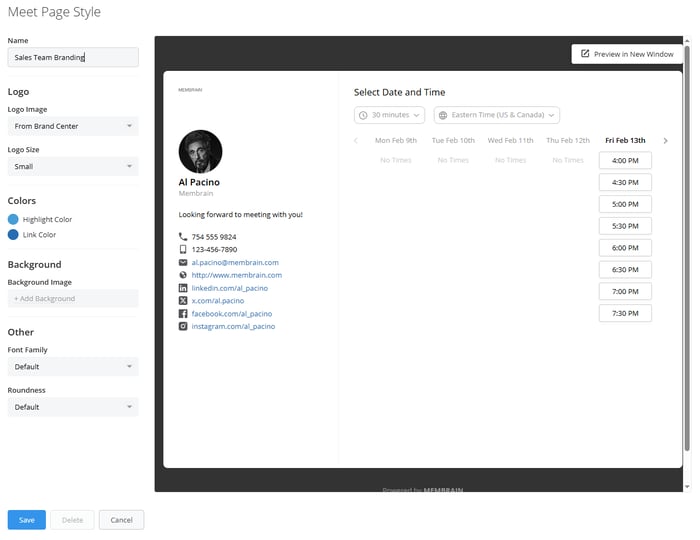
Give your style a clear and recognizable name. This name is visible when selecting a style inside a Meet Page.
You can control whether a logo appears on the Meet Page.
Choose one of the following options:
• Brand Center – Select an image already stored in your Brand Center
• Custom – Upload an image from your device
• None – Display no logo
If using a logo, you can adjust the size to small, medium, or large.
For more information on managing images in your Brand Center, see the Brand Center article.
Meet Page Styles allow you to control two types of colors:
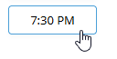
This color appears when visitors hover over time slots or interact with elements on the page.
Setting:

Outcome:
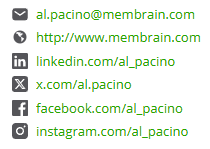
This controls the color of clickable links, such as contact details displayed on the page.
Setting:

Outcome:
You can choose from your configured brand colors, default color options, or enter a custom hex code.
You can add a background image to the Meet Page.
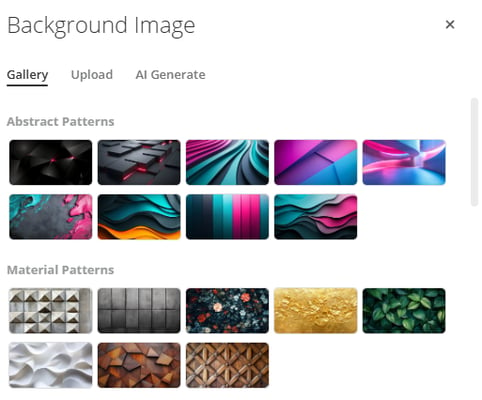
Choose from:
• A built-in image gallery
• Uploading a custom image
• Generating an image using AI
The selected background appears behind the booking interface in the preview.
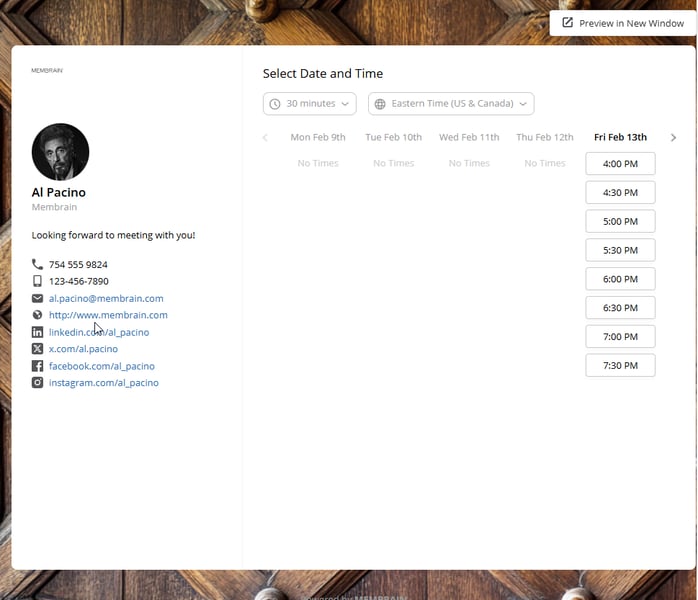
You can control the overall look and feel of the page through font and layout options.
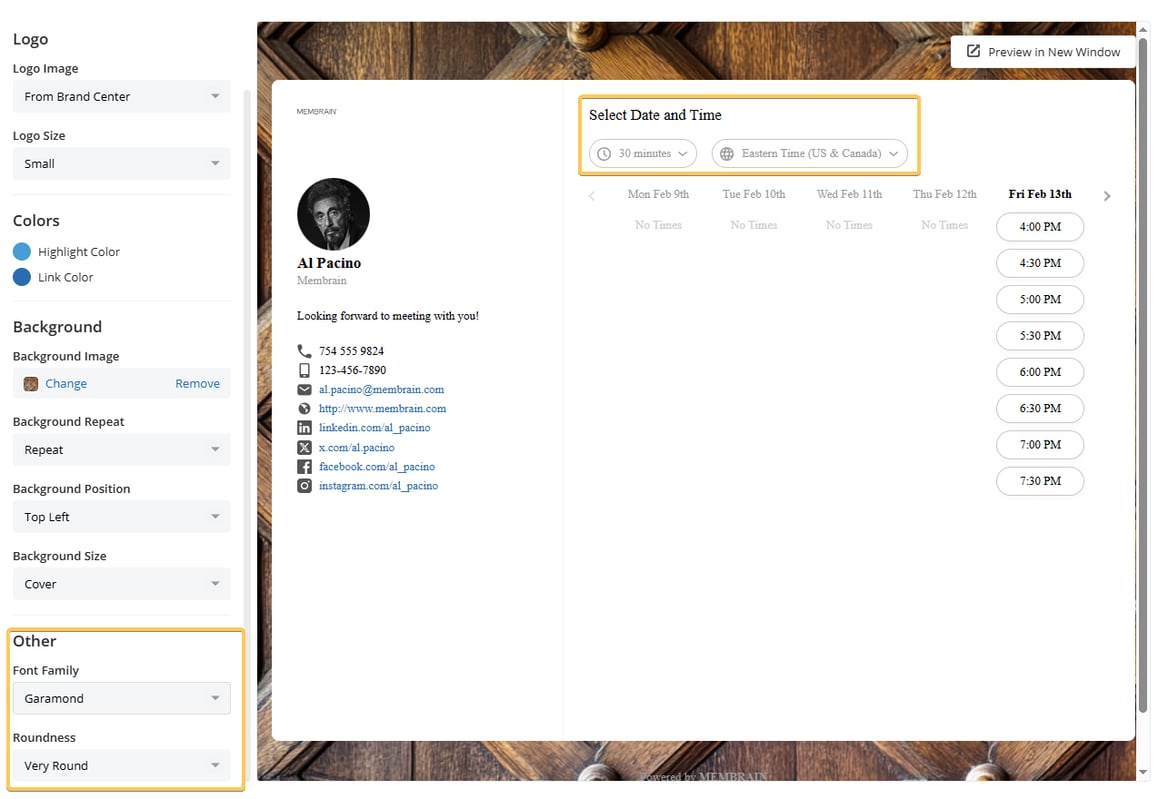
Select from the available font options. Custom fonts cannot be imported.
Control how rounded interface elements appear. Options range from square to more rounded styles, affecting elements such as time selections and buttons.
These settings apply to all Meet Pages using this style.
Once saved, a Meet Page Style can be selected when creating or editing a Meet Page.
Multiple Meet Pages can use the same style. If you update the style later, all associated Meet Pages will reflect those changes automatically.




