Popular Content
Membrain for:
When creating a Flows Process in Membrain, one of the key configuration steps is selecting a Parent Type. This setting determines what kind of entity the Flow is tied to - and helps ensure the workflow is properly connected within your CRM environment.
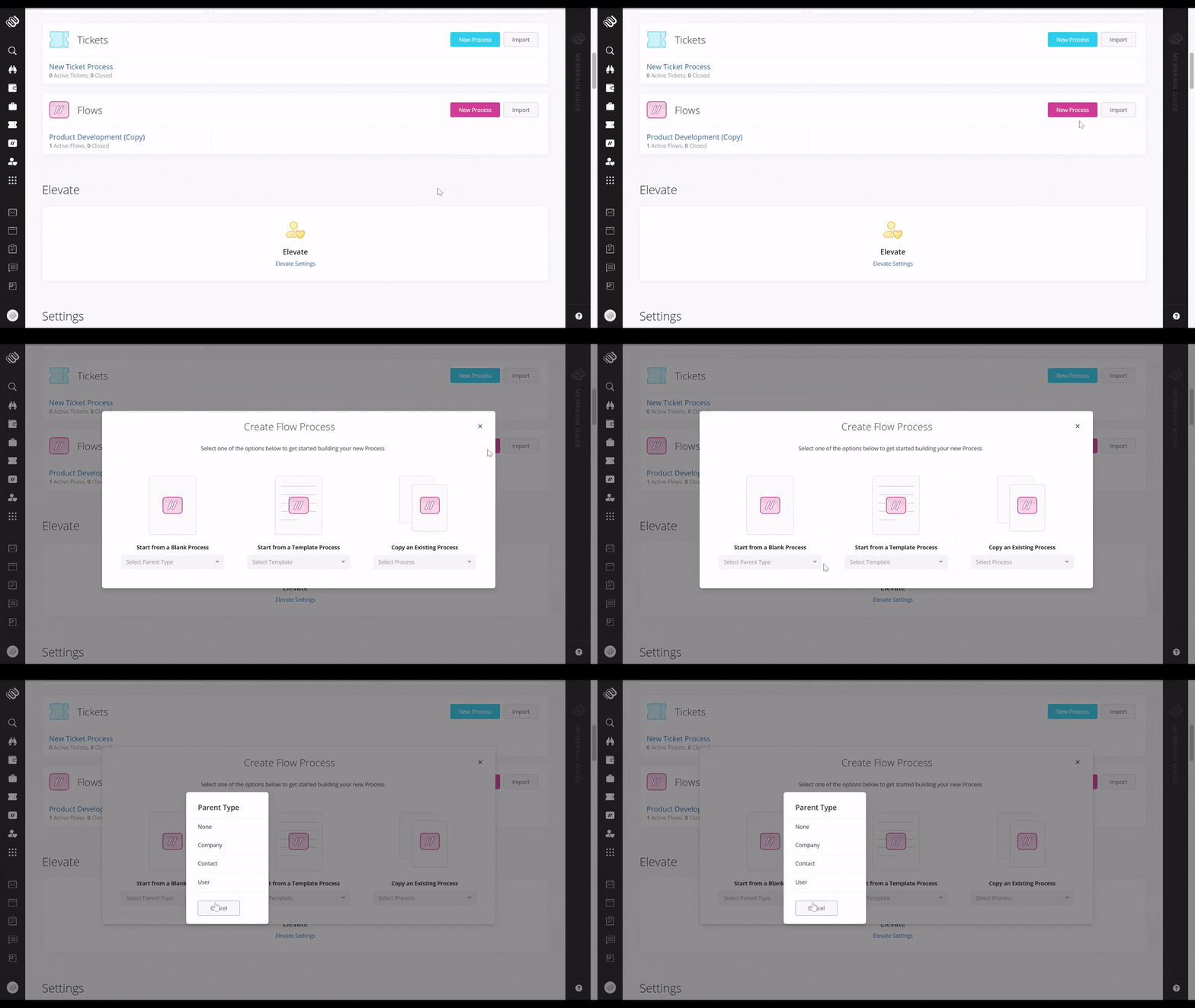
There are four Parent Types to choose from:
Selecting the right Parent Type ensures your Flow connects to the right data and fits naturally into your workflow.
Each Parent Type determines what the Flow is centered around, whether that’s a company, contact, user, or no specific entity. This affects where the Flow appears in Membrain and who is expected to work within it.
When deciding which Parent Type to use, focus on ownership and intent. Ask yourself who the process belongs to and who needs visibility into it. A company-level process is typically shared across a team, while a contact or user Flow is more focused and specific.
The selected Parent Type determines what fields are available throughout a Flow Project.
Each Flow Project always has access to its process fields, along with fields associated with its selected Parent Type. For example, a Company Flow can access company fields, while a Contact Flow can access contact fields.
Relationship fields can also be used in any Flow, regardless of Parent Type, allowing you to connect additional records such as Companies, Contacts, Projects, Tickets, or other Flows when needed.
Graph behavior is separate from Parent Type and is based on the type of graph being used:
Because of this, relationship fields play an important role when building reports inside Flows. If a record is not connected to the Flow Project through a relationship field, it will not be included in Project graphs.
Choose this when your Flow is related to an organization rather than a specific person.
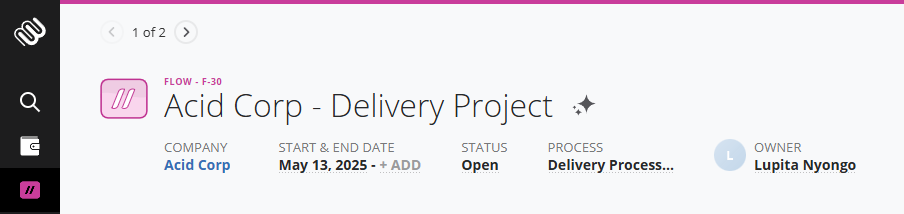
It ensures everyone interacting with a company has visibility into shared processes and responsibilities, reducing handover issues and missed steps.
Flow Projects with a Company Parent Type have access to:
Graph behavior is the same for all Parent Types. See Data Availability and Reporting in Flows above for details on how graphs are scoped.
This is the right option when the process focuses on an individual person - typically a prospect, buyer, or stakeholder.
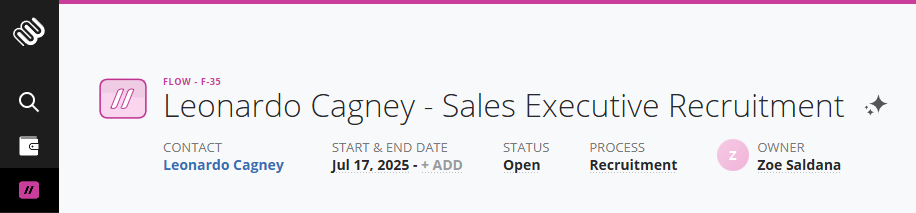
It keeps workflows personal and targeted, ensuring your actions stay aligned with an individual's role.
Flow Projects with a Contact Parent Type have access to:
Graph behavior is the same for all Parent Types. See Data Availability and Reporting in Flows above for details on how graphs are scoped.
Use this type when the Flow is tied to an internal team member - typically to support individual routines or responsibilities.
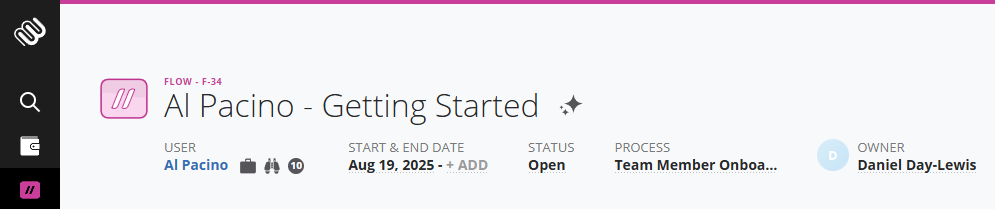
It helps team members stay organized and consistent in their day-to-day work, even outside of sales opportunities.
Flow Projects with a User Parent Type have access to:
Graph behavior is the same for all Parent Types. See Data Availability and Reporting in Flows above for details on how graphs are scoped.
For Flow Processes with the User Parent Type, a setting in the Process Settings allows you to automatically grant view access to the assigned Parent User.

When the Grant Access to Parent User toggle is enabled, the Parent User is automatically able to view the Flow Project they are responsible for. This toggle is available for all Flows with a Parent Type of User, and it is enabled by default for newly created Flow Processes of this kind.
With this setting active, the Parent User does not need to be manually added to the project to gain access. This feature simplifies access management and ensures that responsible team members always have visibility into their assigned Flows.
If your workflow doesn’t need to be tied to a specific entity, select “None.” This is useful for general-purpose Flows or templates.
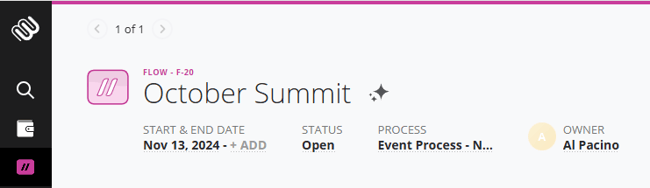
It gives you the flexibility to create repeatable structures that are reused across different contexts or teams.
Flow Projects without a Parent Type have access to:
Graph behavior is the same for all Parent Types. See Data Availability and Reporting in Flows above for details on how graphs are scoped.




