AI Autofill allows you to automatically generate field values using AI prompts that you’ve created in Membrain. Instead of writing summaries, classifications, or descriptions by hand, you can configure the AI to generate that content for you, directly into the field where it’s needed.
This guide walks you through how to create an AI-based autofill automation using prompts and logic that reflect your sales process.
To create a new Data Autofill, go to System Setup and open the Automations page. Click New, then choose Autofill from the options.
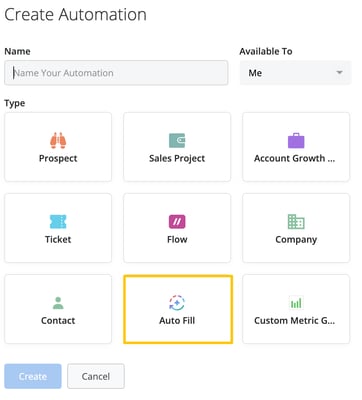
You’ll be asked to select the field that you want to automatically populate. AI Autofill supports a broad range of field types, including:
Text
Rich Text
Single Select
Multi Select
Number
Once you've selected your field, choose AI as your autofill generator type. This method uses the AI prompt system within Membrain to produce content that fits the context of your record.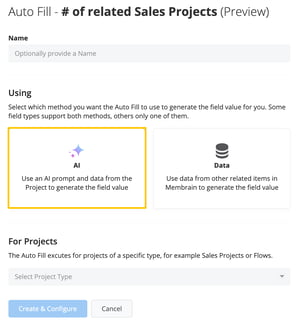
Next, set the “For Projects” option to define where this autofill should run. This determines the project type (such as Sales Projects, Account Growth Projects, etc.) the automation will apply to. Each autofill setup can only target one project type, so choose the one that matches the field you’re updating.
You'll now decide when the autofill should run. Membrain gives you several condition options. You can update the field only if it’s empty, or you can choose to run the automation if the field hasn’t been updated for a certain number of days. This helps prevent unnecessary updates while keeping your data fresh.
You can also apply filters to narrow down which records should be affected. For example, you might only want to run the automation on projects in a specific stage or health category.
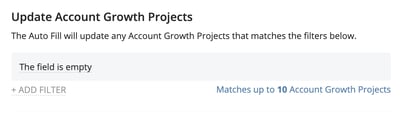
Once you've chosen AI as your autofill method and defined when and how it runs, the next step is to select the AI Prompt that will generate the field values.
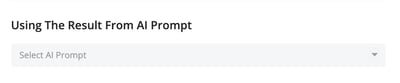
You can choose from existing prompts in your workspace or create a new one directly during setup. Make sure the prompt clearly communicates what you want the AI to produce.
If you're filling a field like a dropdown (single or multi-select) or a number, your prompt must include language that helps the AI return an exact match. The more specific and structured your prompt, the more accurate and useful the result will be.
Not sure how to write your first prompt? Learn more about creating effective AI prompts.
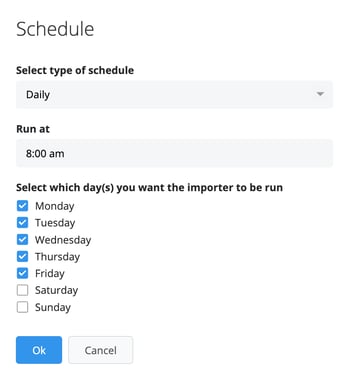
Finally, schedule how often the autofill should run. You can choose hourly, daily, or monthly intervals, and define what time of day and which days of the week it should execute. Once saved, the automation will begin running according to your configuration.
Say you want to generate a short summary of recent stakeholder interactions and store it in a Rich Text field on your Sales Project. You would:
Create or choose a Rich Text field
Write an AI prompt that asks the AI to summarize the most recent stakeholder comments and call notes
Set the automation to run weekly if the field hasn’t been updated in the past 7 days
Apply filters to only run for Sales Projects in certain stages or processes
Once active, the field will be updated with fresh content based on real project activity. The best part? Your team didn't need to write anything manually to get these valuable insights.
Data Autofill is ideal for keeping numeric fields up to date using actual values from across your CRM. Whether you’re counting projects, rolling up revenue, or syncing key dates, it gives you powerful tools to automate the work that often slips through the cracks.
If you want to learn how to set up an AI-based autofill using prompts instead, check out our article on that here.




