The Custom Metric Generator allows you to automatically calculate and maintain values across your data and store them in Custom Metrics. Instead of manually compiling numbers from multiple records, you can define how data should be aggregated and let Membrain handle the calculation on a recurring schedule.
This is especially useful when you want to track performance across teams, measure activity levels, or monitor key metrics without relying on manual updates. By working across multiple records at once, the Custom Metric Generator gives you a consistent and scalable way to keep your metrics up to date.
The Custom Metric Generator is most useful when you need to consistently track values across multiple records without manual effort.
For example, you might calculate total revenue from won sales projects and assign it per project owner, track the number of open prospects in a specific industry, or monitor activity levels across different teams. By defining the data source, aggregation method, and assignment logic, you can create metrics that reflect how your business actually operates.
Custom Metric Generators are created from the Automations page in System Setup.
To get started, open System Setup and navigate to Automations. Click New, select Custom Metric Generator, and press Create. From here, you'll choose a custom metric and define how the metric should be calculated and where the results should be stored.
Before creating a generator, make sure the Custom Metric you want to use already exists, as the generator will populate values into that metric.
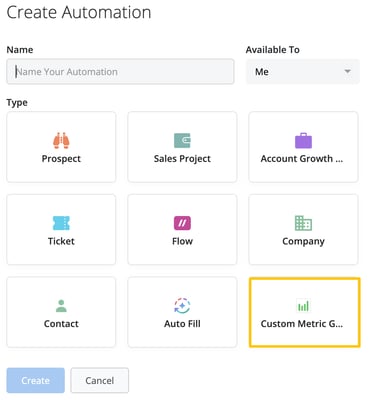
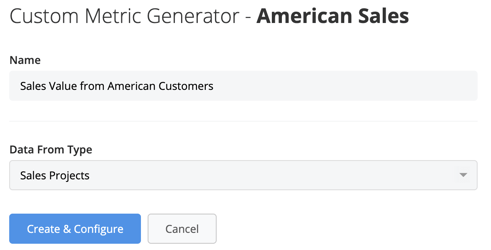
The first step is to name what you're generating and define where the data should come from.
You can choose from different areas of Membrain, including Companies, Contacts, Activities, Documents, Prospects, Sales Projects, Account Growth Projects, Tickets, or Flows.
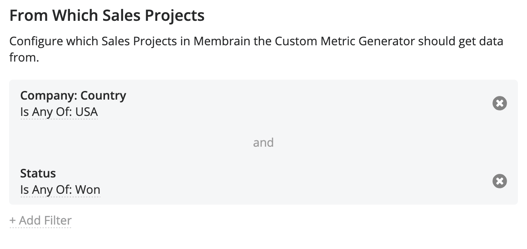
Once the data source is selected, you define what should be calculated. This is where filtering comes into play. You can apply filters to narrow down which records should be included in the calculation. For example, you might filter Sales Projects to only include those that are marked as Won, or limit results to a companies from a specific country or industry.
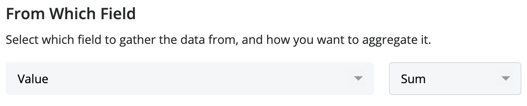
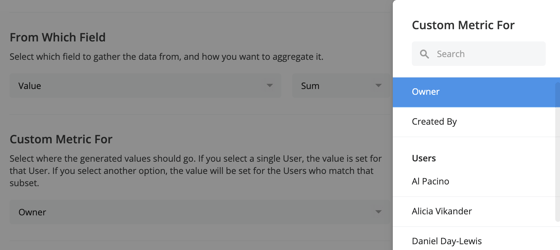
After applying filters, you select the field you want to gather data from and define how it should be aggregated. You can calculate values using options such as sum, average, minimum, or maximum, depending on what you want the metric to represent.
This combination of data source, filtering, and aggregation determines how the final value is produced.
Next, you define where the generated value should be assigned.
You can choose to assign the metric to a specific user or distribute it across users based on a selected user field, like owner. If a single user is selected, the full value will be assigned to that user. If a user field is selected, the value will be calculated and assigned to each user that matches that field.
This allows you to track metrics either at an individual level or across a group, depending on how you want to measure performance.
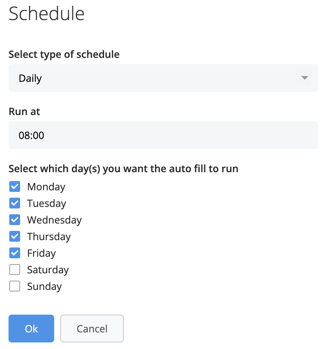
The Custom Metric Generator runs on a schedule, ensuring that your metrics stay up to date over time.
You can define how often it should run, with options such as hourly, daily, or monthly. Once configured, the generator will execute automatically based on your schedule and update the selected Custom Metric accordingly.
Once configured and running, the generated values are stored in your selected Custom Metric and can be used across Membrain.
These metrics can be surfaced in dashboards, goals, and Elevate, making it easier to track performance, monitor trends, and share insights with your team.
A common use case for the Custom Metric Generator is measuring regional performance across your sales team.
For example, you may want to understand how much revenue is being generated from customers in the United States. To do this, you would select Sales Projects as your data source and apply a filter where the Company Country is set to United States. You would then choose the Value field and set the aggregation method to sum, ensuring that all relevant deal values are combined into a single metric.
To make this insight actionable, you would assign the metric based on Sales Project Owner. This means each user will have their own total, showing how much revenue they are generating within that region.
Once scheduled, this metric will update automatically, giving you an ongoing view of regional performance without needing to manually compile or update the data. This makes it easier to compare performance across markets, identify trends, and support more informed decision-making.
By setting up Custom Metric Generators in this way, you create a reliable system for tracking the metrics that matter most to your business. Instead of relying on manual updates or static reports, your data stays current and reflects real activity across your organization. This allows you to spend less time compiling numbers and more time understanding what they mean and how to act on them.




