Popular Content
Membrain for:
The Navigator provides a centralized way to quickly access your views and recently opened records within a specific area of Membrain. Instead of navigating through multiple menus or switching between views manually, the Navigator gives you a clear overview of what is available and what you have worked on recently.
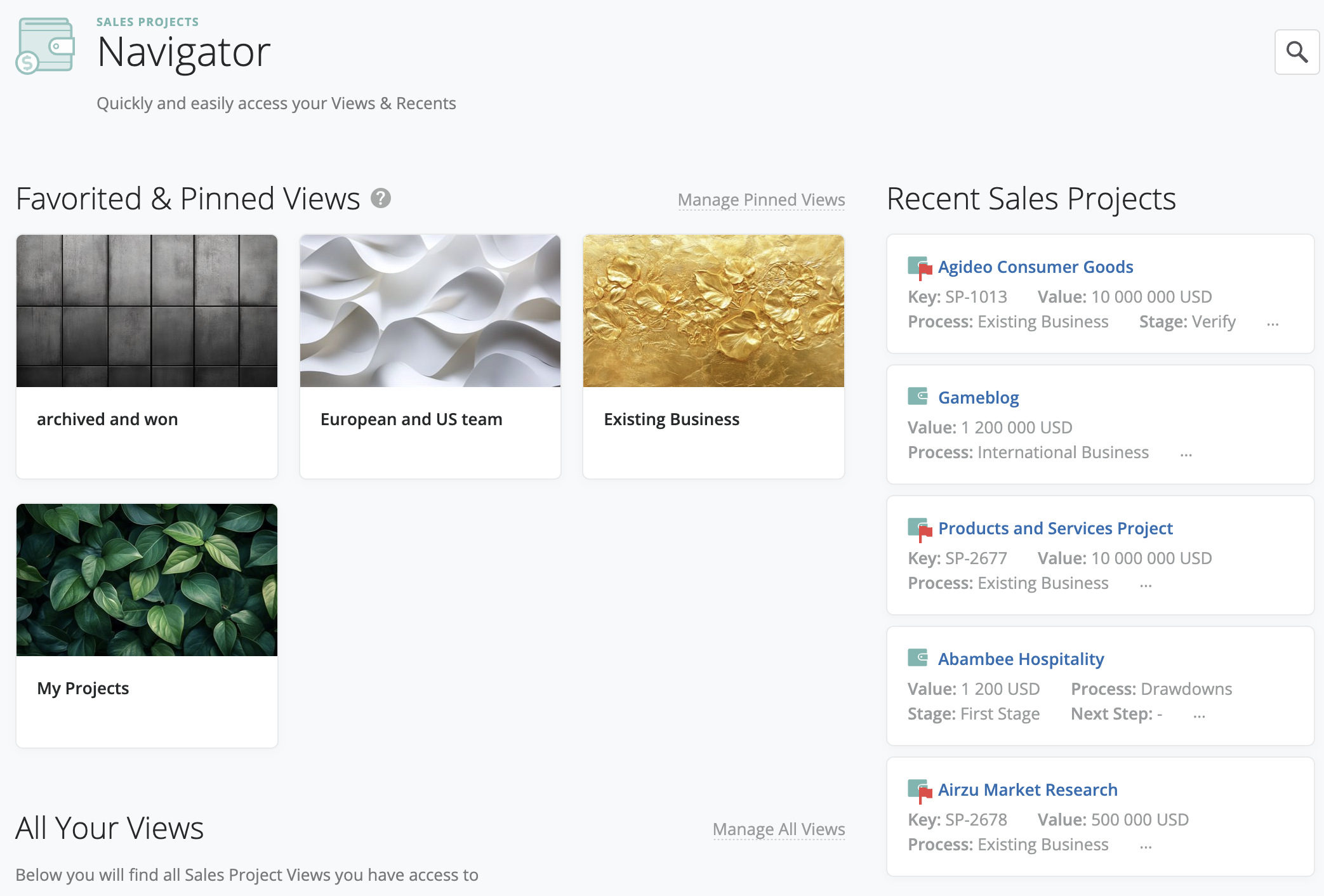
The Navigator always reflects the area you are working in.
If you open it from Sales Projects, you will see Sales Project views and recent sales projects. If you open it from Prospecting, you will see Prospecting views and recent prospects.
This ensures that everything you see in the Navigator is relevant to your current workflow.
You can access the Navigator from most project-based areas in Membrain, such as Prospecting, Sales Projects, Account Growth, Tickets, and Flows.
One common way to open the Navigator is from the tabs at the top of the page. At the far right of the tabs, you will find the Navigator icon. Clicking this icon takes you directly to the Navigator.
 You can also access it from the left-hand menu. Hover over a product, such as Sales Projects, and select the Navigator option from the menu that appears.
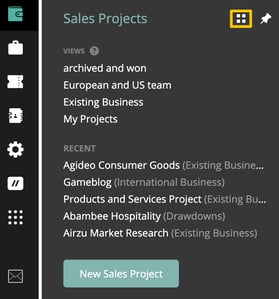
The Navigator is organized into sections that help you quickly find both views and records relevant to your work. The content shown is always specific to the area you opened it from.
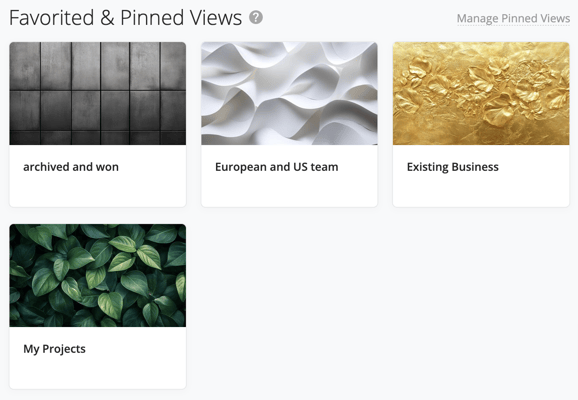
At the top of the Navigator, you will find your Favorited and Pinned Views.
Favorited Views are personal. These are views you have marked to access quickly and reflect how you prefer to work.
Pinned Views are set at the team level and are typically used to highlight important or commonly used views. These are managed by administrators and ensure that key views are easy to find across the team.
Pinned views always appear in this section and are also visible as tabs for quick access.
If you are an administrator, you will see an option to manage pinned views. This allows you to define which views should be highlighted for your team. Administrators can also manage pinned views and dashboards centrally from System Setup under the Productivity and Collaboration tab, where pinned views can be configured across areas such as Sales Projects, Account Growth Projects, Prospects, Flows, Tickets, and Dashboards.
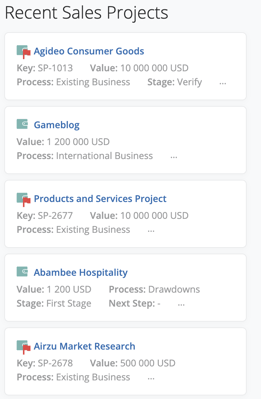
Next to the views section, you will see Recent Projects.
This section shows the records you have recently opened within the current area. For example, if you open the Navigator from Sales Projects, this section will show your recently accessed sales projects.
This makes it easy to return to work you were previously doing without needing to search for it again.
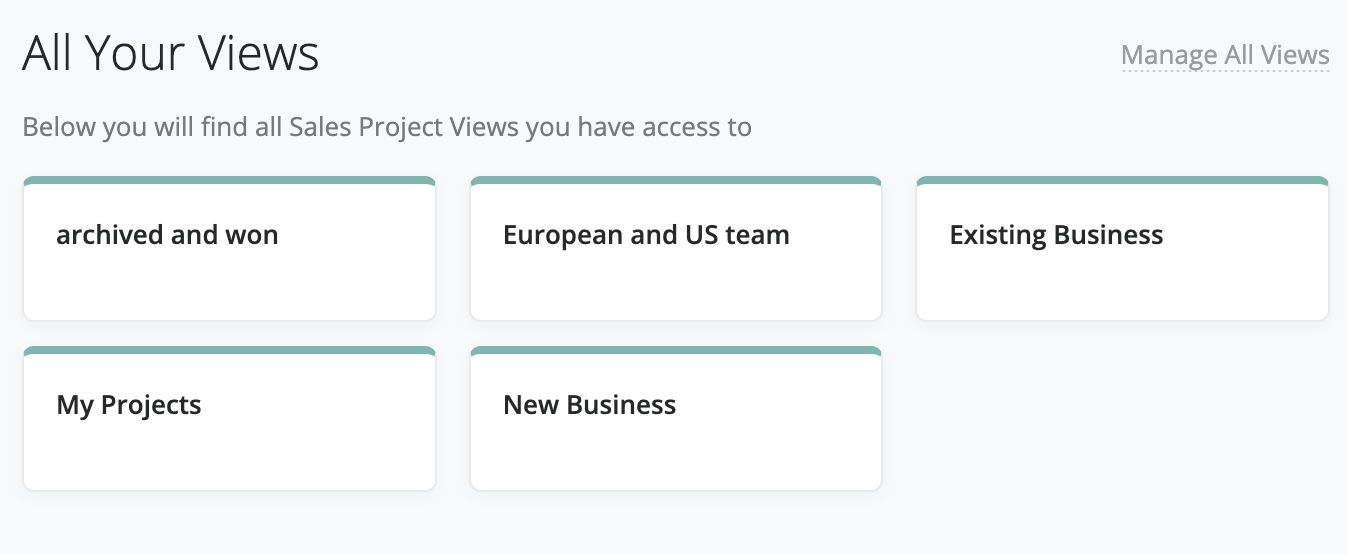
Below the favorited and pinned section, you will find All Your Views.
This section includes all views you have created, as well as any views shared with you that you have permission to access. It provides a complete list of available views within the current context.
If you are an administrator, you will also see an option to manage all views, which links to the central view management area.
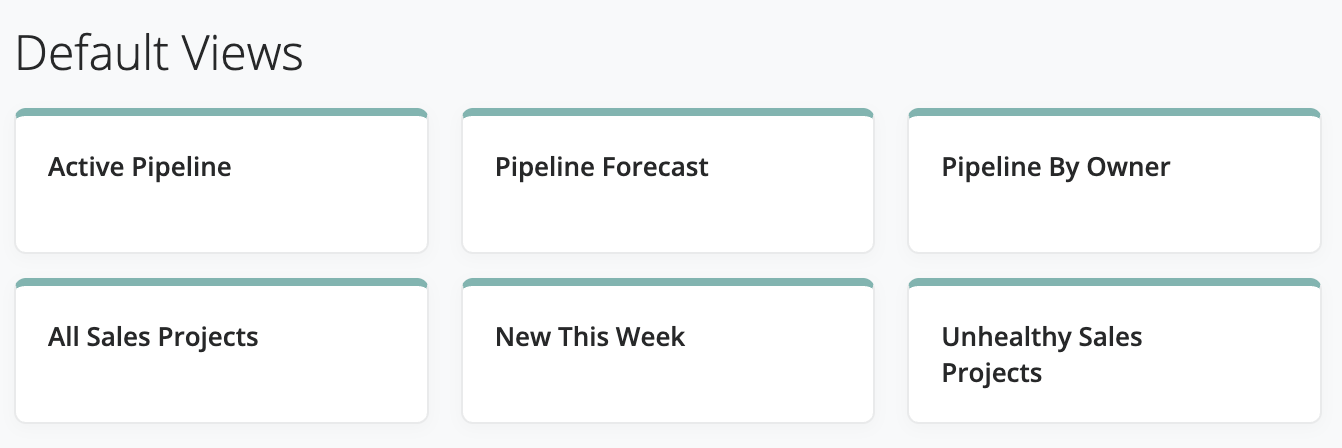
At the bottom of the Navigator, you will find Default Views.
These are standard views provided in Membrain. They are available to all users and cannot be modified. You can use them as they are or use them as a starting point when creating your own views.
The Navigator is most useful when you need to move quickly between different views or return to recent work.
For example, you might switch between a personal view you use daily, a pinned team view used in pipeline reviews, and a recently opened project you were working on earlier. Instead of navigating through multiple steps, you can access all of these from one place.
By keeping your most important views favorited and relying on pinned views for team alignment, the Navigator becomes a fast and reliable way to stay focused on the right information.




