

 button to your top-right to create a new Quote Style.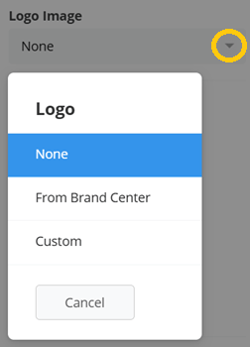
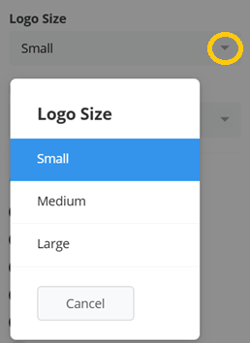
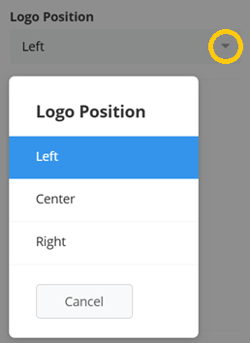
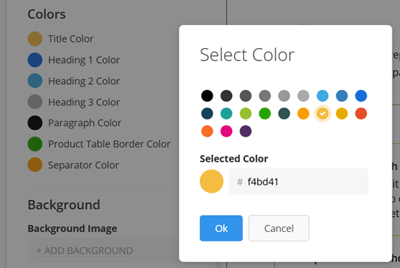
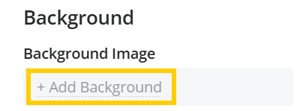
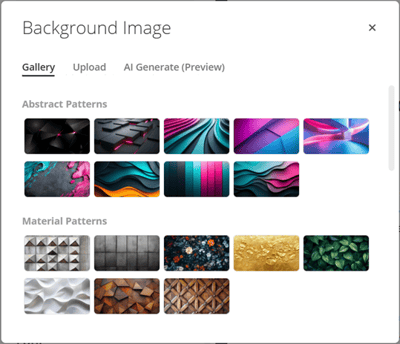
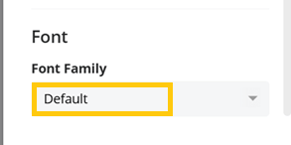
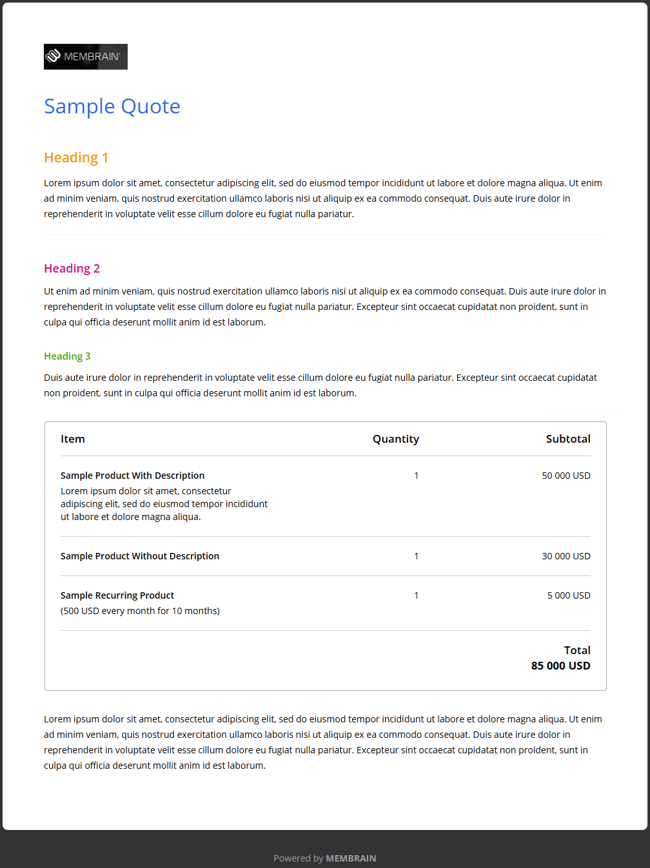
Here's an example of what the styling from a Quote Style could look like.
Using a Quote Style
Option 1 - Apply to a Quote Template
-
Go to System Setup > Settings > CRM > Quote Templates.
-
Open an existing Quote Template or create a new one.
-
From the Edit tab, scroll down to the Quote Style dropdown and select one of your created styles.
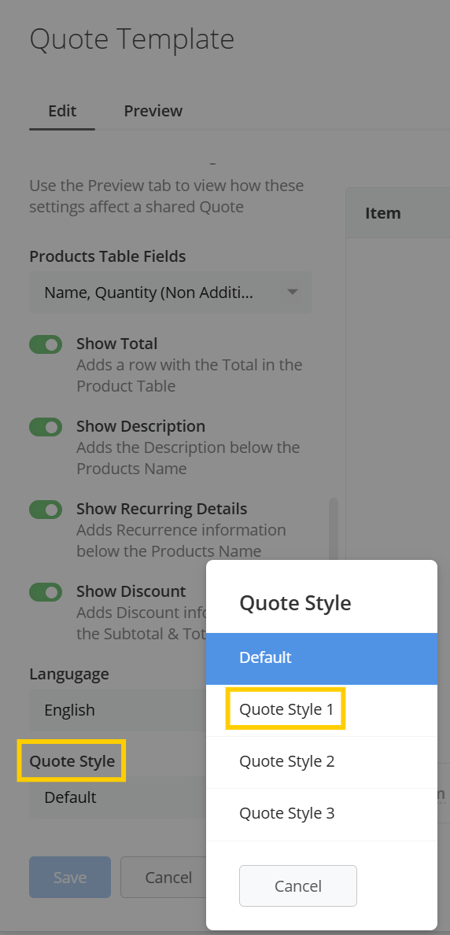 Tip: Use the Preview tab to confirm the visual result.
 -
When you're ready, press Save.
With this approach, any Quote that you create using that Quote Template will automatically inherit the style from the applied Quote Style.
Option 2 - Apply Directly to a Quote
-
Navigate to your Sales Project, and scroll down to the Documents section.
-
Open an existing Quote or create a new one.
-
Scroll down to the Quote Style dropdown and select one of your created styles.
-
When you're ready, press Save.
This approach allows reps to apply a Quote Style manually, which is very useful if they're creating a Quote from scratch, and not from a Quote Template.
Option 3 - Set a Default from the Brand Center
- Go to System Setup > Settings > General > Brand Center
-
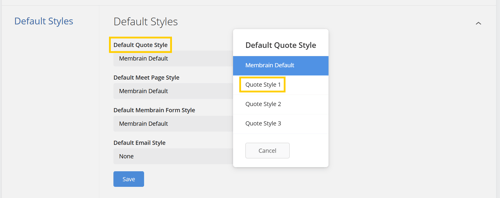
Expand the Default Styles tab..
-
Select the style you want to apply from the Default Quote Style dropdown.
-
Click Save.
Each new Quote that is created without a predefined Quote Template will be preset to use the default styling from the Brand Center.
Managing Quote Styles
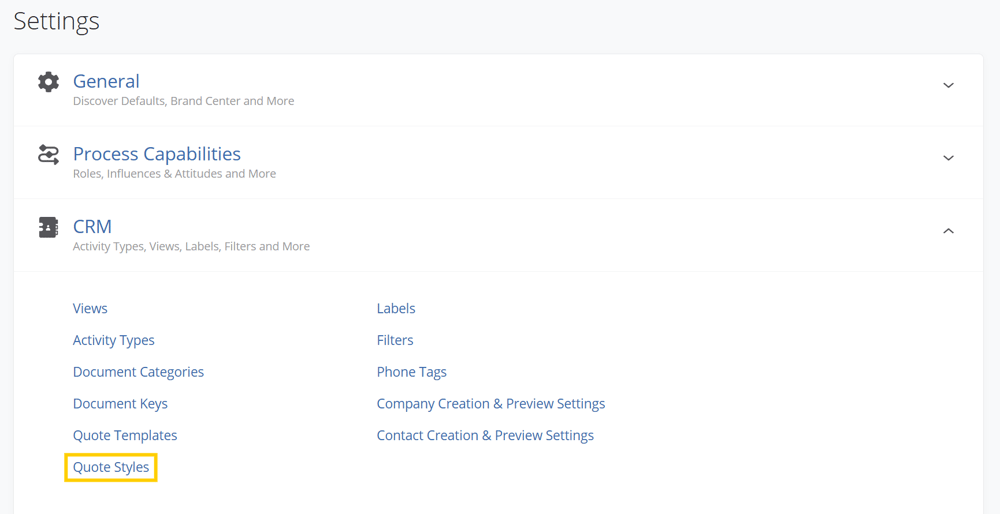
Administrators and users with the relevant permissions can view and manage all Quote Styles under System Setup > Settings > CRM > Quote Styles.
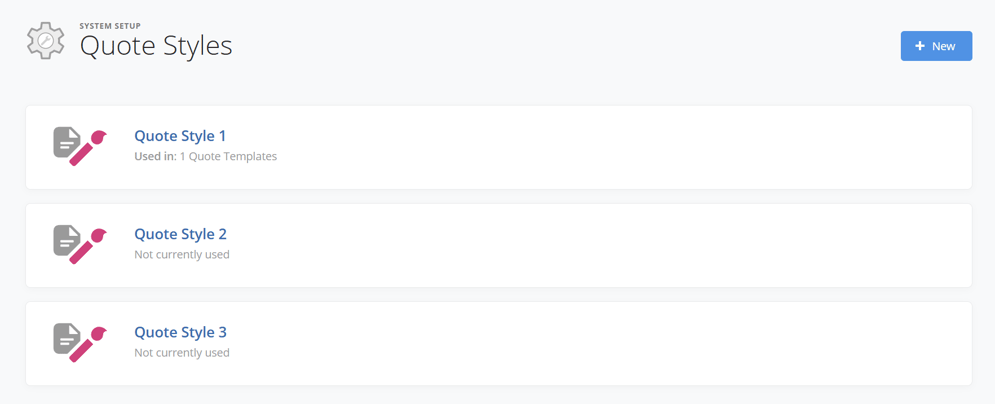
From this view, you can:
- Create New – Build a new branded Quote Style layout from scratch. Click on the
 button at the top-right of the view.
 - Edit – Update an existing Quote Style by opening it, making your changes, and then pressing Save.
- Preview – Quickly see how each Style will appear when applied to a Quote, by looking on the right-hand side when inside the Quote Style dialog.
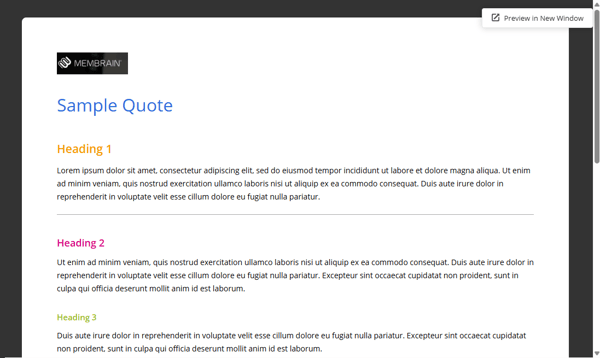 .
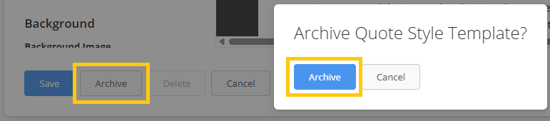
. - Archive – Remove outdated Styles without permanently deleting them.
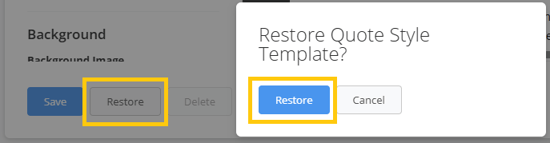
- Restore - Restore any archived Quote Styles to make it available for use again.
- Delete – Permanently remove Quote Styles that should no longer be used.
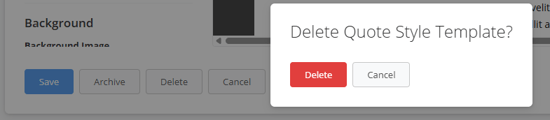
If the Quote Style is used in any Sales Process, the 'Delete' option will be disabled.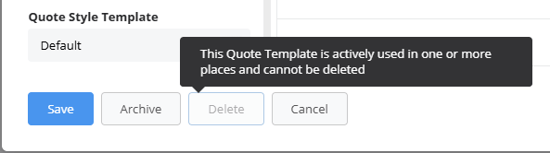
Note: After deletion, there is no possibility to restore the Style.



