Popular Content
Membrain for:
Content Cards are internal guidance resources that help provide additional context, instructions, or insights directly inside Membrain. They allow administrators to add helpful information to specific areas of the system so sales teams can access the right guidance exactly when they need it.
Unlike other types of content in the Content Hub, Content Cards are designed for internal use only. They are not meant to be shared externally with prospects or customers. Instead, they help support sales teams with process guidance, best practices, and important information during their workflow.
Content Cards are typically created and managed in the Content Hub, but they can also be attached directly to areas of Membrain such as process stages, steps, or custom fields. Once context has been added, Membrain will surface the Content Card automatically when it is relevant.
 icon in the bottom left above your profile picture, or by pressing H on your keyboard.
 button in the top right.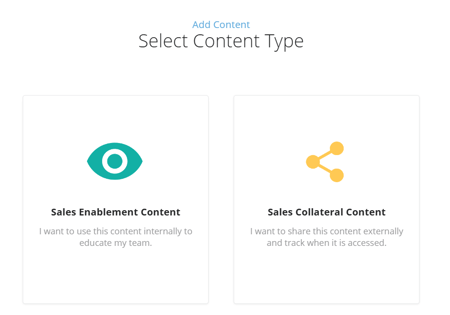

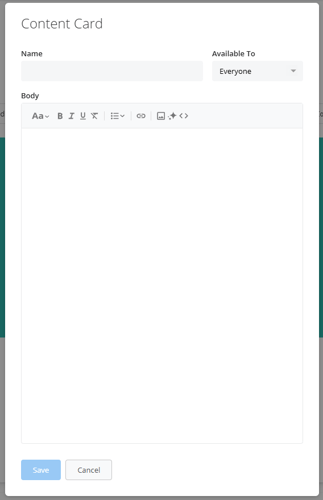
Like other content in the Content Hub, Content Cards become useful when they are connected to the right context. Context determines when and where Membrain displays the Content Card, allowing it to appear automatically when it is relevant to the user’s workflow.
Context can include things such as sales processes, stages, steps, activity types, stakeholder roles, or custom field values.
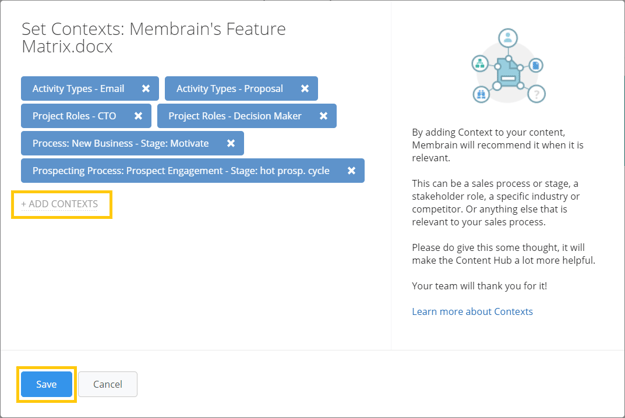
For detailed instructions on how to add and manage contexts, review the "how to add context" section in this article.
Content Cards appear directly within the workflow where the information is most helpful.
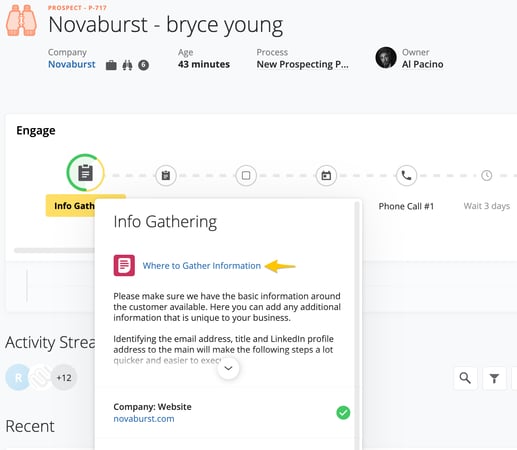
When a Content Card is connected to a sales process stage, it appears when you hover over the stage name. Users can click the card to expand it and view the full content.
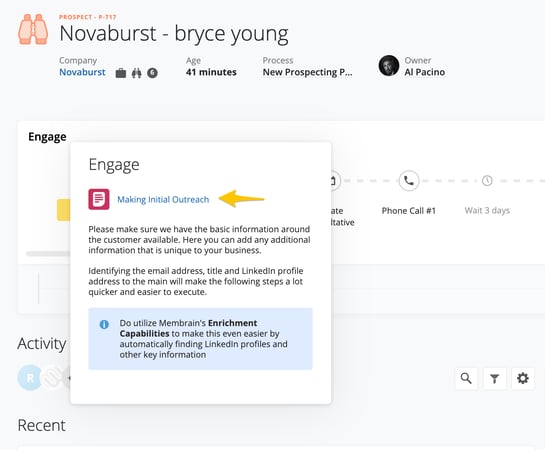
When connected to a process step, the card becomes available as part of the step guidance, helping users understand what needs to be done at that stage of the process.
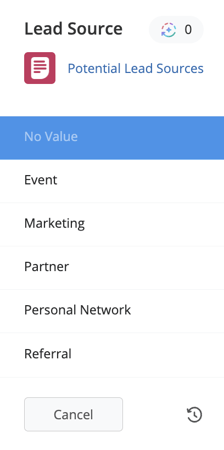
Content Cards can also be attached to custom fields. In this case, the card appears at the top of the field when a user clicks into it, providing additional information or instructions while entering data.
Because Content Cards are tied to context, they can also appear in recommended content areas across Membrain, such as when creating emails, appointments, or calls.
Each Content Card opens directly inside Membrain rather than in a new browser tab.
Content Cards can be updated or managed at any time by users who have the appropriate permissions.
To edit a Content Card, open the card and click the three-dot menu in the top right corner, then select Edit. This allows you to modify the name, availability settings, or the content within the card.
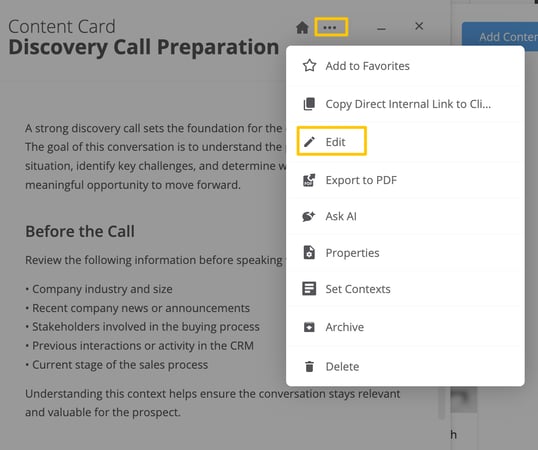
The same menu also provides additional management options, such as adding the card to Favorites, copying a direct link to the card to be shared internally, exporting the card as a PDF, asking questions using Ask AI, viewing detailed Properties about the card, setting contexts, or archiving or deleting it when it is no longer needed.
Content Cards help ensure that important knowledge and guidance are available exactly when users need it. By connecting cards to the right context, organizations can surface process guidance, best practices, and key information directly within the sales workflow.
Because Content Cards are integrated with the broader Membrain platform, they can also support AI-powered features such as Ask AI, allowing the system to reference relevant information stored in your Content Cards when generating responses.
By combining contextual guidance with AI-powered assistance, Content Cards help ensure your team always has the right information available while working in Membrain.




