Popular Content
Membrain for:
Getting tired of having to clean up data import files for duplicates? The Advanced Settings for imports in Membrain gives you control over how Membrain manages duplicates.
On a standard import, the Advanced Settings have a default configuration to help you prevent importing duplicates. To see what the default settings are, you can click on Advanced Settings in the bottom right corner of an import page in Membrain.
In Advanced Settings you can also set up your own configuration, which we recommend to only be used in specific use cases.
In most cases of data imports, changes to this setting are not necessary.
When you are on an import page in Membrain, the Advanced Settings are pre-configured by default and automatically applied based on the context of the import. This means different matching criteria are set depending on whether you are importing Companies, Contacts, different Project types, Sales Project Products and so on.
Most imports have a additional, separate Advanced Settings for deduplication of relating items (like Company or Sales Project) based on the default settings for that import type and in those cases Membrain will use both groups of Advanced Settings for the deduplication process.
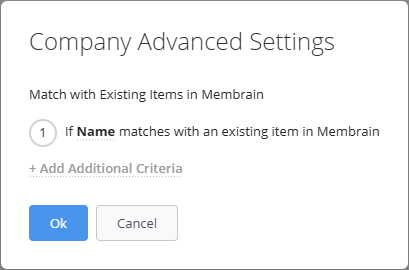
The default Advanced Settings for the Company import is:
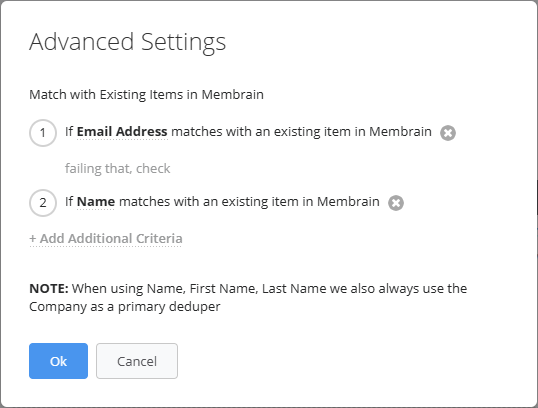
The default Advanced Settings for the Contact import are:
or
Combined with the Company Advanced Settings:
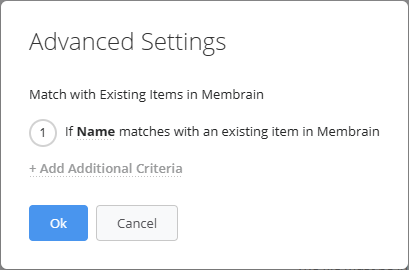
The default Advanced Settings for the all project imports are:
Name
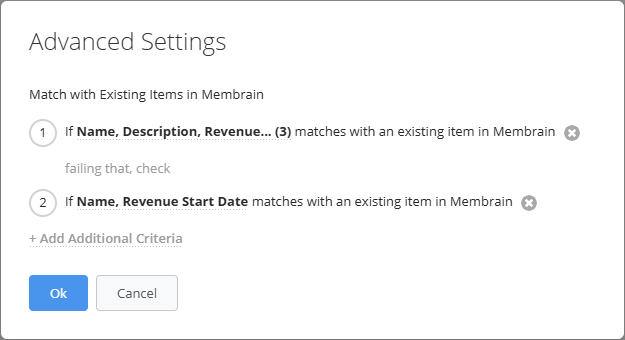
The default Advanced Settings for the Sales Project Product import are:
or
Combined with the Sales Project Advanced Settings:
To explain how the Advanced Settings for deduplication work, let’s walk through a simple example where you import three Contacts.
First, upload your import file. In this example, the Create New option is enabled and Update Existing is disabled. After uploading the file, click Next and map the columns in your file to the corresponding fields in Membrain.
When you click Import, Membrain evaluates each row in your file using the fields defined in the Advanced Settings. It compares the selected matching criteria (individual fields or combinations of fields) with existing records in Membrain to determine whether a duplicate already exists.
Based on this comparison, Membrain decides whether a new record should be created or if the row matches an existing record.

Because the email matches an existing Contact, Membrain considers this a duplicate.
The Contact already exists in Membrain, so the row is skipped and no new Contact is created.

Membrain considers the Contact already existing and skips the row to prevent creating a duplicate.
The Contact will remain related to the Company Novaburst North America based on the Company: Name setting.

Because no match is found, Membrain creates a new Contact and relates it to the Company Novaburst North America based on the Company: Name setting.

Because the Contact already matches on the Email Address, Membrain identifies this row as an existing Contact.
Membrain skips the row to prevent creating a duplicate Contact, even though the Company: Name (Novaburst Europe) does not match the Company currently connected to the Contact (Novaburst North America).
The existing Contact remains unchanged.
Another use case could be that your import file potentially consists of duplicates, and you are certain that the items you are importing do not already exist in Membrain. If that file were to be imported, Membrain could help you prevent that duplicated items get imported. When the first row of a group of duplicates in your file has been processed on the import, Membrain will use that row to match for other identical rows in the same file, based on the criteria in the Import Advanced Settings.
If you have a specific use case, you can change the critera used for the deduplication under advanced settings. The functionality with a manual setup still works the same as if they are pre-configured by default, as explained above.
The Advanced Settings is found in the bottom right corner of an import page.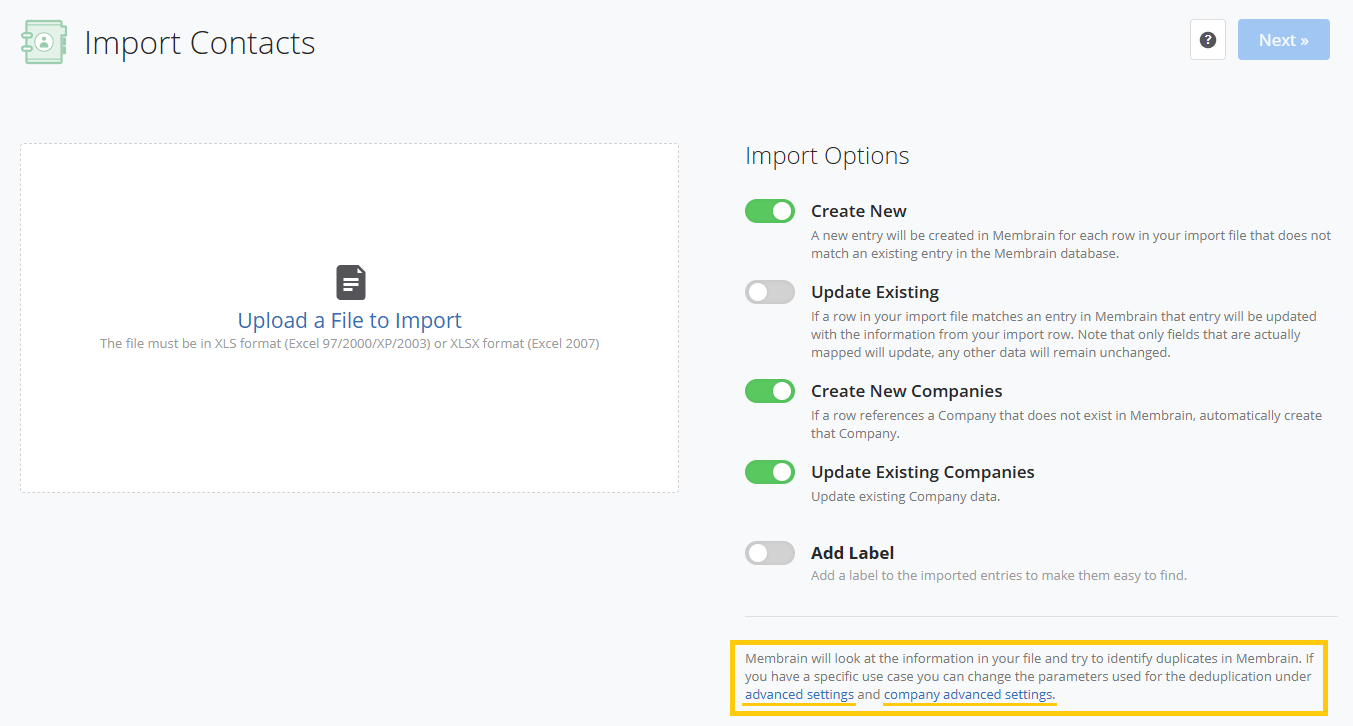
From the Advanced Settings, you have the capability to set up the preferences of the deduping criteria you want to use for your import, by clicking on one of the default criteria already listed and replacing it or adding to it from the available options in the multi-select list that appears
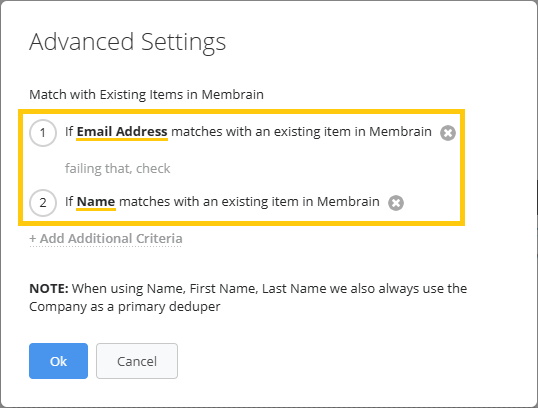
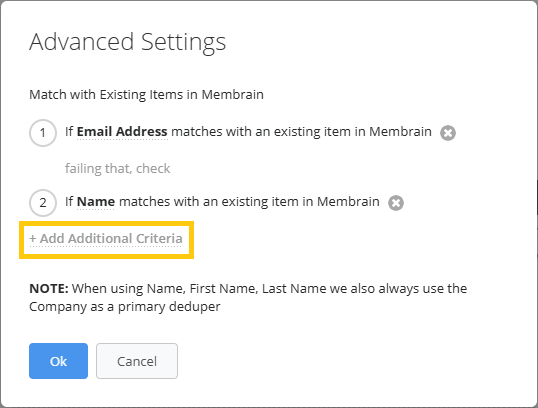
If you want to use the default settings but want to add more options if the defaults fail you can click on +Add Additional Criteria
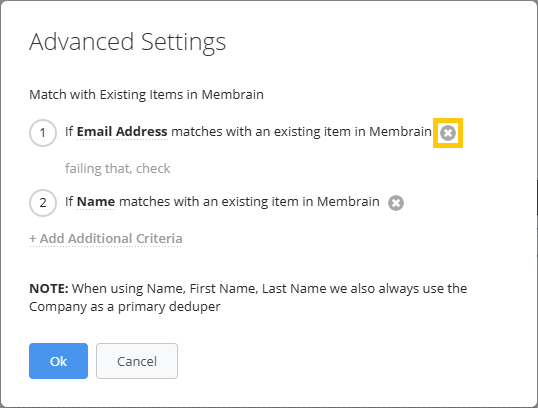
You can also remove any of the default or added critera by clicking the  -icon next to them (there needs to be at least one criteria for deduplication remaining in the Advanced Settings)
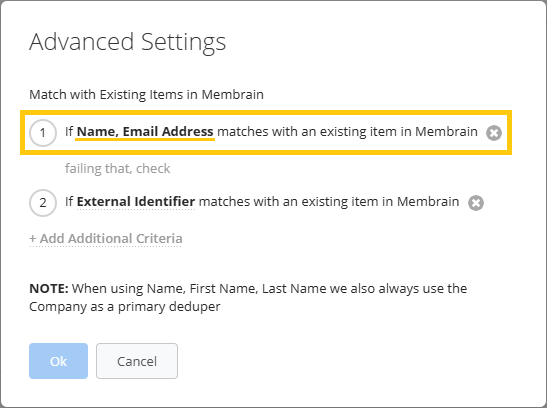
The flexibility of how the deduplication criteria can be set is what makes the import Advanced Settings powerful in specific use cases. You could for example use:
However you set it up, Membrain will only import the row from your import file if it does not find a match of an already existing item that is based on any of the criteria referenced in the Advanced Settings.




