Popular Content
Membrain for:
Phone Tags help your team identify and manage phone numbers more effectively. By assigning tags to phone numbers, users can quickly understand the purpose or status of a number before placing a call.
For example, you might use tags such as Mobile, Direct, Extension, Do Not Call, or Confirmed Incorrect. Because Phone Tags are customizable, each organization can create tags that match its own processes and terminology.
Phone Tags are managed centrally by administrators and can then be applied to phone numbers throughout Membrain.
Phone Tags are applied directly to phone numbers on a Contact. To add or edit a Phone Tag:
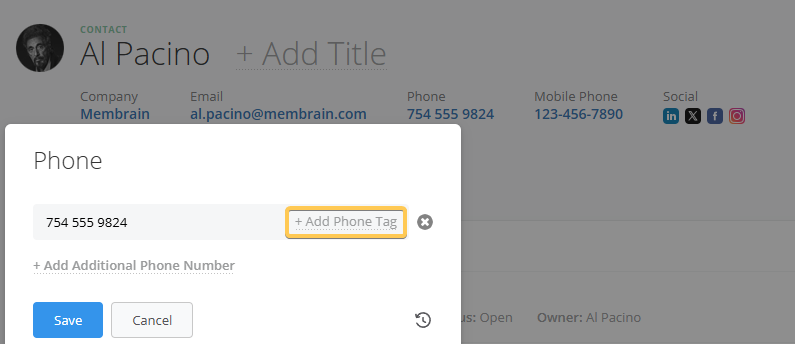
A phone number can exist without a Phone Tag if desired. Using tags is optional, but they can make it much easier for users to select the correct number when contacting stakeholders.
Administrators can set up and manage Phone Tags as follows:
Navigate to System Setup > CRM > Phone Tags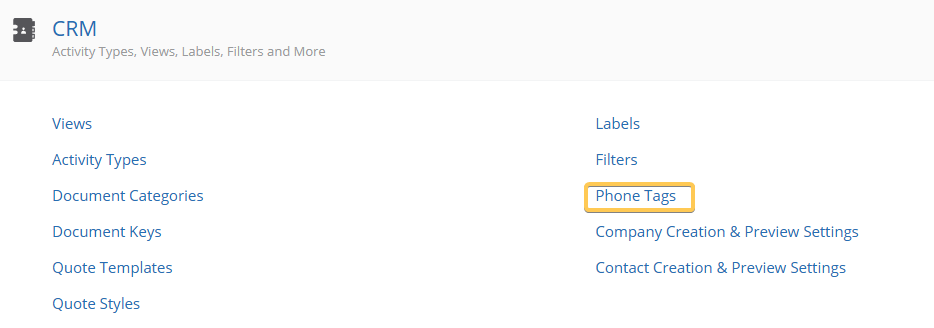
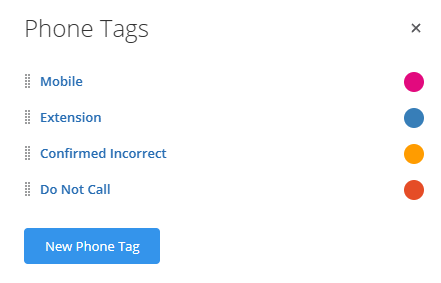
To create a new Phone Tag, click "New Phone Tag". When creating a tag, you simply provide:
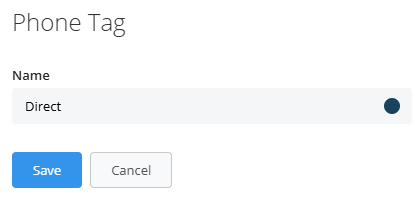
Once saved, the tag becomes available throughout Membrain when editing phone numbers on contacts.
Note that you can have a maximum of 10 Phone Tags.
To edit an existing Phone Tag, click directly on the tag name.
From here, you can update the tag name or change its color. Any changes are reflected wherever that tag is used throughout Membrain.
Phone Tags are displayed in the order they appear in the Phone Tags list.
To change the order, hover over a tag and drag it using the handle on the left side of the row. The new order is immediately reflected wherever Phone Tags are available for selection.
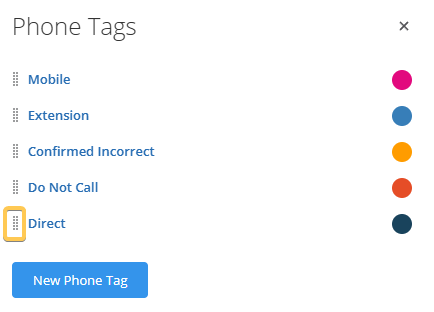
New Phone Tags are always added to the bottom of the list and can be reordered later if required.
To remove a Phone Tag, click on the tag name and select the delete option.
When a Phone Tag is deleted, any phone numbers currently using that tag remain intact, but the tag itself is removed. Those phone numbers will simply no longer have a Phone Tag assigned.




