Popular Content
Membrain for:
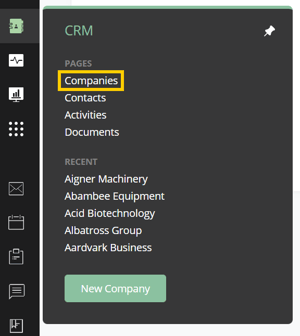
A company is just that, a business where somebody works. The company view contains all contacts, and prospects, sales projects, account growth projects and/or tickets related to that company, as well as that company's specific information.
At the top of the company view, a number of fields are visible:

Details about the Company can be updated automatically by using the Enrich  icon.
icon. 
Fields that can be updated by using the Enrich service are:
You can also enrich multiple companies at once directly from the Companies list view. To do this, select one or more companies using the checkboxes in the list and choose Enrich from the batch action bar at the bottom of the page.
After confirming the action, Membrain will begin enriching the selected companies in the background using your configured external data provider.
Like single-company enrichment, batch enrichment only suggests or fills missing information and will not overwrite existing company data. This feature requires both Insight Engine and the appropriate permissions to enrich companies.
When clicking on the enrichment icon sends Membrain out to a web service that retrieves and offers company and contact updates which you can choose to accept to keep your CRM database up to date with current information. Membrain is using several third-party sources for the enrichment but the coverage and depth of data shouldn't be seen as full or complete by any means. The results can vary a lot depending on industry, company size, geography, etc.
Usually, you will get results such as website and LinkedIn profile, which saves quite a few searches and clicks.
Membrain will not offer updates to the information that is already recorded. It will only suggest new information for fields that have no data recorded.
Note: The Enrichment Tool is a really nice convenience, but not intended as a complete replacement for a full commercial sales intelligence platform.
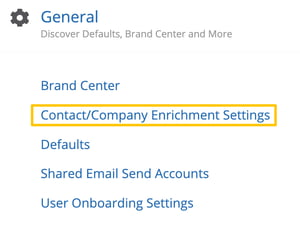
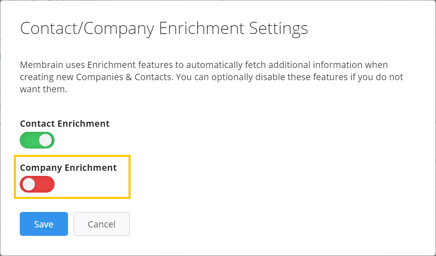
As a Membrain Administrator, you can disable the Enrichment tool in the Privacy & Security section in System Setup.
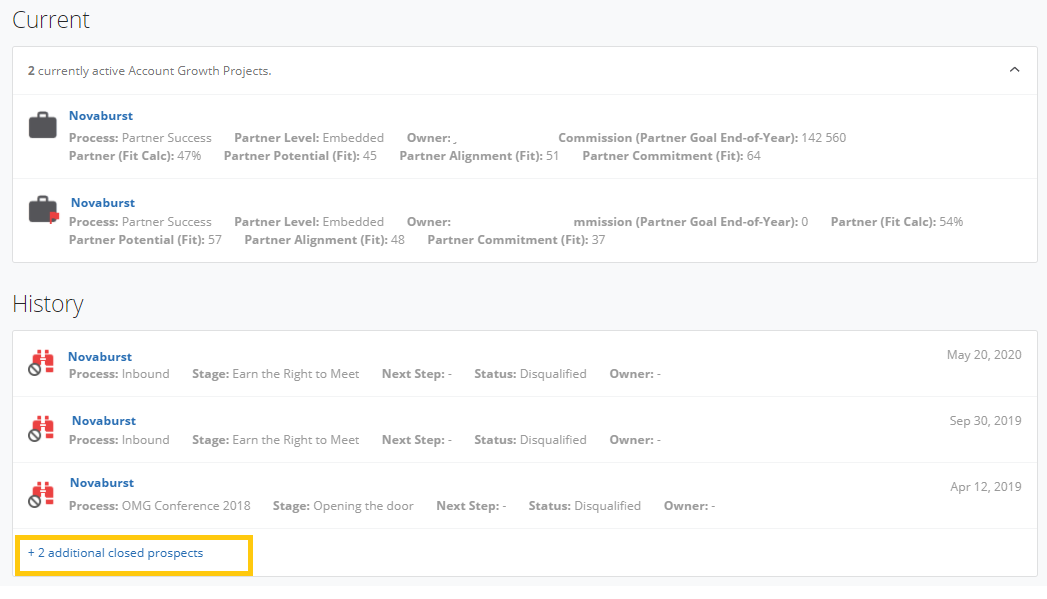
Under the Current heading, you see all current Prospects, Sales Projects Account Growth Projects and/or Tickets this Company is tied to. If the Company is tied to a Prospect, an overview of each prospect will be shown beside the binoculars icon. The same applies to Sales Projects, if there are any current Sales Projects, details of these will be shown beside a leather wallet.
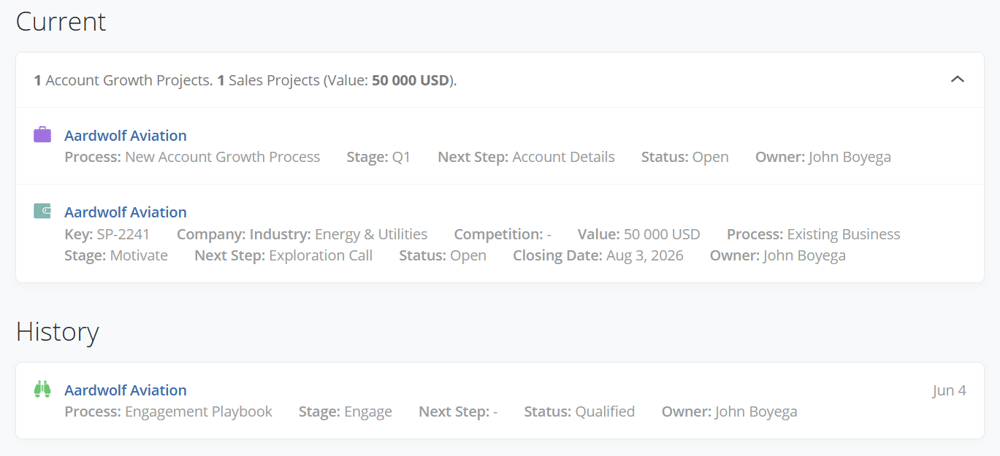
Under the History heading, you see all the historical Prospects, Sales Projects, Account Growth Projects and/or Tickets this company has been tied to in the past, including date stamp of when the change occurred.
You also see additional information here, such as if a Sales Project was won or archived, or if the Prospect was disqualified or converted into a Sales Project.
If there is an additional list of current sales projects or historical prospects, you can click on the + button and search for by specific field to drill down further.
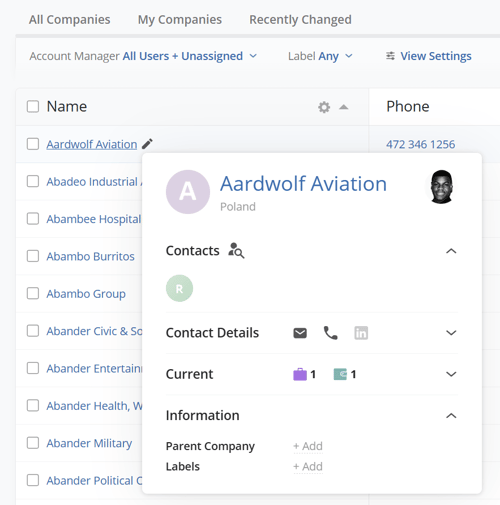
Hover over a Company to see even more information (Click here to customize some of the information).
This is where you find more detailed information about the company itself. Information is stored in Custom Fields, which are created by your administrator during the initial setup of Membrain.
Examples of information which can be stored here are things like Sales Characteristics, Industry, Financial Information etc. Anything that you believe is important to record about a company should be stored here.
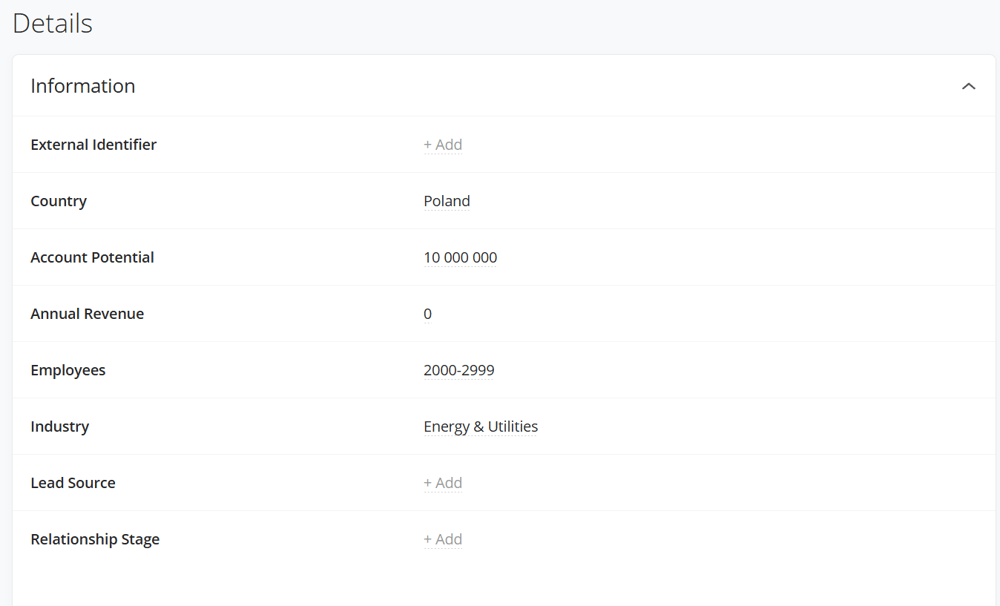
If you would like to view the company page without the "Information" section, you can do so by selecting the arrow on the right hand side. This will hide everything under "Information."
To optimize the relevance of information displayed on company pages, Membrain supports the use of Custom Field Groups in Companies. These groups can be set up with specific conditions to ensure they are visible only to the appropriate users, based on factors like labels, country, or user roles. This feature helps in maintaining an organized and context-sensitive interface.
For more detailed guidance on setting up and managing these Custom Field Groups, including how to add conditions for visibility, please see our detailed section on Managing Custom Field Groups.
At the bottom of the Company View, you find the Activity Stream. This is a great resource to see all the activity, past and future in chronological order. Every appointment, email, task, note... pretty much anything that ever happens with this Company is recorded here. And all filterable of course to help you easily find the information you need.
You can also comment on these activities to keep all discussions right there in context, and even mention your colleagues to get their immediate attention on specific items.
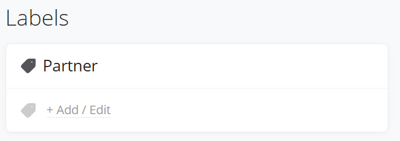
To the right of the Company View, you will see a list of Labels that have been applied to this company. You can add or edit the labels assigned to the company by clicking on + Add/Edit and choosing which labels apply from the list.
The Company Hierarchy is displayed below Labels, on the right hand side of the Company Page. This is where you can see a clear overview of how this company is related to any parent or subsidiary companies. From here you can set the parent company for the company view you are currently in.
Configure the Parent/Subsidiary relationship
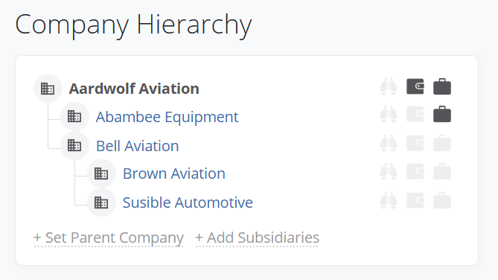
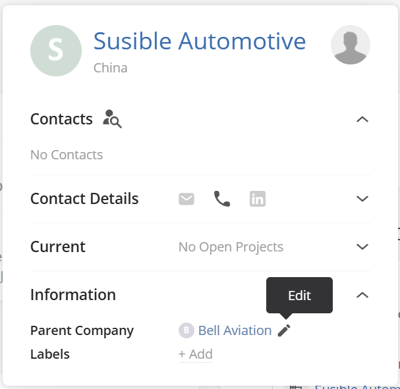
You can also click on related companies to bring you directly to that company view, or just hover to see company information and related sales projects and prospects.
Here you will find the Company Description. This field is designed to record information specifically related to the Company only, such as a planned expansion, or a change in address.
Below the Company Description field you will find the Company Address information. Here you can store multiple addresses for one company: Visiting Address, Billing Address, and multiple "Other" addresses. Simply click into the address to edit or delete it. Or click on Add Address to add new information. Go to Managing Addresses for Company any and Contacts to learn more.
Below the addresses, we find a list of all Contacts related to this company. From here you can:
From this contacts list, you can also add a new contact to the company and even view or create a new Organisational Chart.
And finally, below the contacts, are all documents that we have uploaded to this company.
In the toolbar at the top of the view, a number of quick access options are available:

 Context Menu



