Membrain offers lots of options for reporting, both prebuilt (e.g. Performance View, Win/Loss Analysis) or customizable (e.g. Dashboards), but in some cases, there might be a need to bring data out of Membrain for additional analysis in Excel or for use with other business-wide reporting.
Using Membrain's Automated Reports and our integrations with Microsoft OneDrive and Google Drive, you can create scheduled reports that can be sent automatically to your organization's OneDrive or Google Drive account.
Let's take Microsoft OneDrive for example, and go through how Membrain can be configured to automatically export data directly to a OneDrive folder. The process for Google Drive is the same.
Setup of a OneDrive/Google Drive Automated Report
Getting up and running takes some thought and once-off-setup, but once you can gather, populate the preconfigured fields, you're almost there!
- From the left menu, navigate to the System Setup page (requires you to be an administrator).
- From there, scroll down to Settings > Analytics & Reporting and then Automated Reports.
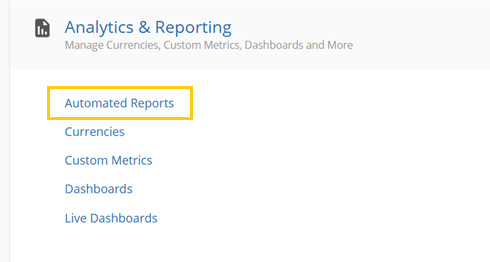
- From the Automated Reports page you will now see a big clickable area where you can add a new report. If you already have several reports this may be a bit further down the screen. Membrain will highlight the individual steps to follow to create the report.

- The first step is to give the report a name and select the report type.
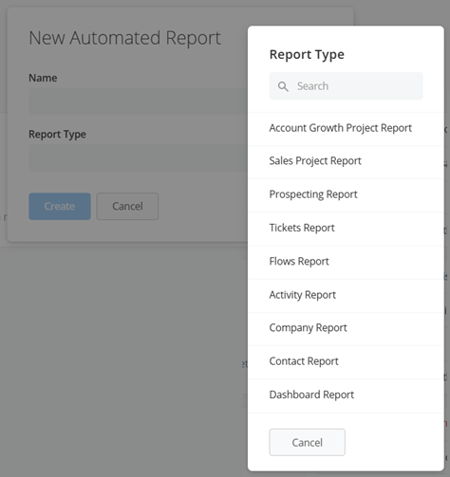
Note: If sending a dashboard report, a link to the dashboard in Membrain will be automatically attached.
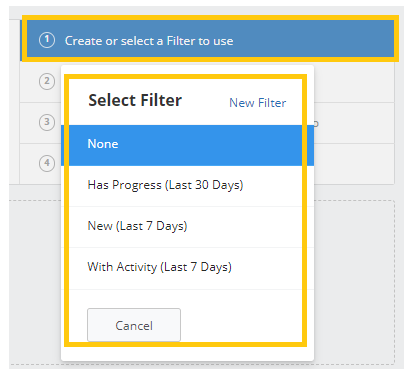
- Use an existing filter or create a new one for your report. This filter will determine what data gets put into the report that's produced.
- Create or select an existing Export Configuration
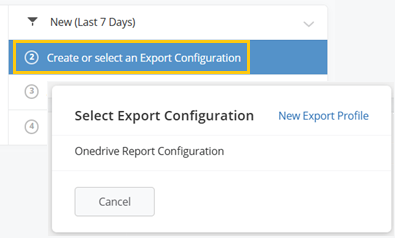
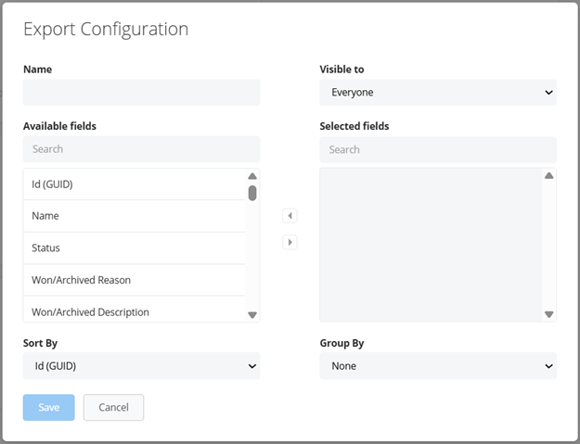
- Select OneDrive or Google Drive to send the report to and click on Integrate with Microsoft OneDrive. Keep in mind that you cannot sign in with a personal account. You must use your work or school account instead.
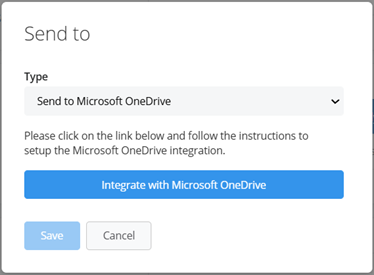
Note: You can even send the report via Email to one or several email addresses.
- Select the OneDrive or Google folder where your report will be sent.
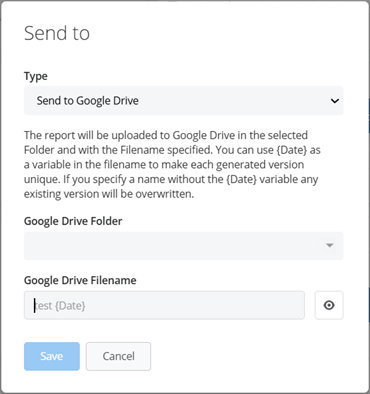
Note: If you're planning to connect the report to another system to import data recurringly, we recommend adding a custom file name. Each time the report runs, the system will update the previous file with the new data. If you don't set a custom file name, the system will create a new separate file each time, with a different file name, leading to the other system not being connected to the most recent file that contains the newest data.
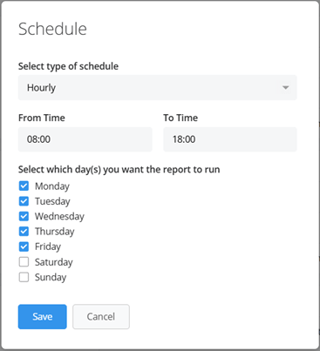
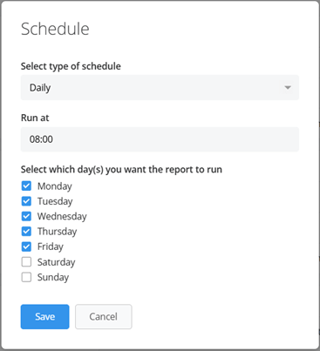
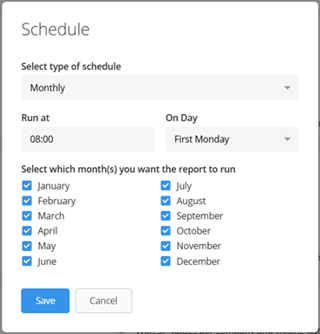
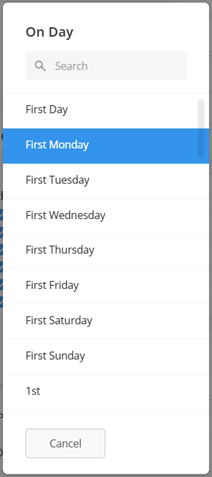
- Schedule the report. This can be either hourly, daily or monthly. When selecting the hourly or daily schedules, you're given the option to choose a specific weekday and time. When opting for the monthly schedule, you may choose a specific month, time and occurence in the month e.g. first/last day of the month, first monday, etc.).
Note: If your automated report does not appear to be working, be sure to check that it is not giving you an error message. If you do get an error message, please feel free to reach out to us at support@membrain.com
How do I disable a report or delete it entirely?
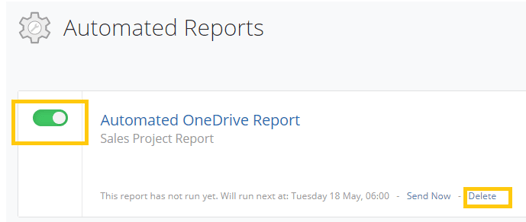
To disable (or enable) a report, simply click on the toggle found in the left part of each report to easily turn it off and back on again at any time. To delete a report, click on the delete link on the bottom of the screen. Do note that while you can't restore a deleted report, the filters and the field configuration will still remain so you won't lose much of the actual setup of the report apart from the schedule and OneDrive integration.