Popular Content
Membrain for:
The Sales Content List provides administrators with a centralized place to manage all sales content in Membrain. Instead of opening individual Content Rooms to find or update content, you can view, organize, and make changes across your entire Content Hub from a single location.
This is especially useful when reviewing existing content, updating permissions, organizing content into Content Rooms, or archiving outdated material. Whether you're managing a handful of resources or hundreds of pieces of content, the Sales Content List makes it easy to keep everything organized.
To access the Sales Content List, go to System Setup > Productivity & Collaboration, then select Sales Content List.
The list displays every piece of sales content available in your Content Hub, including links, videos, files, Content Cards, and Content Rooms. At the top of the page, you'll also see a summary showing how many pieces of each content type currently exist.
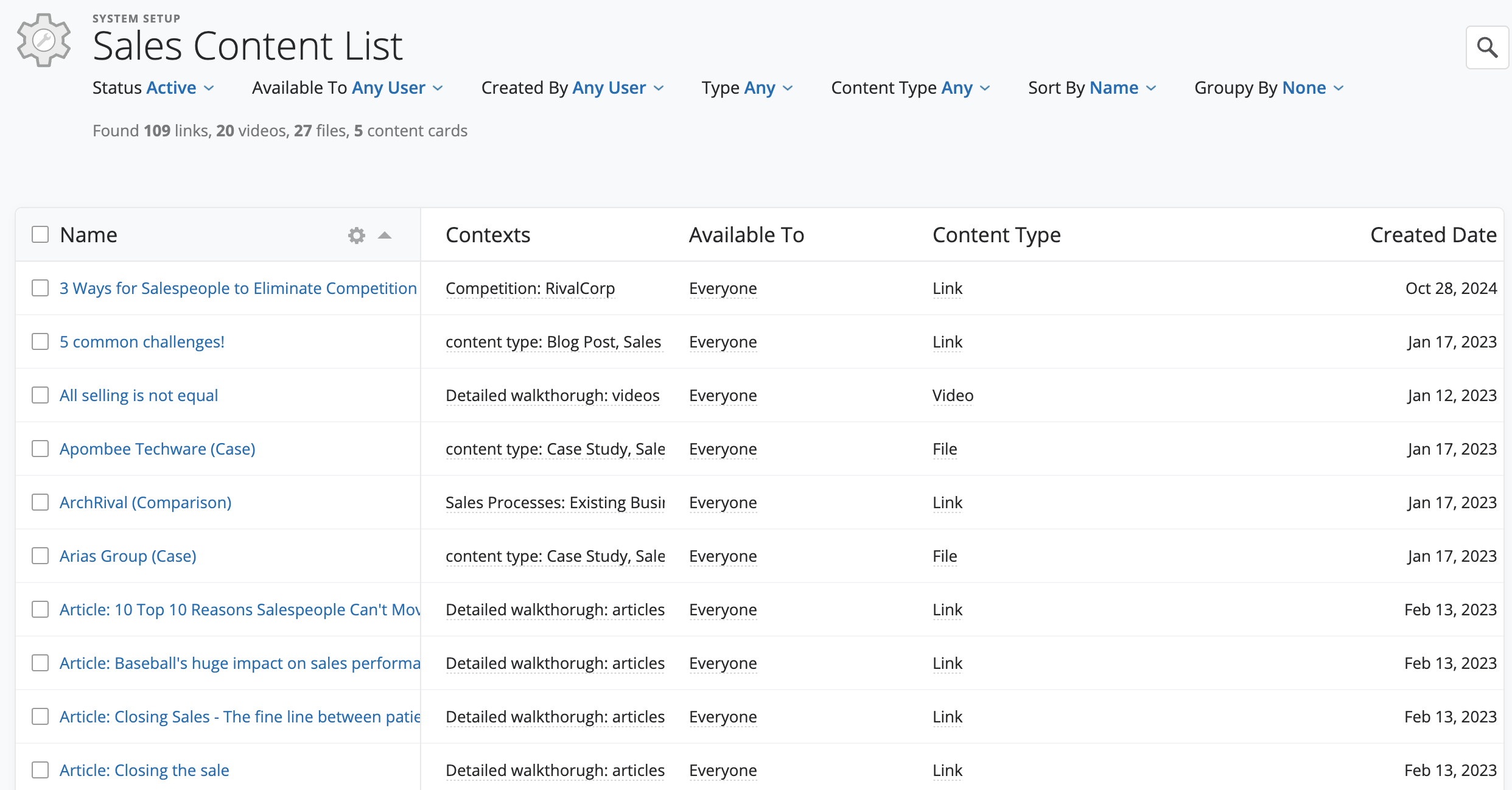
The Sales Content List includes several filtering options to help you quickly locate the content you're looking for.

You can filter by:
Collateral refers to content intended to be shared with customers, while Enablement content is designed for internal use by your sales team.
You can also Sort and Group the list in different ways. For example, you might group content by creator to review ownership, or group by content type when organizing your library.
To quickly locate a specific item, use the search icon in the upper-right corner of the page or press F on your keyboard to open the search box.
Selecting a piece of content opens its properties, where you can edit information such as its name, availability, contexts, and other settings.
Contexts help determine where content appears throughout Membrain, making it easier for users to find relevant material when they need it. For more information about managing content properties and contexts, see our Getting Started with the Content Hub article.
If you're working with Content Cards or Content Rooms, you can also learn more in their dedicated Help Center articles.
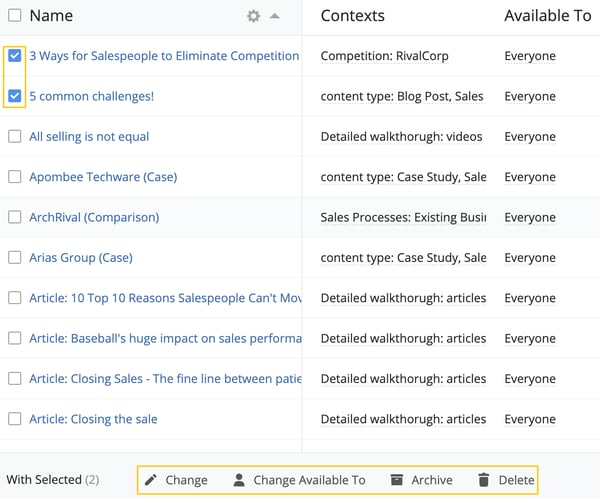
Bulk editing makes it much faster to maintain your Content Hub, especially when reorganizing large amounts of content or updating permissions across multiple resources.
When you select one or more pieces of content using the checkboxes, additional bulk actions become available. These actions allow you to make changes across multiple items at once, including:
Customizing the list makes it easier to monitor how content is being used and identify resources that may need to be updated or retired.
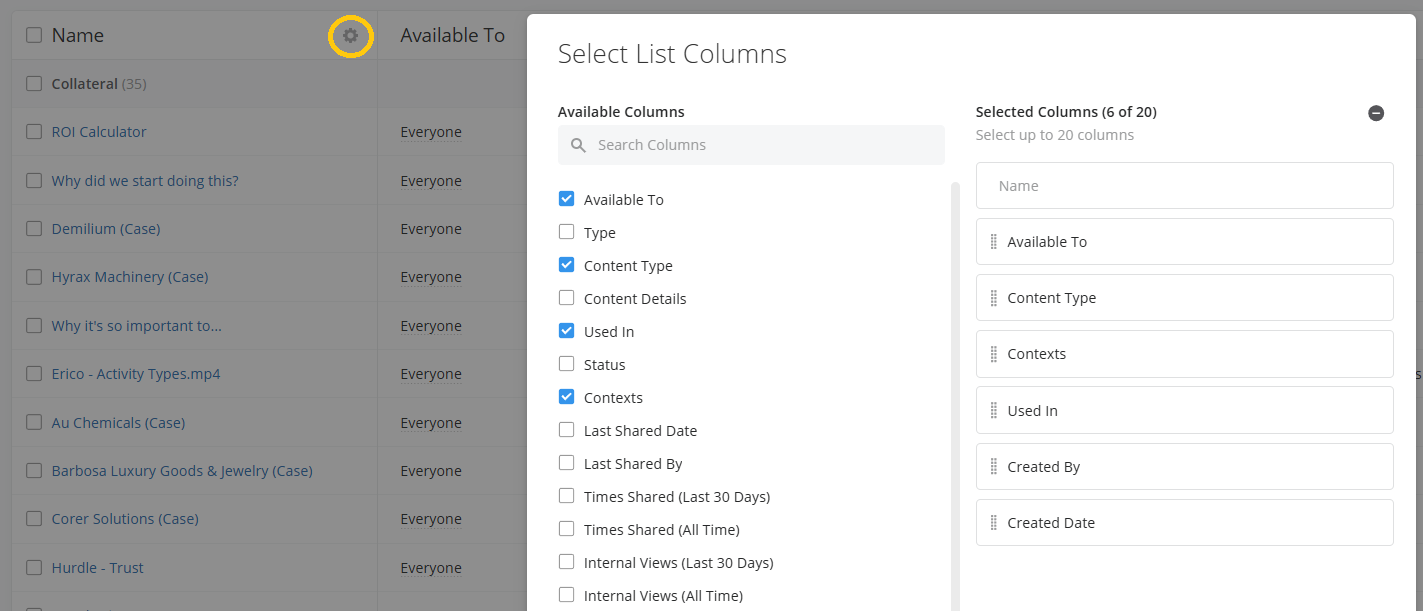
You can customize the information displayed in the Sales Content List by clicking the cogwheel button next to the Name column.
This allows you to choose which columns appear in the list so you can focus on the information that's most important to you. For example, you might display: