Popular Content
Membrain for:
Activity Management is paramount in ensuring the required amount of work is being done to win a Sales Project or Qualify a Prospect. And keeping track of activities, both past and future, is made easy using Activity lists, found in the CRM area in the Membrain Menu.
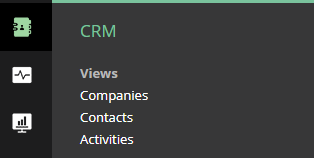
The Activity List is most useful when you need visibility into the work being done across your team.
For example, you might review activities from the past month to understand engagement levels, look ahead at upcoming meetings to prepare for the week, or group activities by company to see how much attention each account is receiving.
By adjusting filters, grouping, and fields, you can quickly move from a broad overview to a focused, actionable view of your activity data
At the top of the page, you’ll see tabs representing your available views. These tabs allow you to switch between saved views, including those marked as favorites or set as default.
Hovering over a tab shows whether it is a favorite or default view, helping you quickly identify the ones you use most often.
Whenever you make changes to a view, such as adjusting filters or fields, you will have the option to save those changes. You can either update the current view or save it as a new one.
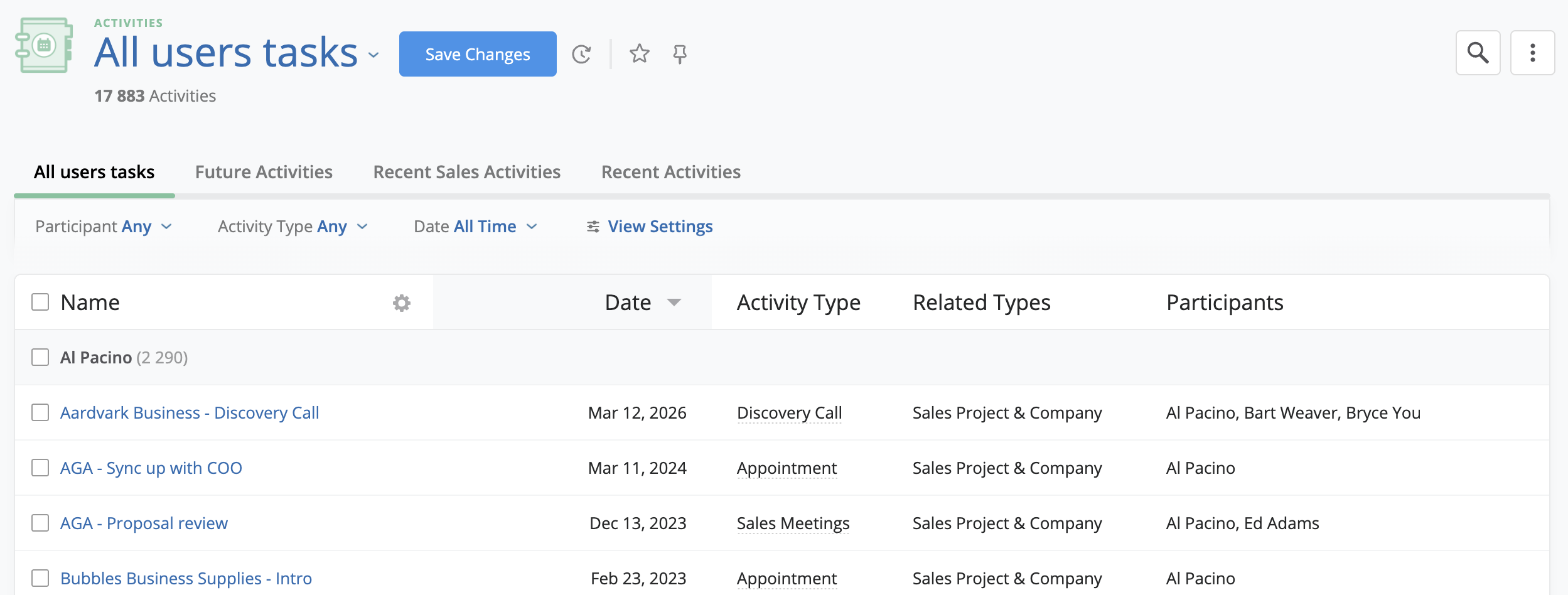
Directly below the tabs, you’ll find a couple quick filters for the Activity List. These filters allow you to quickly narrow down the activities shown.
You can filter by date to focus on a specific time period, such as recent activity or upcoming work. You can also filter by activity type to focus on specific types of interactions, and by participant to see activities connected to specific people.
These filters are always visible and provide a fast way to adjust what you are looking at without opening additional settings.
Next to the filters, you’ll find the View Settings button. This is where you control how your Activity List is structured and displayed.
Clicking the button opens a panel on the right-hand side of the screen. You can also access it as a quick overlay by hovering over the button. The panel is divided into two sections: Settings and Filters.
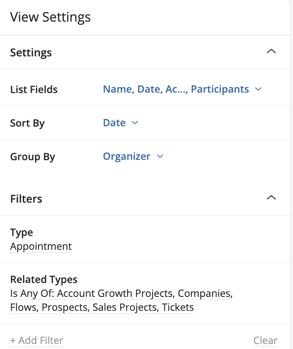
The Settings section controls how activity data is displayed in the list.
You can choose which fields are shown by selecting List Fields. This opens a dialog where you can select up to 20 fields from available activity-related data. This allows you to tailor the list to show only the information you need.
Sort By lets you control the order of activities in the list. For example, you might sort by date to see the most recent or upcoming activities first.
Group By allows you to organize activities into sections based on a selected field. This can help you analyze patterns, such as grouping activities by company, participant, or activity type.
The Filters section allows you to apply additional filters beyond the ones visible at the top of the list.
You can add more specific conditions to narrow down your results further. This is useful when working with large volumes of activity data or when preparing a focused review.
The Activity List is designed to support both review and action.
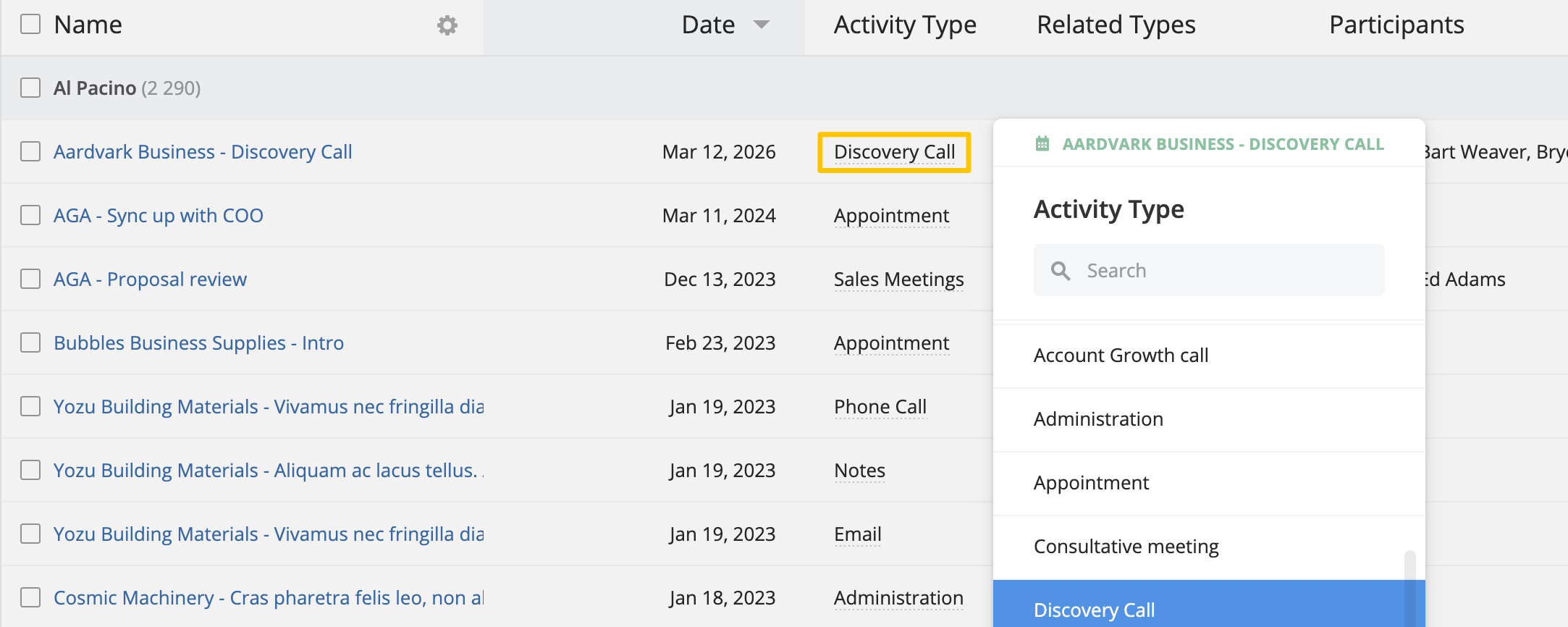
You can edit activity information directly in the list. Click into a field and update the value, and the change will be saved without needing to open the activity.
This makes it easy to correct details, update outcomes, or keep your data accurate as you work.
To update multiple activities at once, select the relevant rows using the checkboxes on the left side of the list.
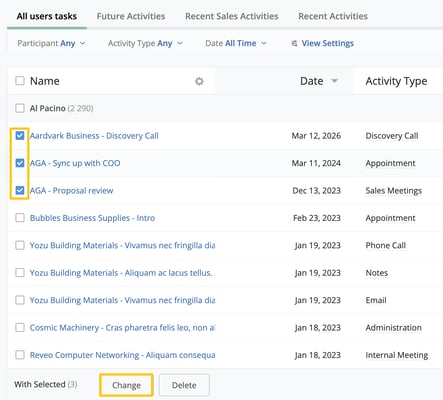
Click the Change button at the bottom of the page to update fields across all selected activities. This is useful when adjusting ownership, updating statuses, or making other bulk updates.
Once you have created the list of activities you wish to see, you may want to export it to use in Excel:
 more icon in the top right-hand corner.
You can even make this export configuration available to your team or everyone in the organization to help streamline reports and save time across the board.
Likewise, you can upload a pre-saved configuration from this view also.
From this view, you can also import activities that may have historically been recorded in another system.
more icon in the top right-hand corner.To learn more about Importing Activities, read this article here.




