Popular Content
Membrain for:
Find Look-A-Likes helps you discover companies that are similar to those you're already working with in Membrain. The Insight Engine identifies potential matches based on an existing company and provides information to help you decide which ones might be worth pursuing.
This is particularly useful when you want to find more companies that resemble your existing customers or successful opportunities. Instead of researching potential accounts individually, you can use Find Look-A-Likes to identify similar businesses, review how closely they match, and create new Prospects or Companies directly from the results.
You can access Find Look-A-Likes from several areas of Membrain, depending on where you're working.
The feature is available when you right-click a Prospect, Sales Project, Account Growth Project, or Company, as well as from the Project name within a Project. You'll also find it in the information bar when a Prospect is Qualified or a Sales Project is Won, and in the dialog that appears when a Sales Project is marked as Won.

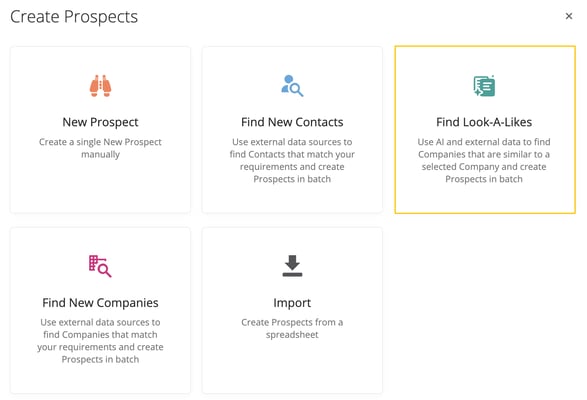
Alternatively, you can access Find Look-A-Likes through the Create Prospects or Create Companies menus. This is useful when you want to find similar companies without starting from an existing Project.
When you open Find Look-A-Likes from an existing Project or Company, Membrain automatically selects the associated Company as the basis for your search. You can change this selection before searching if you'd prefer to use a different Company.
Find Look-A-Likes uses a selected Company as the starting point for identifying other businesses with similar characteristics.
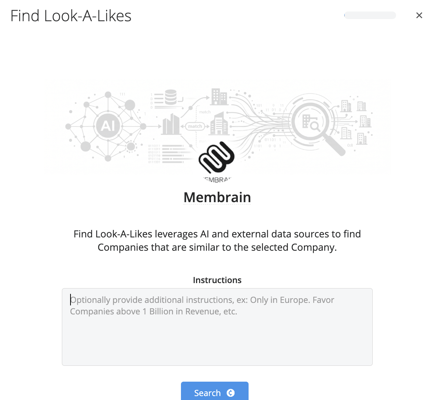
At the top of the Find Look-A-Likes dialog, select the Company you want to base your search on. You can choose any Company in Membrain, regardless of where you opened the feature.
Below the Company selection, you'll find an optional Instructions field. This allows you to provide additional guidance to AI about the types of companies you're interested in finding.
For example, you could ask AI to focus on companies in a particular country, prioritize a specific industry, or look for businesses within a certain revenue range. You can write these instructions in natural language, making it easy to narrow the search toward the types of companies that are most relevant to your prospecting efforts.
Once you've selected your Company and added any additional instructions, click Search to begin finding similar companies.
Find Look-A-Likes presents up to 15 recommended companies, sorted by their AI-generated match score. Companies with higher scores appear first, helping you focus on the results that AI considers the closest matches.
Each result includes a percentage score and an explanation of why the company was recommended. This reasoning appears in blue text and describes the similarities between the selected Company and the suggested match.
Below the explanation, you'll find additional company information provided by the external data source, including headquarters, business type, founding year, number of employees, revenue, industries, and company description.
Depending on the information available from the data provider, some fields may be empty or display a question mark.
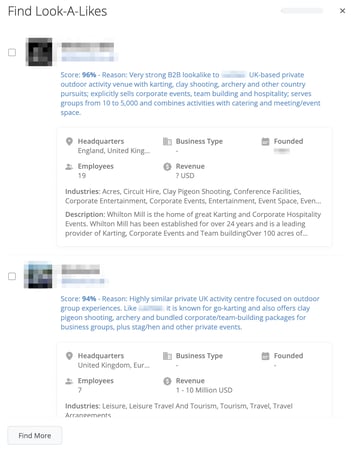
Companies that already exist in Membrain are also included in the results and retain their position based on their match score. However, these companies appear in a condensed format with an Already in Membrain label, making it easy to distinguish them from companies that haven't yet been added.
Existing Companies cannot be selected for creation, helping you avoid creating duplicate records.
The match scores and explanations are generated by AI, so it's worth reviewing the reasoning and available company information before deciding which companies to pursue.
Once you've reviewed the recommendations, you can select the companies you want to add to Membrain.
Companies that aren't already in Membrain have a checkbox next to their name. These are initially unselected, allowing you to choose the matches that are most relevant to your prospecting efforts.
The action button at the bottom of the dialog updates based on how many companies you've selected and whether you opened Find Look-A-Likes from a Prospect creation workflow or a Company creation workflow.
If you want to explore additional recommendations, you can use the Find More button at the bottom of the results.
Clicking Find More opens a confirmation dialog explaining that another search will be performed. The next search may return an entirely different set of companies or include some of the same companies you've already seen.
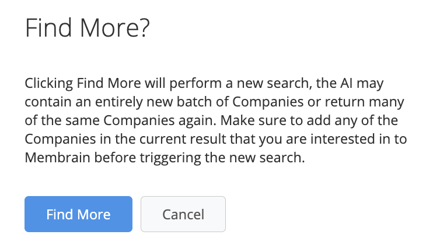
This allows you to continue exploring potential matches when the initial recommendations don't provide enough suitable companies.
Find Look-A-Likes uses AI and external company data to identify similar businesses, so using the feature consumes AI credits.
To access it, you must also have the Find New Companies permission enabled in a Permission Group you belong to. This permission is available under the External Data section of Permission Groups in System Setup.
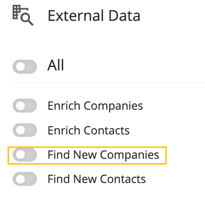
If you don't have access to Find Look-A-Likes, contact your Membrain administrator to review your permissions.
Imagine your team has recently won an important Sales Project with a company that closely matches your ideal customer profile. You want to find other businesses with similar characteristics so your team can build on that success.
From the Won Sales Project, you select Find Look-A-Likes. Membrain automatically uses the associated Company as the starting point for your search.
You decide to narrow the recommendations by entering additional instructions, such as "Focus on companies in Northern Europe with more than 200 employees."
After running the search, Membrain presents a list of recommended companies, each with a match score, an explanation of the similarities, and supporting company information. You review the results, compare their industries and company sizes, and select the businesses that appear most relevant.
You then click Create Prospects, choose the appropriate Prospecting Process and Owner, and create the selected Prospects in Membrain.
Your team can now begin working with a targeted group of companies based on the characteristics of an existing successful customer, without having to build the list manually.