Overview
The Find New Companies and Find New Contacts features help you discover companies and contacts using Membrain’s native Insight Engine data, without leaving Membrain.
Use filters to narrow your search, review the results, and add relevant companies and contacts directly to your CRM. You can also create Prospects and move from discovery to sales activity in just a few clicks.
By bringing search and discovery into Membrain, you can spend less time on manual research, data entry, and switching between tools—and more time engaging with the companies and people that fit your sales strategy.
This article explains where to find each feature, how to search and refine your results, and how to add and view the records you create.
Before you start: Both features are part of the Insight Engine and the options you see when you're logged in depend on your user permissions. If you can't see an option described here, please reach out to your Membrain administrator.
Benefits
Find New Companies and Find New Contacts combine data discovery, company management, and enrichment capabilities within Membrain's sales execution platform. This helps teams maintain reliable CRM data and put it to work throughout their sales process. Key benefits include:
- Find relevant companies and contacts faster by using targeted search criteria to identify potential customers and decision-makers.
- Reduce manual work by combining company and contact discovery, data management, and enrichment in one workflow instead of relying on separate tools.
- Improve CRM data quality and consistency by creating more complete company and contact records using Insight Engine's data.
- Keep company information up to date with enrichment capabilities that help maintain accurate and useful business information.
- Turn data into sales opportunities by creating Companies, Contacts, and/or Prospects directly in Membrain and putting that information to work in your sales process.
Use cases
Expand into new markets
When entering a new industry, region, or market segment, use Find New Companies to identify potential customers based on criteria such as industry, location, company size, and revenue.
For example, if you're expanding into the manufacturing sector in Germany, you can search for companies that match your ideal customer profile and add promising organizations to Membrain.
Identify decision-makers at target companies
Use Find New Contacts to identify people who match specific roles or responsibilities within your target market.
Combine company filters, such as industry and size, with contact filters, such as job title, seniority, and location, to find relevant contacts at companies that meet your criteria.
For example, you could search for Sales Directors at mid-sized technology companies in the United Kingdom.
Find additional stakeholders within your target market
Use Find New Contacts to identify people across different departments or seniority levels at companies that match your target criteria.
For example, when selling a solution that involves both IT and Operations, you can search for contacts with relevant job titles in each function.
This can help you identify additional people to consider engaging as part of your prospecting strategy.
How to use it
Find New Companies
There are two places from where you can use the Find New Companies feature: the companies list view and the prospect list view.
- Open the relevant list view.
- Click the + New button on the top-right of the page, and a picker will open and let you choose how to create the company.
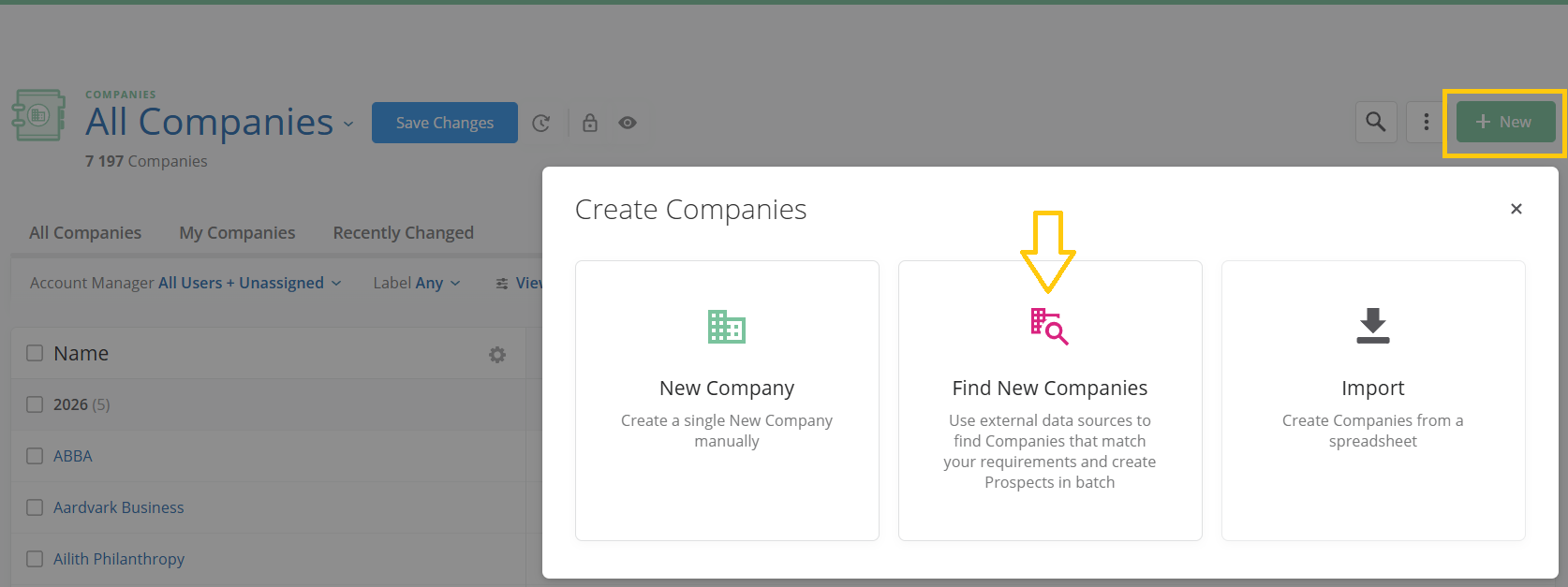
- Select Find New Companies.
Note: If you don't see the option it means you have not gotten the permissions for that, in which case please contact your Membrain administrator.
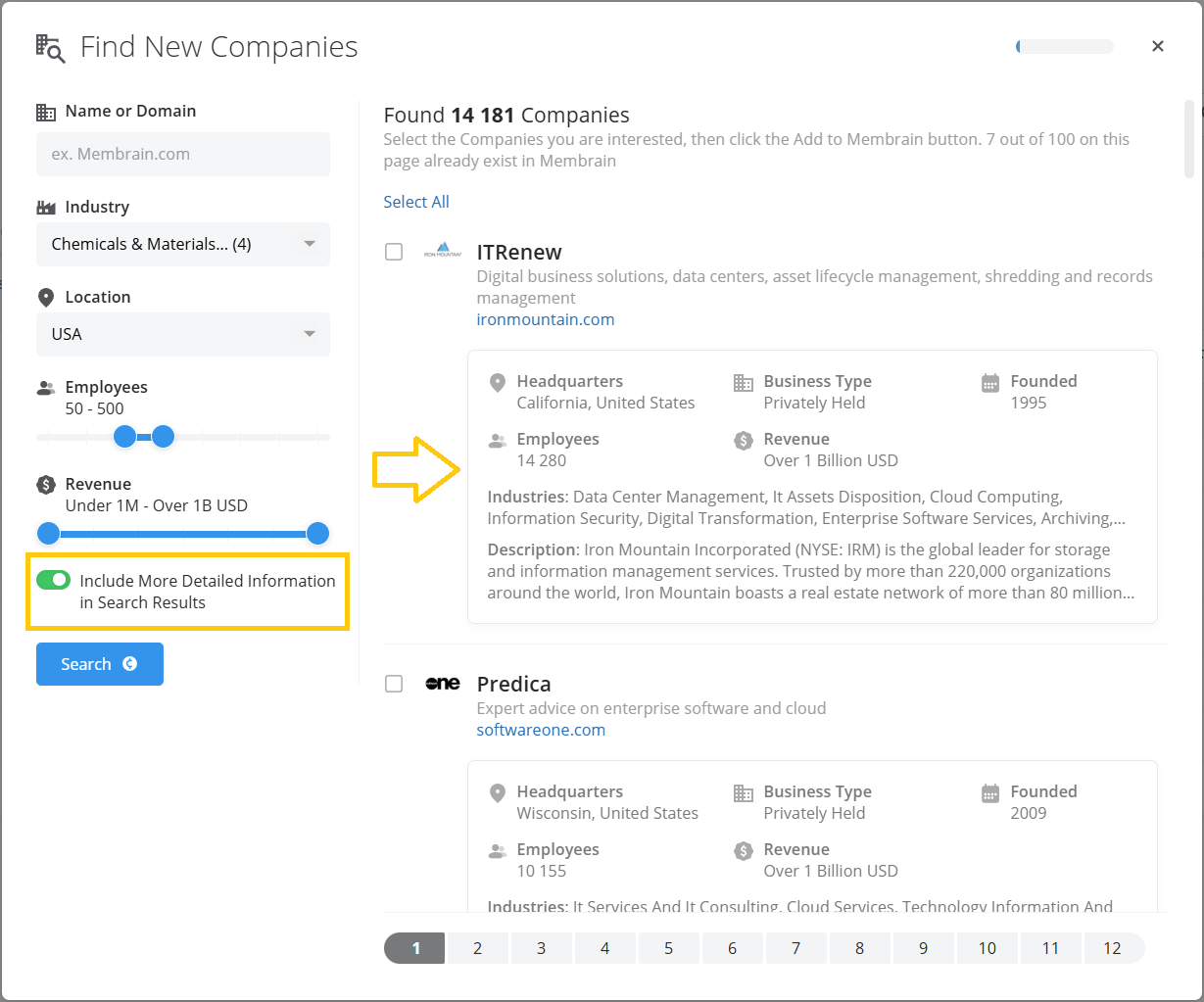
- Enter a company name or domain if you want to search for a specific organization, or use the available filters to define the companies you're looking for. Select an Industry, Location, Number of Employees, and Revenue.
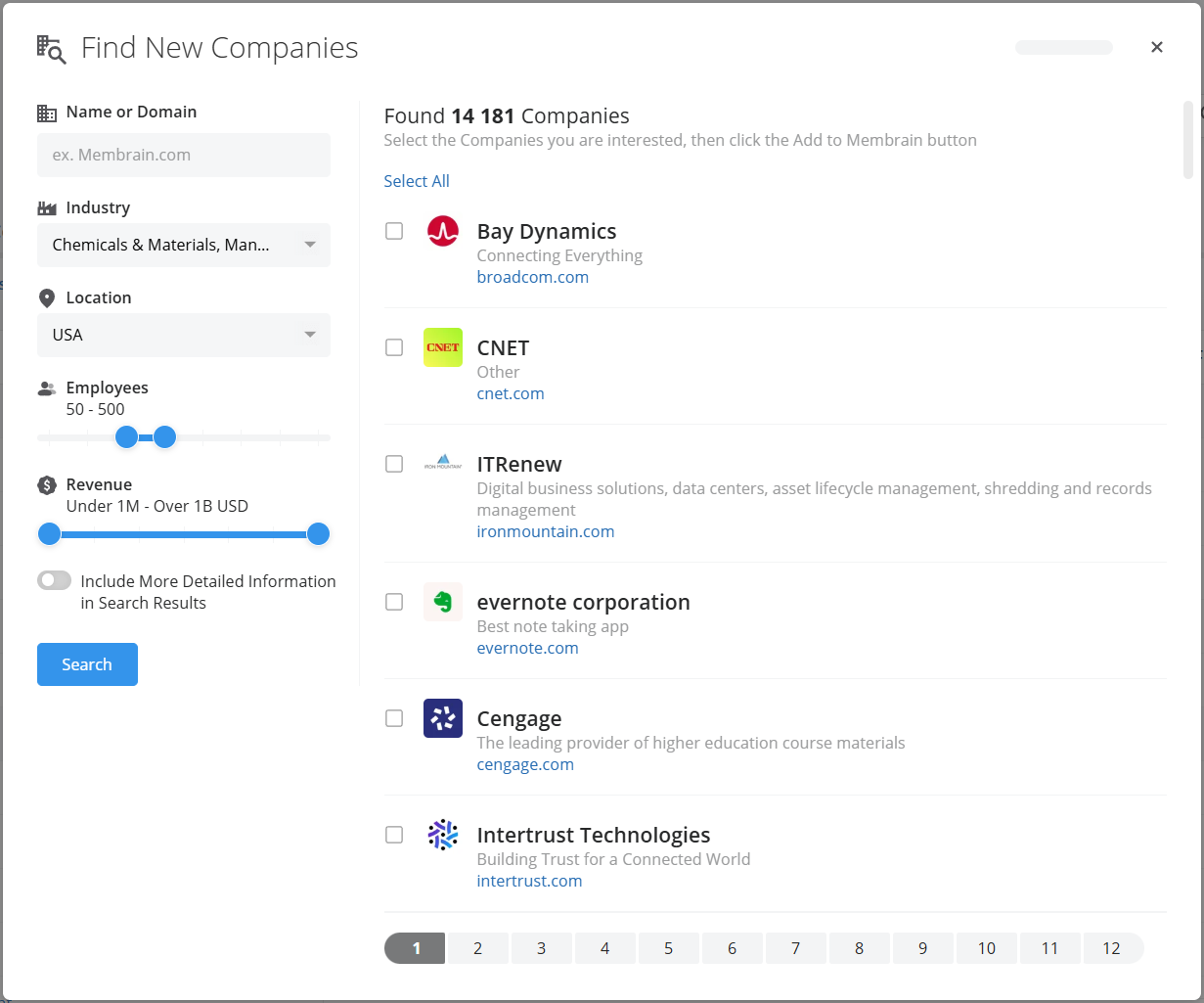
- Select Search to display matching companies.
- Review the results. Each page shows up to 100 companies.
- Select the companies you're interested in from the checkboxes to the left and press the + Create n Companies respectively + Create n Prospects button.
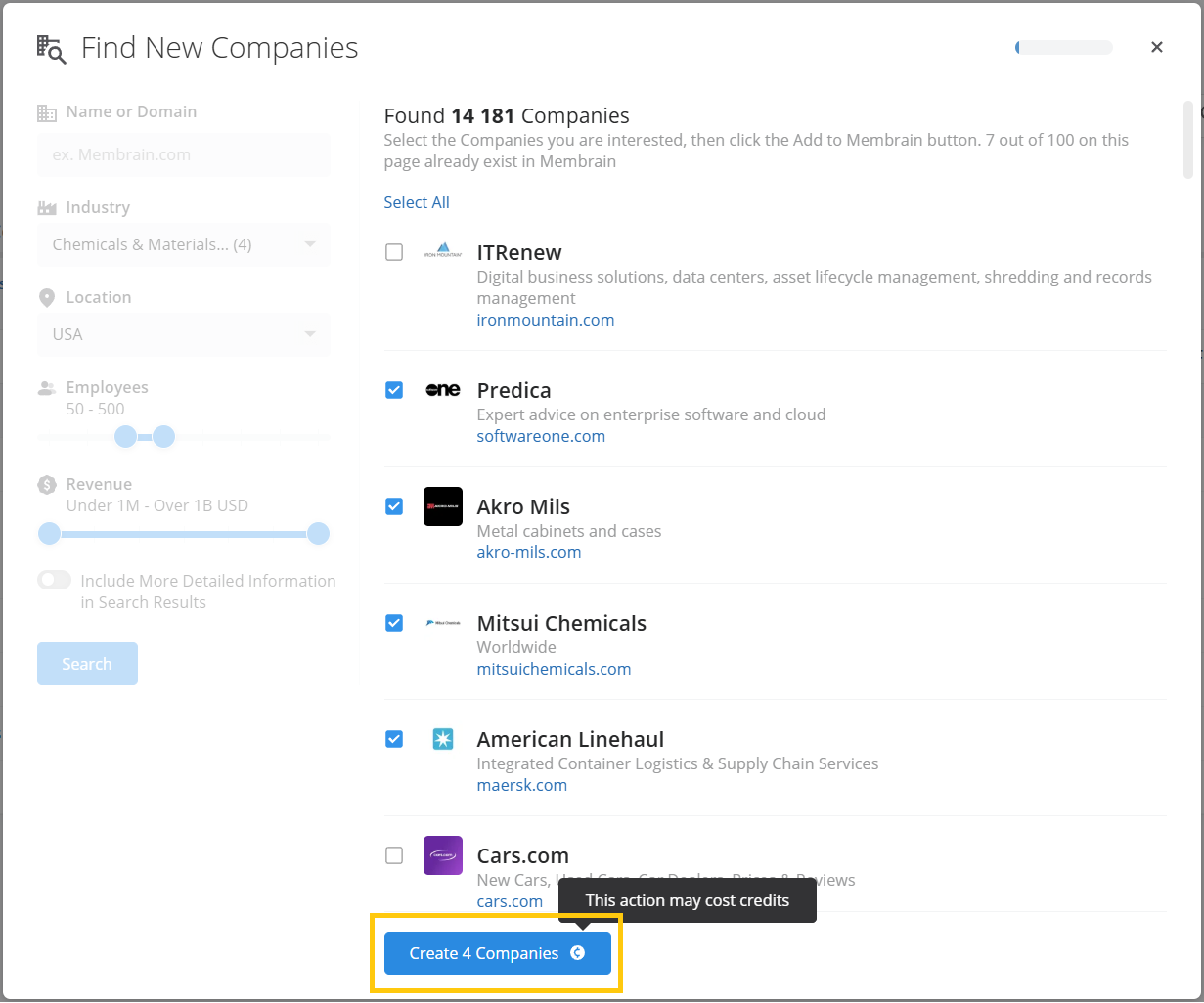
- Once you're finished, a small box will appear at the top of the dialog. Click it to open a list of everything you just added, so you can review and follow up right away.
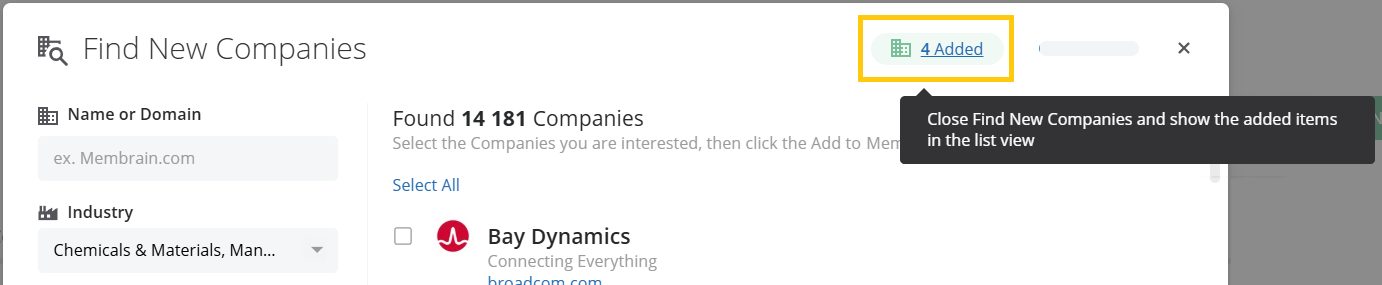
Note: Membrain also indicates when companies in the search results already exist in your database, helping you understand what is already available before adding new records.
Expanded Search Results: turn on the Include More Detailed Information in Search Results toggle to show more detail for each company directly in the results list, so you can qualify companies without opening each one. Details included are headquarters, business type, founding date, number of employees, revenue, industries, and a company description. Keep in mind:
Find New Contacts
There are two places from where you can use the
Find New Contacts feature: the contacts list view and the prospect list view.
- Open the relevant list view.
- Click the + New button on the top-right of the page, and a picker will open and let you choose how to create the contact.
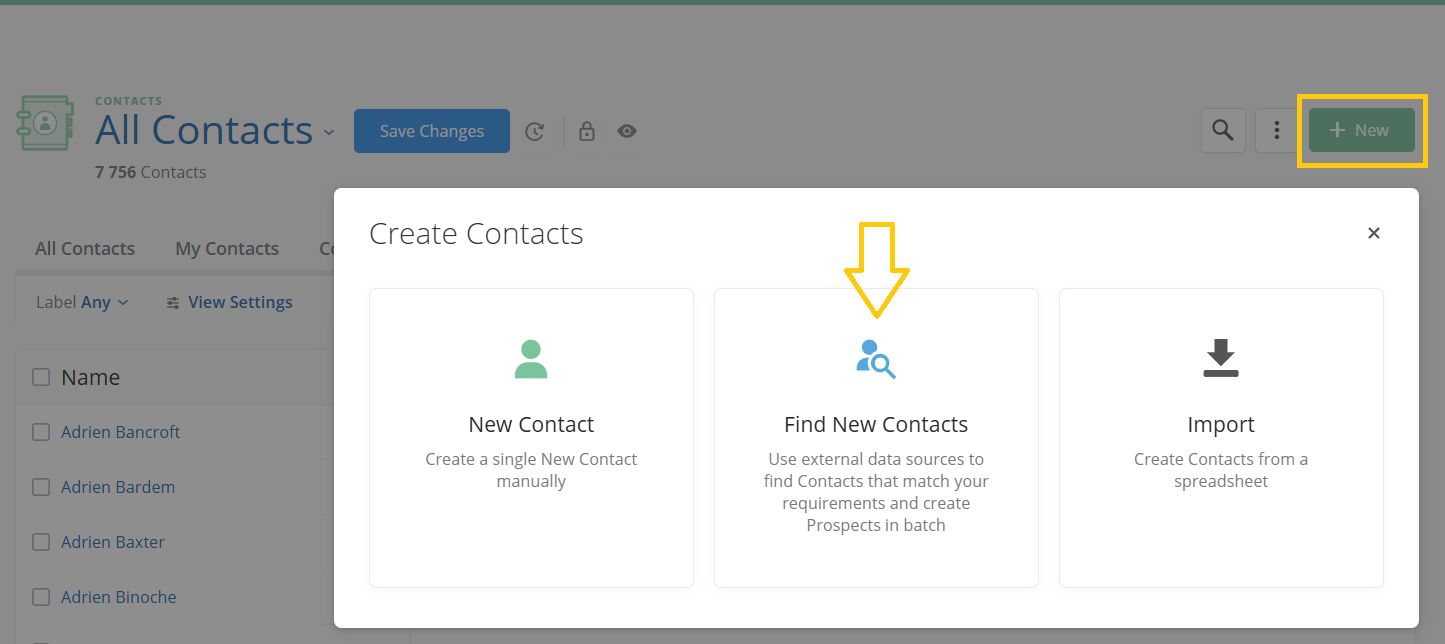
- Select Find New Contacts.
Note: If you don't see the option it means you have not gotten the permissions for that, in which case please contact your Membrain administrator.
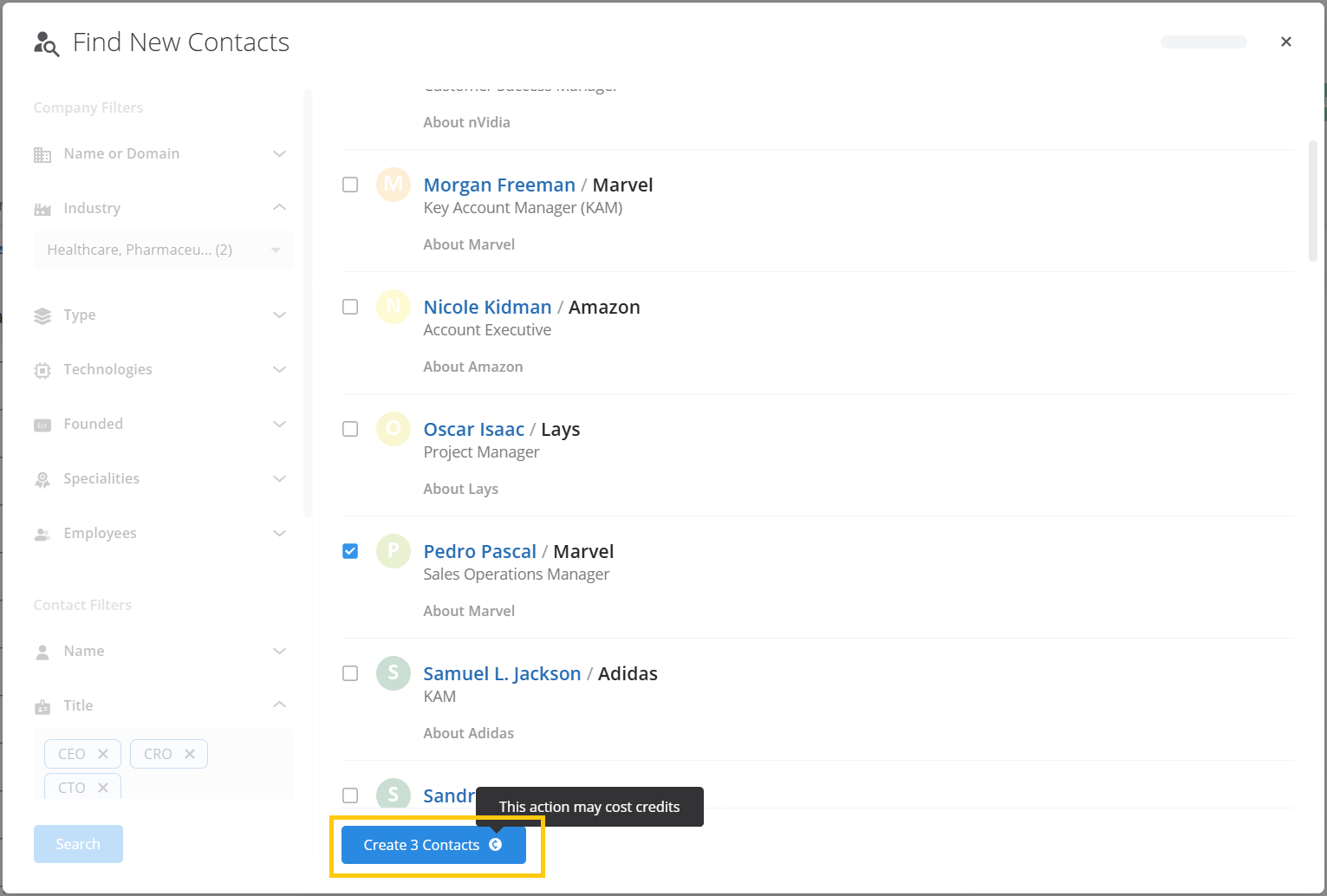
- Expand the filter groups you need. You can filter on both contact details and company details.
- Define the type of companies you want to target using criteria such as industry, type, technologies, founding date, specialities and number of employees.
- Define the people you're looking for using the available filters, e.g. job title, seniority, location, language and keywords for skills and university, time since last job change and years at company. Enter several values in a single filter, for example multiple job titles or locations.
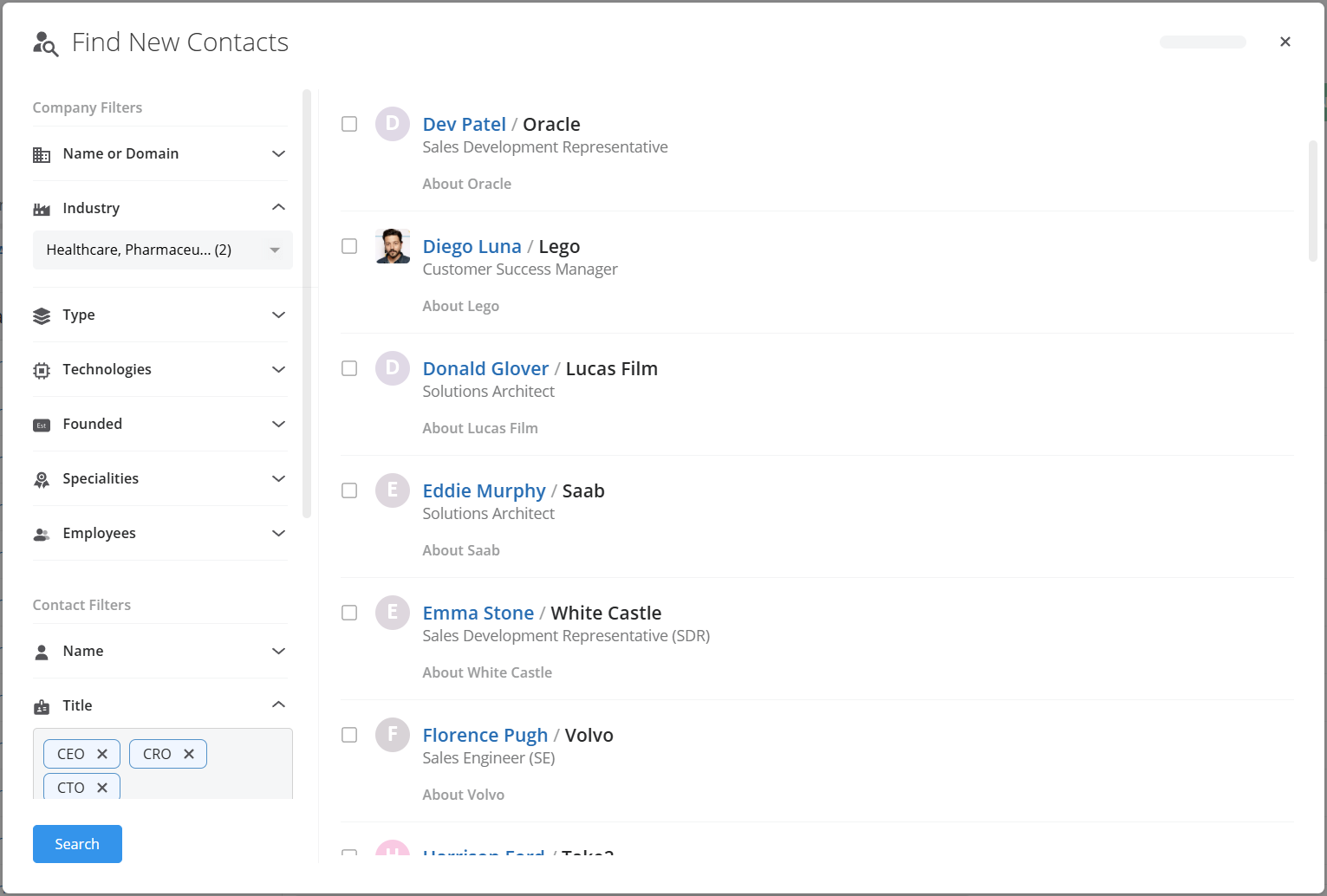
- Click the Search button.
- Review the results. Each page shows up to 100 contacts.
- Select the people you want to add from the checkboxes to the left and press:
• Create Contact — creates the person as a Contact, together with their company if it's new.
• Create Prospect — creates a Prospect with the person as a Stakeholder in it and lets you choose the process and owner for it. It also creates the company it's associated to if it's new.
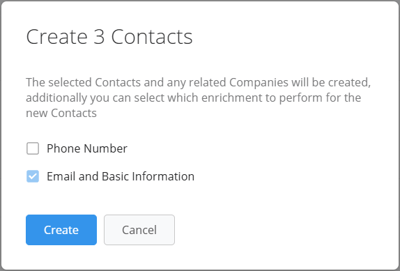
Note: in the creation dialog, you also get the option to enrich your contacts. Phone number enrichment is not available on Insight Engine Basic, to get access to it you will need to purchase any of the paid upgrades.
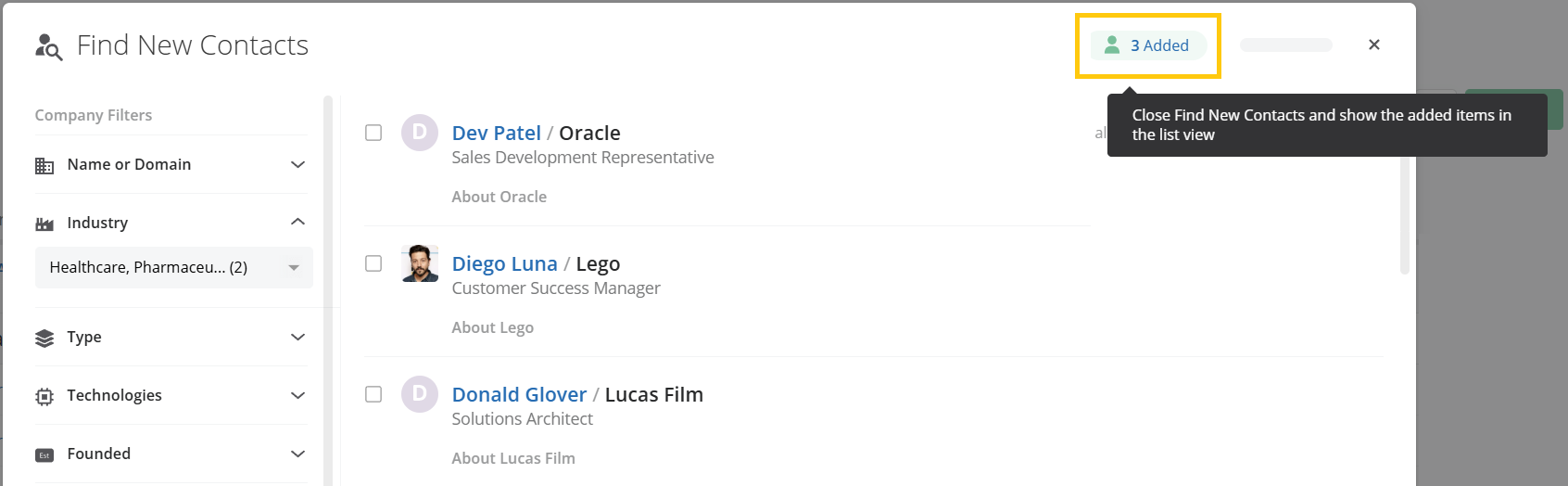
- Once you're finished, a small box will appear at the top of the dialog. Click it to open a list of everything you just added, so you can review, filter, and manage them.