Popular Content
Membrain for:
Meet Pages allow administrators to create structured booking experiences for individuals or teams.
Unlike Personal Meet Settings, which control a single user’s booking link, Meet Pages can include multiple users, define booking distribution rules, override personal meeting settings, and enroll contacts in automation.
If you need to manage branding and visual appearance, please navigate to Meet Page Styles.
To create or manage Meet Pages:
From here, you can create new pages, manage existing ones, and see view and booking analytics for your meet pages.
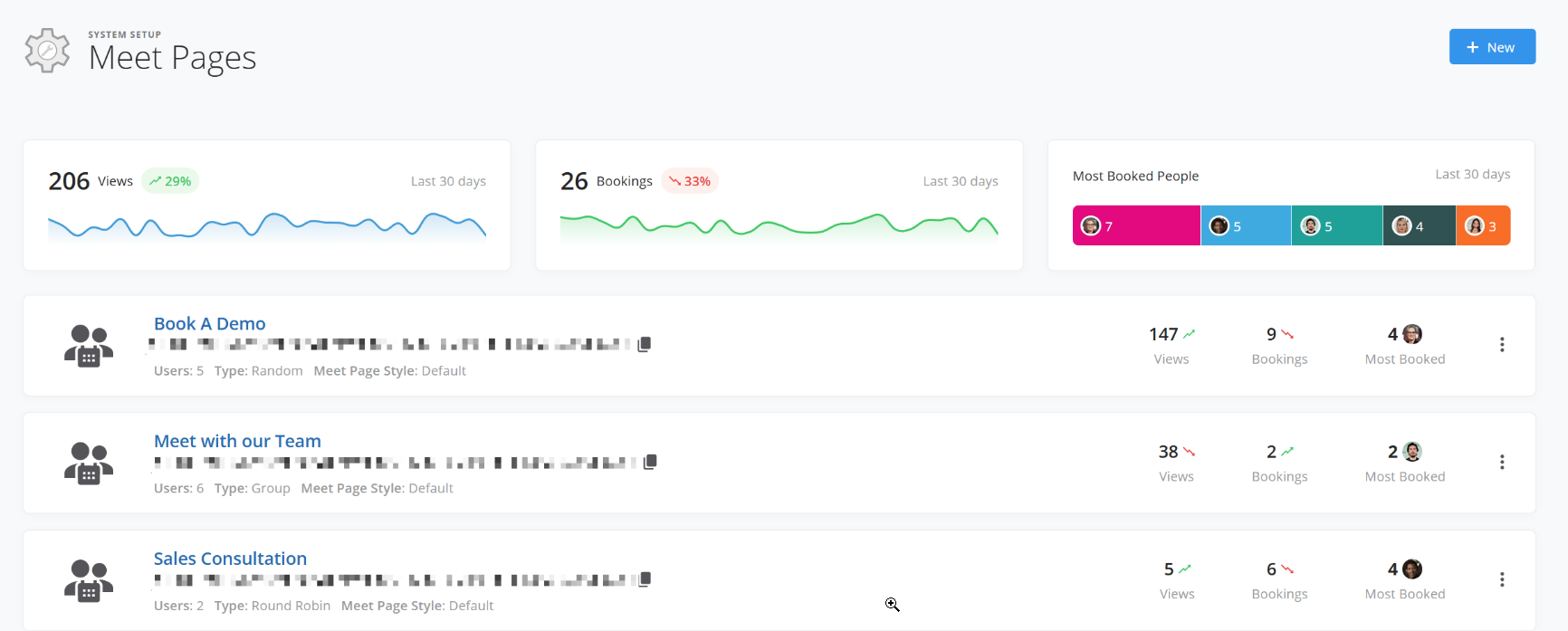
Click New to create a Meet Page.
On the left-hand side, you’ll configure the settings for the page. On the right-hand side, you’ll see a live preview of how the booking page will appear to visitors.
Give your Meet Page a name and optionally add a description and icon, all of which will appear on the booking page.
When adding an icon, you can choose from a built-in gallery, upload a custom image, or generate one using AI. The selected icon appears alongside the meeting name and helps visually distinguish different Meet Pages.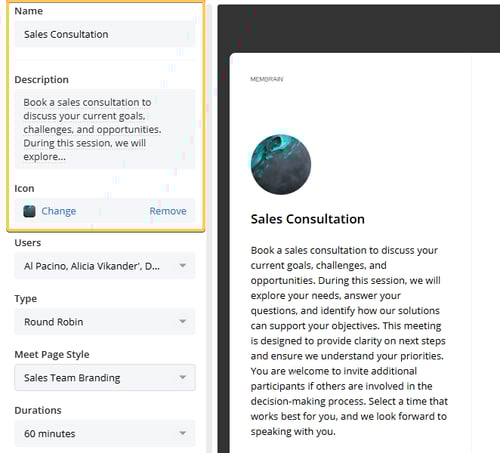
Choose one or more users to include on the Meet Page. Availability is always based on each selected user’s personal availability grid and connected calendar. If a time is unavailable in a user’s calendar, it will not be shown as bookable.
When multiple users are selected, how availability is presented depends on the selected booking type.
Meet Pages support four booking types that allow you to control how meetings are assigned across your team:
Random - Prioritizes available time slots. Meetings are assigned to any eligible user with availability.
Round Robin - Distributes meetings evenly across the selected users.
Select - Allows the visitor to choose which specific user they want to meet with before viewing available times.
Group - Schedules meetings with all selected users. Only time slots where every selected user is available will appear.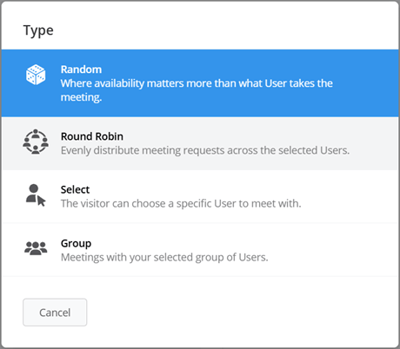
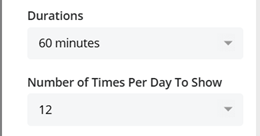
These settings control how available time options are presented on this Meet Page.:
Durations - Select which meeting lengths are available. The durations configured here override each user’s personal duration settings when booking through this Meet Page.
Number of Time Slots per Day - Limit how many booking options are displayed per day. This setting applies to all users included on the Meet Page and overrides their personal “maximum per day” settings when bookings are made through this page.
These settings control the meeting details shown to visitors during booking and how the scheduled meeting is created in Membrain.
Activity Type - Choose the Activity Type that will be created when a meeting is scheduled.
Custom Fields - Fields associated with the selected Activity Type can be displayed on the booking form. You can choose which fields appear, make them required, and adjust how they are labeled for visitors.
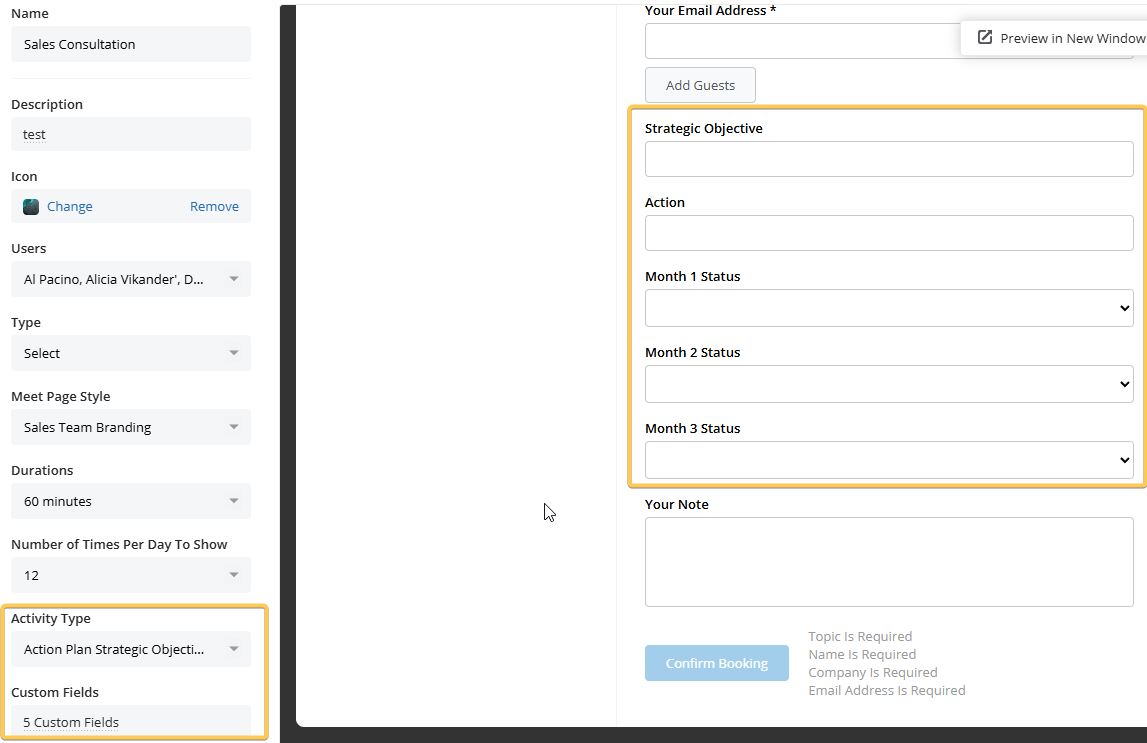
Together, these settings ensure that meetings collected through this Meet Page gather the right information from visitors and align with your internal tracking and process.
Meet Pages become even more powerful when combined with Contact Automations.
By enrolling meeting requesters into an automation, you can streamline follow-ups and ensure prospects or customers continue through the right workflow immediately after scheduling a meeting.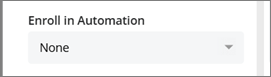
Follow-up workflows - Enroll contacts in a follow-up sequence after they book a meeting. For example, you might want to send confirmation emails, reminders, preparation materials, or post-meeting follow-ups.
Automatic project creation and assignment - You can also use Meet Pages together with automations to create and assign projects (e.g. prospects, sales projects, tickets, etc.) based on who the enrolled Contact last made a Meet Request with.
For example, a prospect books a meeting through a Meet Page. The contact is automatically enrolled in a Contact Automation. The automation then creates a Prospect or Ticket and automatically assigns ownership to the user the contact most recently requested a meeting with.
This feature helps sales teams maintain continuity in communication, improve follow-up speed, and reduce the risk of opportunities being missed.
Meet Pages can use a selected Meet Page Style to control visual appearance, including logo, colors, font, and layout.
Applying a style ensures consistent branding across all booking pages created in your system. Multiple Meet Pages can use the same style, allowing you to maintain a unified look without configuring design settings individually for each page. If no style is selected, the default styling will be used.
For more detailed information on setting up a meet page style, see our article on Meet Page Styles.
Once saved, each Meet Page generates a unique booking link that can be shared with customers or embedded in emails and campaigns.
From the Meet Pages list view, you can:
Copy the booking link
Edit the page
Delete the page

Meet Pages provide structured scheduling for individuals or teams while still respecting each user’s real-time availability and calendar events. By combining booking rules, distribution logic, and automation, you can create tailored scheduling experiences that align with your workflow.




