Popular Content
Membrain for:
A template is a pre-written email which is personalized before sending out to your contacts. Using templates saves you from having to write and rewriting emails; for example, follow-up emails after a meeting, or sending out boilerplate information about your company. These templates are shareable with your colleagues and can free up valuable time for you to focus on more important tasks.
Email Templates (and also Snippets) can be created by anyone, and either kept private or shared with the rest of the team - a great way to save time and ensure that everyone on the team is contacting clients using the same high standards of communication.
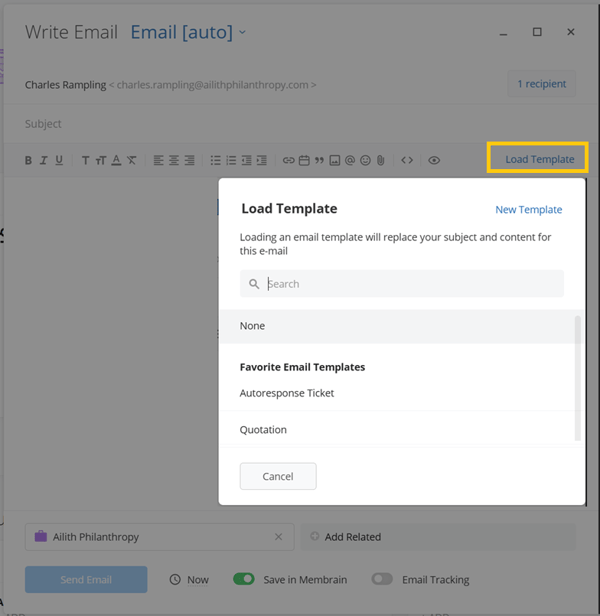
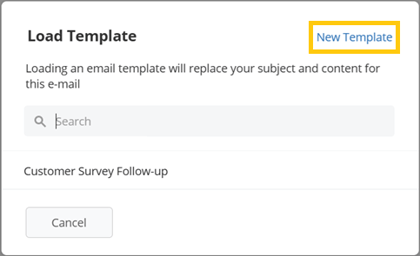
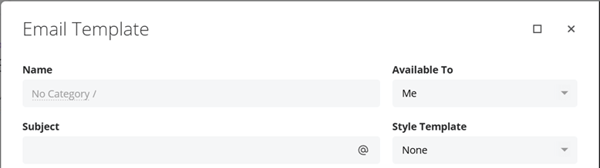
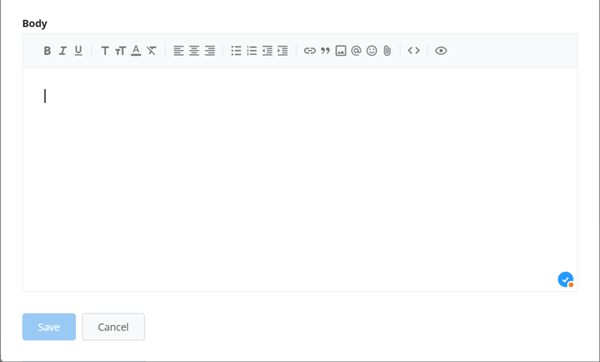
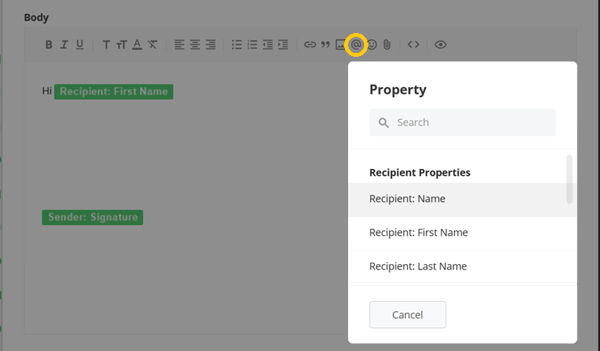
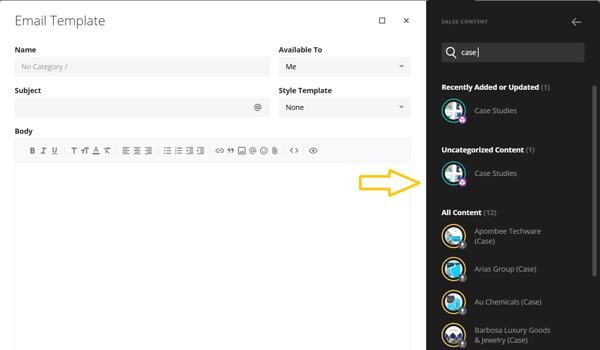
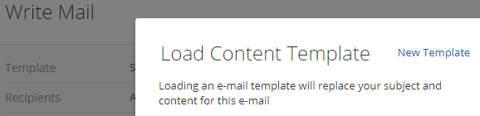
Creating templates is easy using Membrain's Template Creator. While composing a new email:

 .
.

For more information on creating templates, watch the video tutorial available in System Setup - Productivity and Collaboration - Email Templates.
Personalizations are placeholders, configured as you create your template, that can be automatically populated with specific information from Membrain before an email is sent. A few examples of personalizations might include Recipient First Name, Sender Phone Number, Signature, etc., but as a matter of fact, you can autopopulate just about any piece of information you capture inside Membrain, including from custom fields found within a Prospect, Sales Project or Account Growth Project.
When emailing a group of recipients using personalizations, it's important to understand the difference between the BCC and Unique options for sending
Embedded AI Prompts allow you to include AI-generated content directly within an email template. Instead of creating static content or relying solely on personalizations, you can insert an AI Prompt that generates content dynamically when the template is loaded.
To add an Embedded AI Prompt, click the Insert  button while editing a template and select Embedded AI Prompt. You can then choose the AI Prompt you want to include. Within the template editor, the prompt is represented by a placeholder image indicating where the generated content will appear.
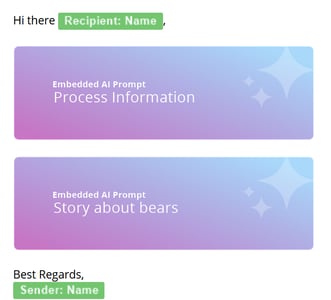
When the template is loaded into the email composer, the AI Prompt is evaluated and the generated content is inserted directly into the email body. This opens up a whole other layer of the insight engine, allowing you to create emails automations that generate content based off of your CRM data.
Because Embedded AI Prompts are generated when the template is loaded, they cannot currently be previewed while creating or editing the template.
To edit or make a copy of a preexisting Template, just hover on the template name in the template list until you see the pen icon and click on it. This brings you into the template editor where you can make your changes and save the original, save a new version with a new name, or delete the template.
To write an email using a preexisting template, click on New email from the email icon in the toolbar, or click on an email address anywhere in Membrain.
From the Email Composer window: