Popular Content
Membrain for:
The Activity Stream is a great resource to see all the activity, past and future within a particular Prospect, Sales Project, Account Growth Project, Ticket, Flow, Company or Contact. Every appointment, email, task, change, document upload... pretty much anything that ever happens is listed here in chronological order, and all filterable by person, activity type, and date to help you easily find the information you need.
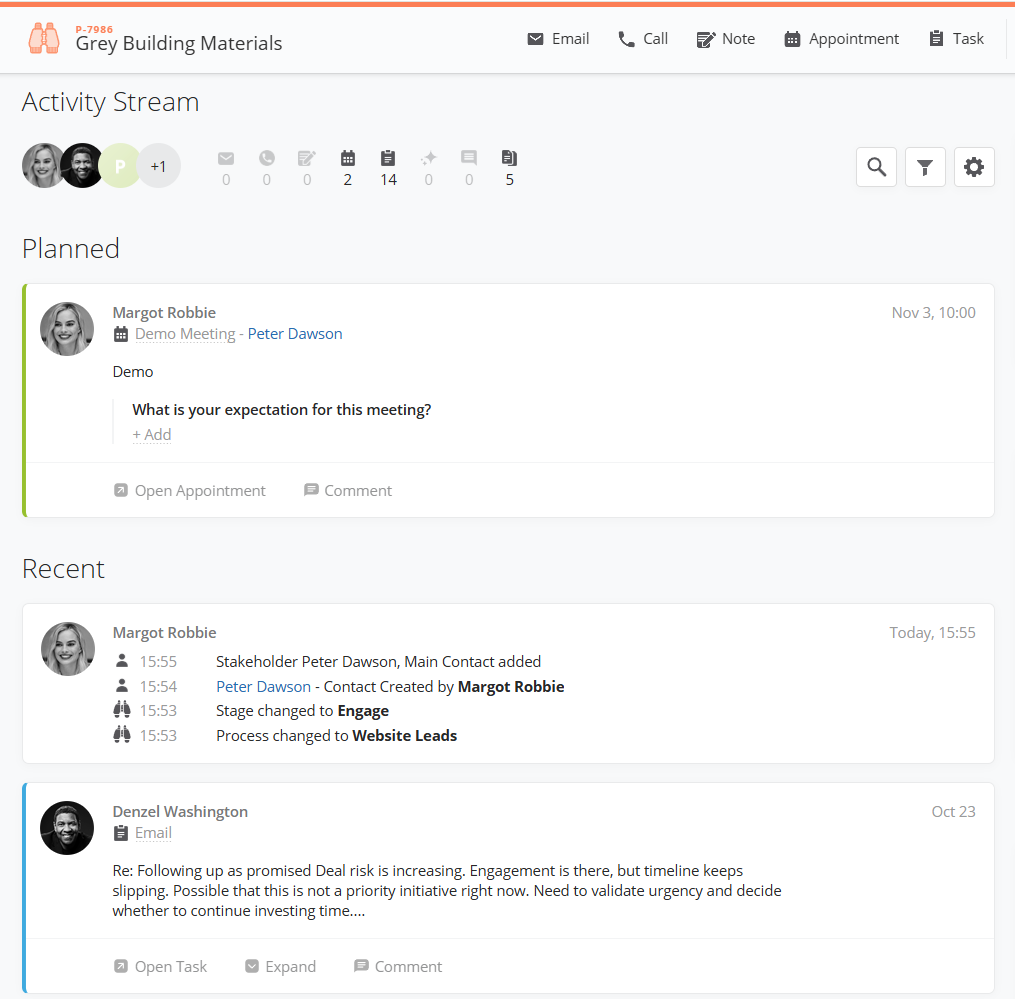
Visual filters in the Activity Stream Header help you quickly and easily find the information you need. Here are some helpful ways that you can work with the activity stream.
Click on a colleague's profile picture to filter the list and show only the activities he/she is involved in.

Select from the main types of activity icons to show just activities of this type: Email, Call, Note, Appointment, Task, as well as AI Generated Content, With Comments or Other.
Other is any changes that have been made by the system or in the process.

Use the filter icon on your right, next to the magnifying glass, to open the Filter dialog. Here you can get even more specific by selecting one or many Custom Activity Types that are specific to your company, like “Proposal email” or “First Onsite Meeting,” and you can also choose the time period you want to see.
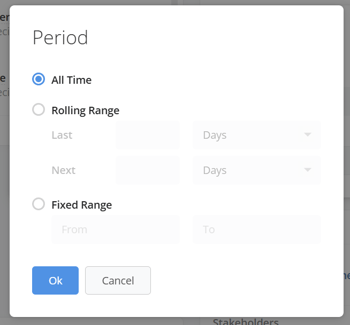
In the Filter dialog, click Period and choose the time range you want to see in the Activity Stream:
All Time shows the full history.
Rolling Range shows the last or next number of days you choose. For example, you can look back at everything that’s happened in the last 30 days, or look ahead to what’s coming up in the next 7.
Fixed Range shows everything between a specific start and end date.
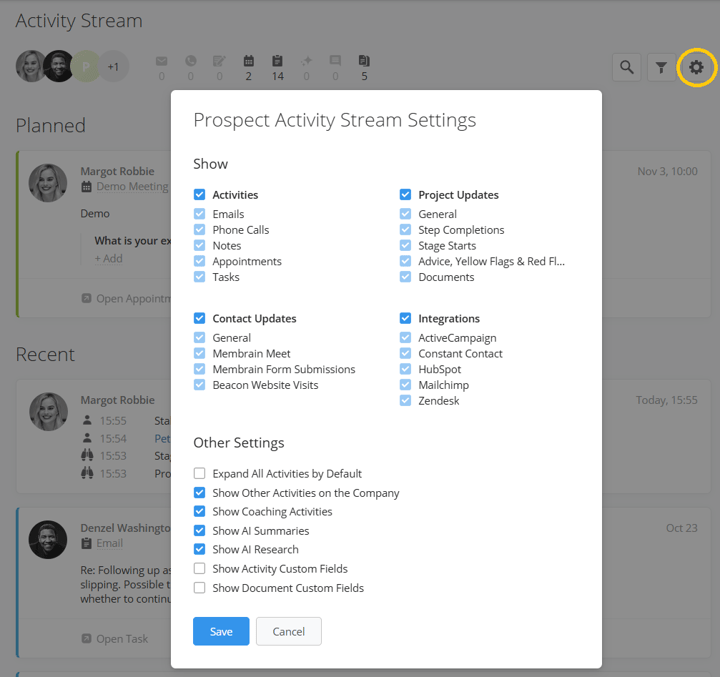
To access the Activity Stream Settings, simply click on the cog wheel icon located to the right in the Activity Stream filters bar. By checking/unchecking the boxes in these settings, you can show/hide specific categories of activities and updates, which allows you to focus on what is most relevant to your needs and have a more efficient and tailored workflow.
Note: The settings you configure there will apply on the activity stream of all projects that pertain to the related module. For instance, if you're inside a prospect, they will be applied to the activity stream of all prospects, if you're in a ticket they will be applied in the activity stream of all tickets and so on.
Please also note, the activity stream settings are personal to each Membrain user, i.e they will only affect what the specific user sees, and not their colleagues.
Use the Search option to the right to find any keyword in the Activity Stream to bring you right there.
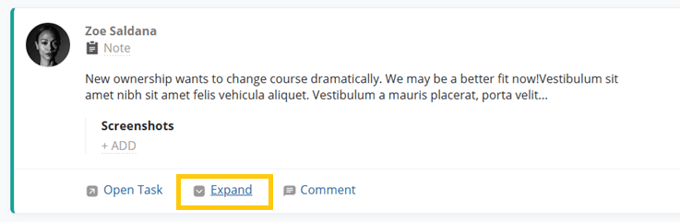
Open and/or expand activities, for further reading or to edit information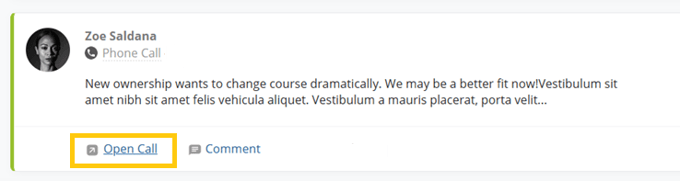
Open, reply to or forward emails with just a click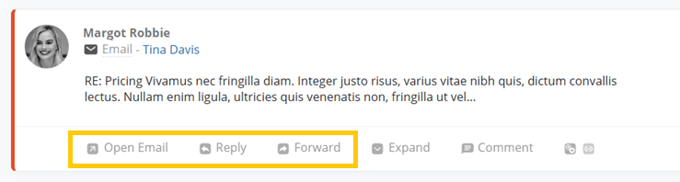
See whether your email has been read, or if a link has been clicked on.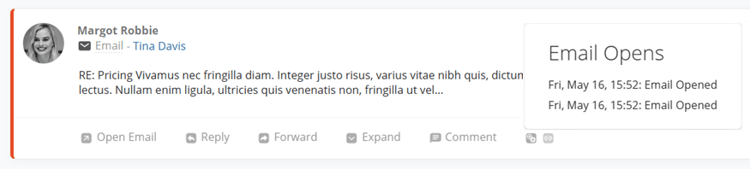
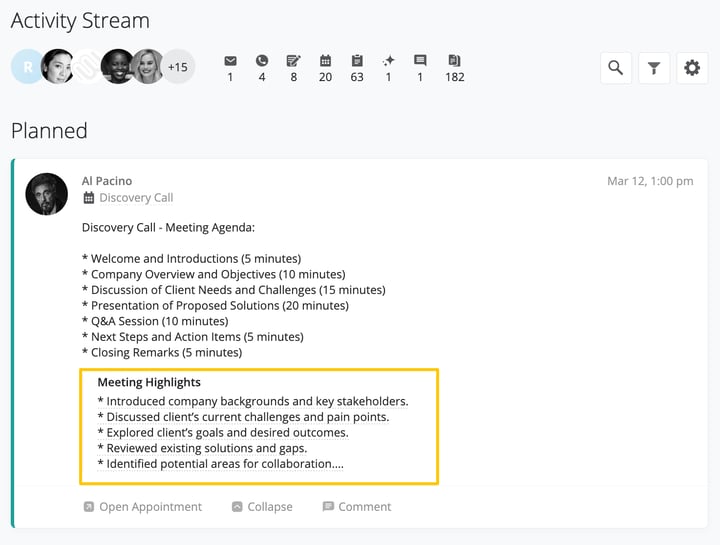
Additionally, you can view any custom fields you added to your Activity custom fields and what information is recorded within the stream, like Meeting Notes, or Phonecall Outcome to the Appointment or Call dialog adds an additional layer of insight into the activity itself by allowing salespeople to add relevant information after the activity is completed. Go to Using Custom Fields with Activities to learn more.
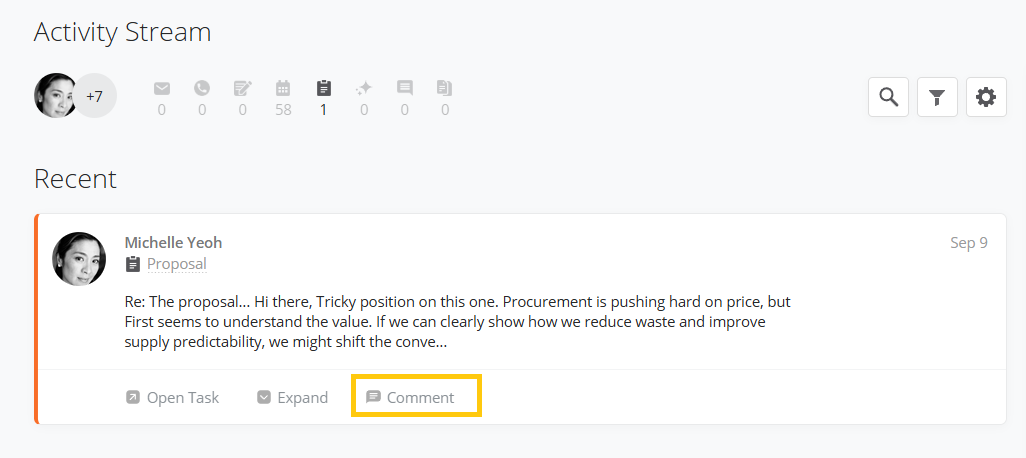
You can comment on these activities to keep all discussions right there in the correct context, and even mention your colleagues to get their immediate attention on specific items. Including using emojis to show your support, agreement, or encouragement to your colleagues.
Learn more about Comments and Mentions in this article.
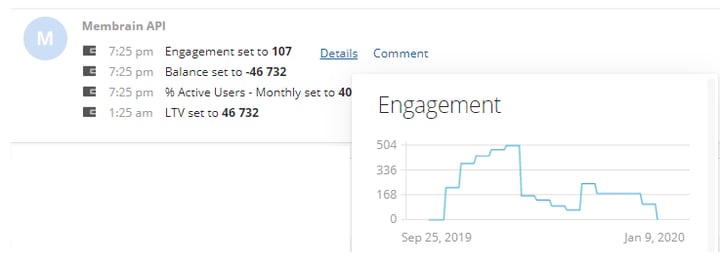
Another powerful feature in the Activity Stream is History Graphs, which shows you a wealth of information at a glance. These mini graphs pack a punch and show you the history of any Custom Field in Membrain and their values over time.