Popular Content
Membrain for:
Connect your AI tool of choice (Claude, ChatGPT, etc.) to Membrain and bring your Membrain data and workflows into your AI conversations.
Once connected, you can use your AI tool to:
You’ll need:
By default, the Insight Engine is available to all our Membrain customers. That gives you access to a broad set of AI features as well as:
500 AI credits per instance and month,
Membrain MCP access and,
up to 100 LLM calls for your AItools per instance and hour.
Your Membrain administrator needs to grant you the appropriate MCP Permissions at the relevant levels.
These permissions determine what the MCP connection can access and do in Membrain.
Because MCP accesses Membrain as your user, it uses the permissions you already have in Membrain. In other words, connecting an AI tool doesn’t give you access to anything you wouldn’t be able to access in Membrain itself.
Your administrator determines what you can do through MCP by configuring your MCP Permissions, based on what is most appropriate for your role.
There are two permission settings:
Read Access — allows you to access information from Membrain through MCP or the AI Assistant.
Write Access — allows you to make changes in Membrain through MCP or the AI Assistant.
The MCP connection acts as you. So, for example, if your Membrain user can only access certain information or perform certain actions, the MCP connection is subject to those same permissions.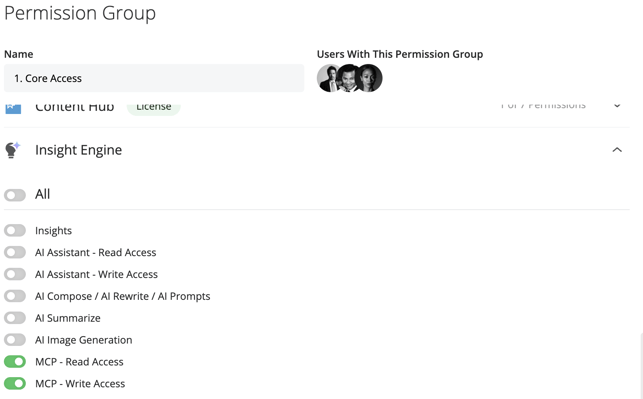
Before getting started, we recommend signing in to the Membrain account you want to connect, in the same browser. Then go into your Claude account and follow the steps below.
Go to your personal Settings and find Connectors.
Choose the option to add a Custom Connector.
Enter your Membrain MCP Link using the following format: https://{YOUR_COMPANY}.membrain.com/MCP/
Press Add and then proceed with the connection.
Other AI tools that support custom MCP connectors may require each individual user to provide their MCP Link or Authentication Token.
Go to My Settings > Integrations and scroll down until you see MCP.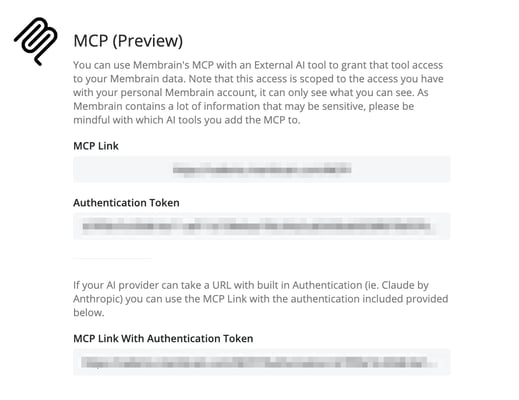
Once you have these details, open the Settings in your AI tool and find where custom MCP connectors can be added.
Paste your Membrain MCP link and the relevant Authentication Token, if your AI tool requires it.
Note: AI tools and their setup options change frequently, so always refer to the documentation for your chosen tool for the latest instructions.