The majority of the other imports Membrain provides, the Sales Project Product import relates the Products to Sales Projects rather than Companies. That means that before you attempt to add Products to your Sales Projects via the Sales Project Product import two things are prerequisites:
-
A list of Products have to already exist in Membrain
-
To import Products to Sales Projects the Sales Projects have to already exist in Membrain (but can be located in one or more Sales Processes as the Sales Project Product import is not Process specific)
To learn how to do this, read these articles about Importing Products and Importing Sales Projects.
An Overview
The first step is to collect the data you want to import from its current source and make sure it's complient for import into Membrain. Once you're happy with your spreadsheet you can import it to Membrain.
The instructions below will guide you through the import prep and execution process and help you ensures all your data is aligned and imported into the right fields in within Membrain, and your data integrity is maintained.
Download the Template
- Click on this link to download the Template Excel Spreadsheet, and study the sheet for Products to Sales Projects - which has the default columns you need to get started with the import
- Start organizing your data to make it ready for import
Add your data
- Export the data from your other systems to Excel
- Save the file as an XLS (Excel 97/2000/XP/2003) or XLSX (Excel 2007) file
- Make sure your data match the template either by formatting it according to the template or by copy-pasting it into the template (copy-pasting is not recommended for larger data sets)
Import into Membrain
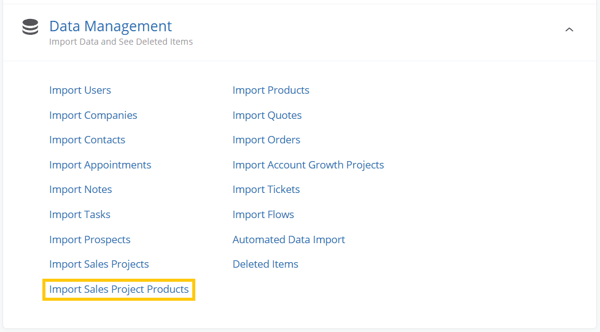
- From System Setup - scroll down to the Data Management section, click on Import Sales Project Products
- Click on Upload a File to Import on the center of the screen and browse to the file you have just created
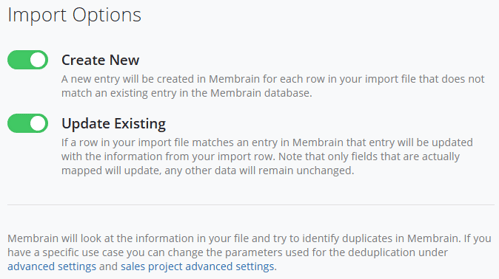
- Import Options: Choose to Create New entries, Update Existing, or both
- Click Next
- Map the Fields by aligning them to their correct names. You will see errors and will be able to work through them in your spreadsheet until you are fully confident that your data is solid and ready to be imported.
- Click Import, and you're done!
Considerations
It is important to check the spreadsheet itself for duplicates BEFORE you do the import, as Membrain will not check for duplicates on the file itself.
Other considerations are:
- If using a spreadsheet with multiple sheets, Membrain will only use data in the first sheet
- Files must be in XLS format (Excel 97/2000/XP/2003) or XLSX format (Excel 2007)
- Files must be structured with 1 Product per row (this includes imports where Sales Projects have mutliple Products)
Mandatory fields when importing Products to Sales Projects
- Product: Name
- Sales Project: Name (or other unique Sales Project identifier)
- The rest of the selection of mandatory fields will be completely based on the dedupe settings of the import (see section about Advance Settings below)
Other Available Product Fields
When importing a Product list, these are the fields available:
- Product: Name - a text field showing the name of the Product
- Name - a text field showing the custom name of the Product row (inside the Sales Projects)
- Description - a text field for the description of the Product
- Value - a currency field showing the unit price of the individual Products
- Price Type - a drop down list with the options: Fixed or Recurring
- Price Interval - a drop down list of how often the price should be multiplied (Every Day, Work Day, Week, Month, 2 Months, 3 Months, 6 Months or Every 12 Months)
- Term Length - a number field of how many days/weeks/months the Price Interval should be applied (based on a recurring price starting date in the sales project where this product is added)
- Discount Type - an optional drop down list where you choose if a discount should be applied to the Product (choose if the discount should be applied as percentage or as an absolute value)
- Unit Discount - a number field where you specify the value of the discount (if the Discount Type has been set to Percentage for this product this value will be shown as percentage in your product list and if the Discount Type has been set to Absolute this value will be shown as currency)
- Unit Cost - a currency field (where you can add the product cost to track the sum of your costs on a product level and the profit margin in dashboards)
Advanced Settings & Sales Project Advanced Settings
The Advanced Settings for imports in Membrain gives you control over how Membrain manages duplicates. On a standard import, the Advanced Settings have a default configuration to help you prevent importing duplicates. To see what the default settings are you can click on Advanced Settings in the bottom right corner of an import page in Membrain. Read this article Import Advanced Settings for more information.
Need help?
If you need more information on Advanced Settings, Mapping Fields, Mandatory Data or other import related subjects, please review the Data Import - Fundamentals article before proceeding with the import.
If you encounter any problems when importing, please contact our Support Team at support@membrain.com.




