To maintain a healthy pipeline you need enough new leads to pursue. Membrain allows you to import new prospects into a Prospecting Process in a few simple steps, outlined below.
An overview
The first step is to collect the data you want to import from its current source and make sure it's complient for import into Membrain. Once you're happy with your spreadsheet you can import it to Membrain.
The instructions below will guide you through the import prep and execution process and help you ensures all your data is aligned and imported into the right fields in within Membrain, and your data integrity is maintained.
Download the Template
- Click on this link to download the Template Excel Spreadsheet, and study the sheet for Prospects - which has the default columns you need to get started with the import
- Start organizing your data to make it ready for import
Add your data
- Export the data from your other systems to Excel
- Save the file as an XLS (Excel 97/2000/XP/2003) or XLSX (Excel 2007) file
- Make sure your data match the template either by formatting it according to the template or by copy-pasting it into the template (copy-pasting is not recommended for larger data sets)
Import into Membrain
- Go to System Setup and scroll down to the Data Management section, click on Import Prospects, and choose the Prospecting Process you want to import to...
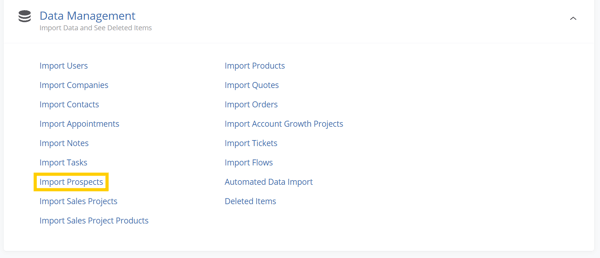
...OR navigate to your Prospecting section via the menu on the left, choose the Process you want to import to, and click on the more menu  (upper right)
- Click on Import
- Click on Upload a File to Import on the center of the screen and browse to the file you have just created
- Import Options: Choose to Create New entries, Update Existing, or both
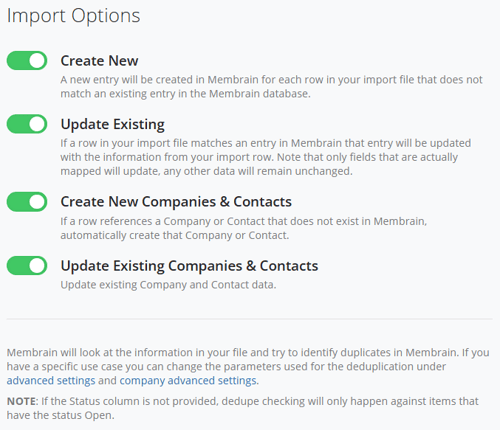
- Click Next
- Map the Fields by aligning them to their correct names. You will see errors and will be able to work through them in your spreadsheet until you are fully confident that your data is solid and ready to be imported.
- Click Import, and you're done!
Considerations
It is important to check the spreadsheet itself for duplicates BEFORE you do the import, as Membrain will not check for duplicates on the file itself.
Other considerations are:
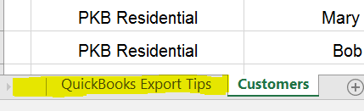
- If using a spreadsheet with multiple sheets, Membrain will only use data in the first sheet
- Files must be in XLS format (Excel 97/2000/XP/2003) or XLSX format (Excel 2007)
- Files must be structured with 1 Prospect per row (this includes imports where Companies have mutliple Prospects)
Common Problems
Some situations, outlined below can cause problems when importing your data and should be checked before carrying out an import to ensure as clean as possible data is imported.
- Lack of a Prospect Name. During a Prospect import Name relates to the Prospect entity itself, NOT the Contact Name or the Company Name, and is a mandatory field that has to be present in all rows
- Lack of a relating Company Name. This is also part of the mandatory data needed for this type of import
- Having multiple spreadsheets in the document you want to import. If you're using multiple spreadsheet in the same document, make sure to put the sheet with the data you want to import first in your document before saving/downloading the file. Membrain will always be looking at the first spreadsheet in the file when importing (exception to this rule is in automatic imports where you can pick what spreadsheet to import from regardless of spreadsheet order in file)
Mandatory fields when importing Prospects
Membrain uses certain fields as unique identifiers during the import to avoid creating duplicate records. For Prospects, the fields below are checked for pre-populated data and if found, the record will be skipped/overwritten or you will be asked how to proceed (based on what you have decided at the beginning of the import)
- Name (of the Prospect project - if you have multiple Prospects relating to the same Company, these names need to be unique)
- Company: Name (of the Prospects' associated Companies)
- Status (if status is missing when performing an update import, the import will skip any project that isn’t Open)
- (Optional) Additional/other dedupers added under Avanced Settings (see section below)
Advanced Settings & Company Advanced Settings
The default settings are configured to help prevent importing or creating duplicate entries. These defaults can be reconfigured to match your unique data set if necessary. Learn more in Import Advanced Settings (recommended only to be used by advanced users)
Need help?
If you need more information on Advanced Settings, Mapping Fields, Mandatory Data or other import related subjects, please review the Data Import - Fundamentals article before proceeding with the import.
If you encounter any problems when importing, please contact our Support Team at support@membrain.com.




