Popular Content
Membrain for:
The Insight Engine Settings page allows administrators to manage access to AI, configurations, enrichment behavior, automation capabilities, and credit usage.
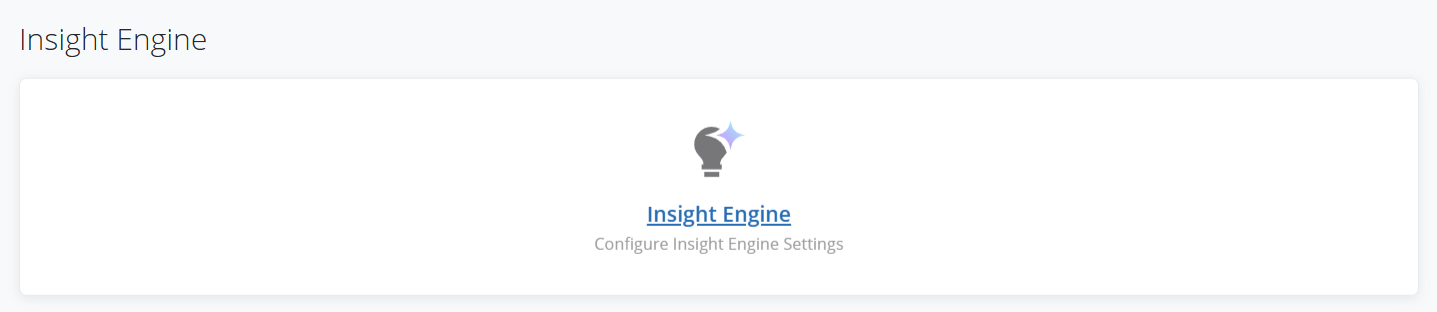
To access the Insight Engine Settings, go to System Setup > Insight Engine
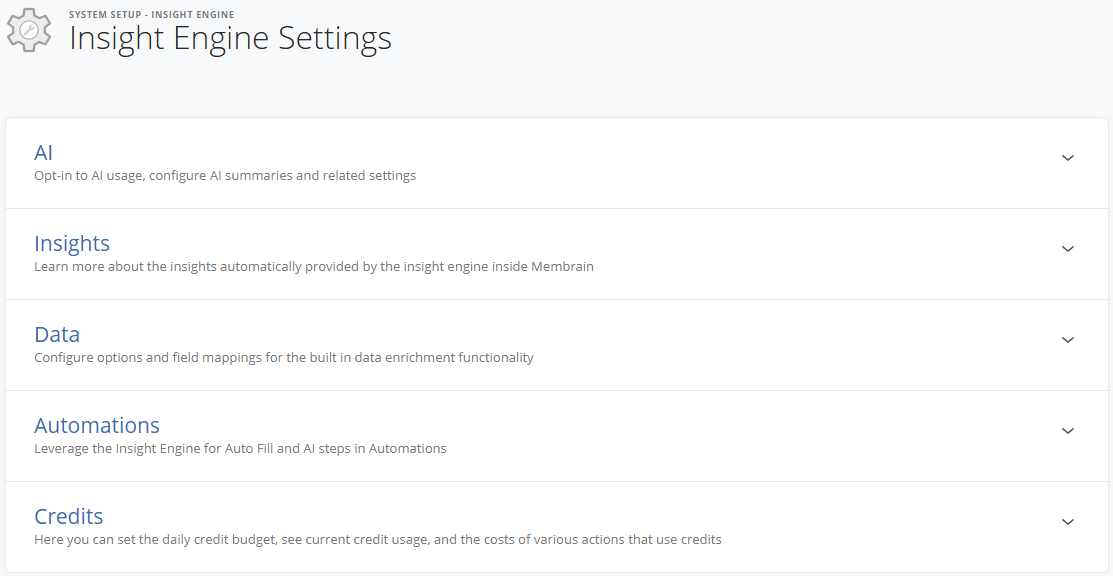
The page contains several tabs: AI, Insights, Data, Automations, and Credits.
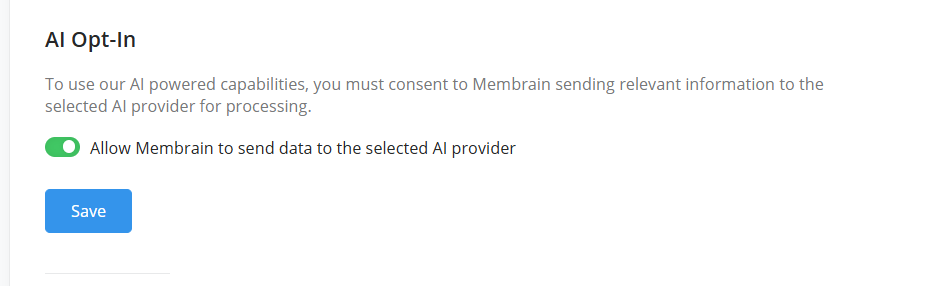
The AI tab controls how AI-powered capabilities function in Membrain. To use AI features, you must enable the AI opt-in setting. This confirms that relevant information may be sent to OpenAI for processing.
In this tab, you can also:
The Insights tab provides an overview of system-generated insights available in Membrain. The Insight Engine automatically provides relevant insights in Prospects, Sales Projects and Account Growth Projects, accessible from within each Project and the related overview views. Some sample Insights are:
To ensure users can access Insight Engine features, related permissions must be enabled through Permission Groups.
Learn how to grant Insight Engine permissions to your users in our permissions article (scroll down to the Insight Engine and External Data sections).
The Data tab controls which data providers Membrain uses for enrichment and finding new companies and contacts, as well as how enrichment data is mapped to fields in Membrain.
At the top of the Data tab, you can select which data provider should be used for different types of data requests.
Membrain can use the native data provided through the Insight Engine, or you can use a supported integration such as Apollo.io or ZoomInfo.
You can select a data provider separately for:
This gives you control over which provider Membrain uses depending on what you're trying to accomplish.
If Default (Membrain) is selected, Membrain uses the native Insight Engine data provider. If you select another provider, such as Apollo.io or ZoomInfo, the relevant settings should be managed within that integration.
Below the Data Provider settings, you can configure how information from Membrain's native data provider is mapped to your fields.
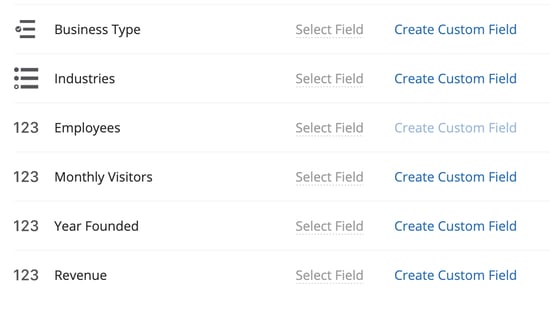
When enriching a company, the fields that are automatically populated if data exists, include name, phone, social profiles, country, address, and notes. Additional company information such as business types, industries, number of employees, monthly visitors, year founded, and revenue can be mapped to custom fields.
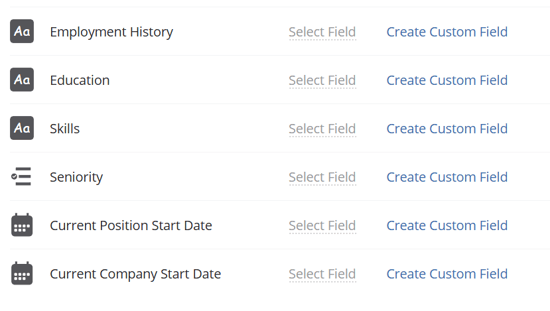
When enriching a contact, certain contact fields are always populated if data exists, including name, title, email, phone, LinkedIn, and notes. Additional contact information such as employment history, education, and skills can be mapped to custom fields.
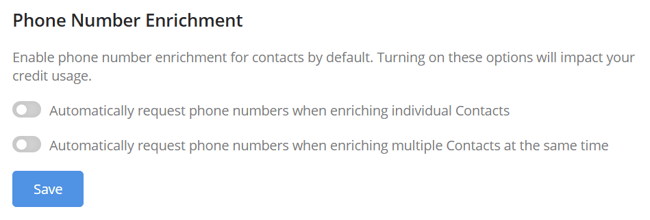
You can choose whether phone numbers are automatically requested when enriching individual contacts or multiple contacts at once.
The Automations tab highlights additional capabilities enabled by Insight Engine, such as:
From here, you can navigate to the Automations page to configure workflows.
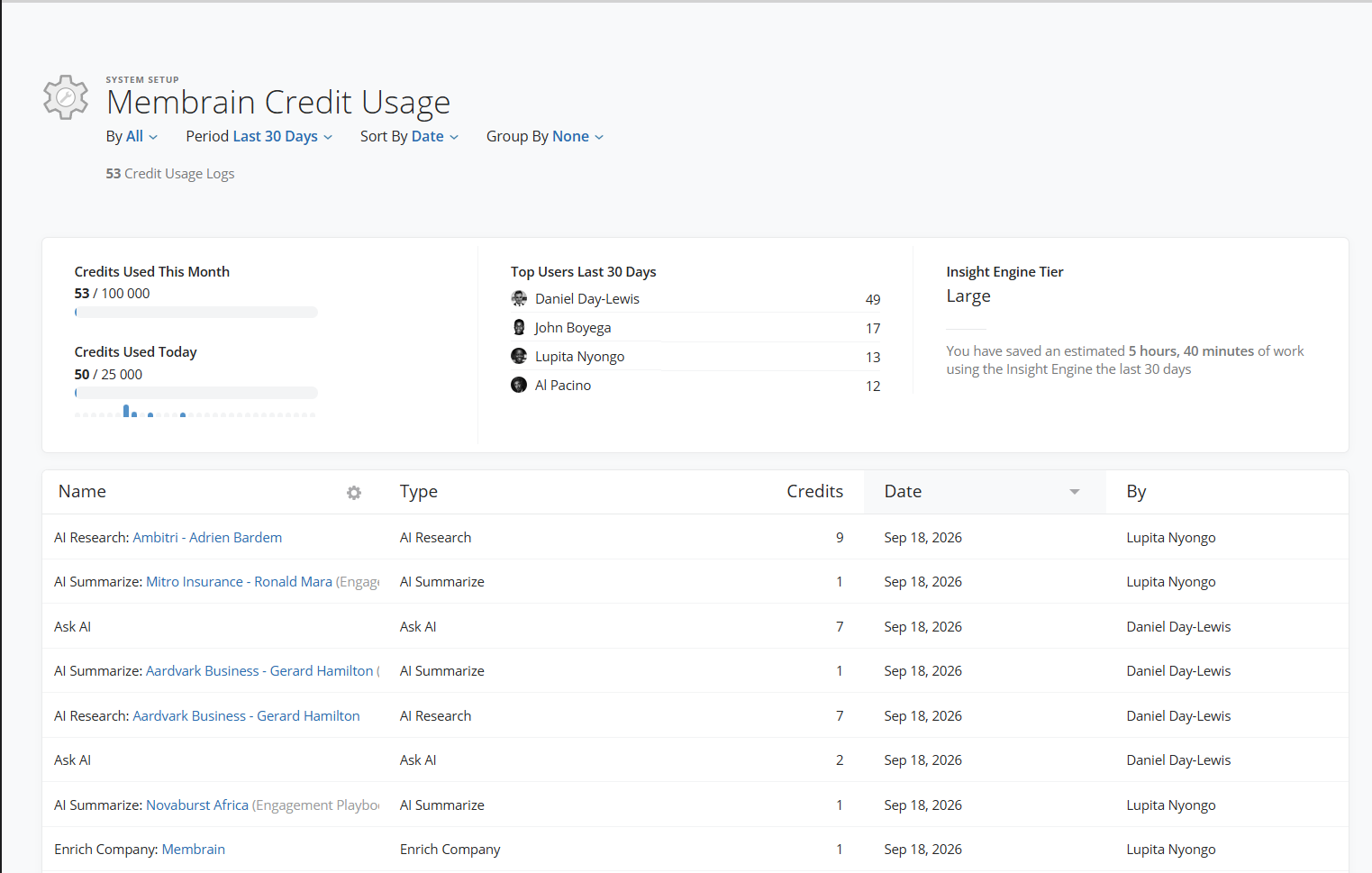
The Credits tab allows you to monitor and manage your AI credit usage, limits and costs.
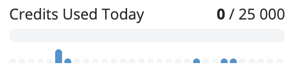
See how many credits have been consumed so far during the current day to monitor active usage. Hover over each blur bar for specific details on how many credits were used that day.
Track total credits used within the current billing cycle and compare it to your available balance.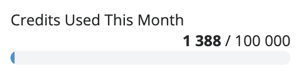
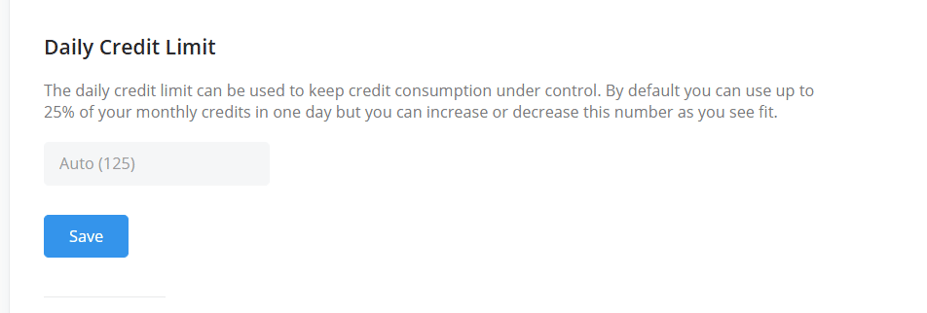
Define a maximum number of credits that can be used per day to control overall AI usage across your system by setting a daily credit limit.
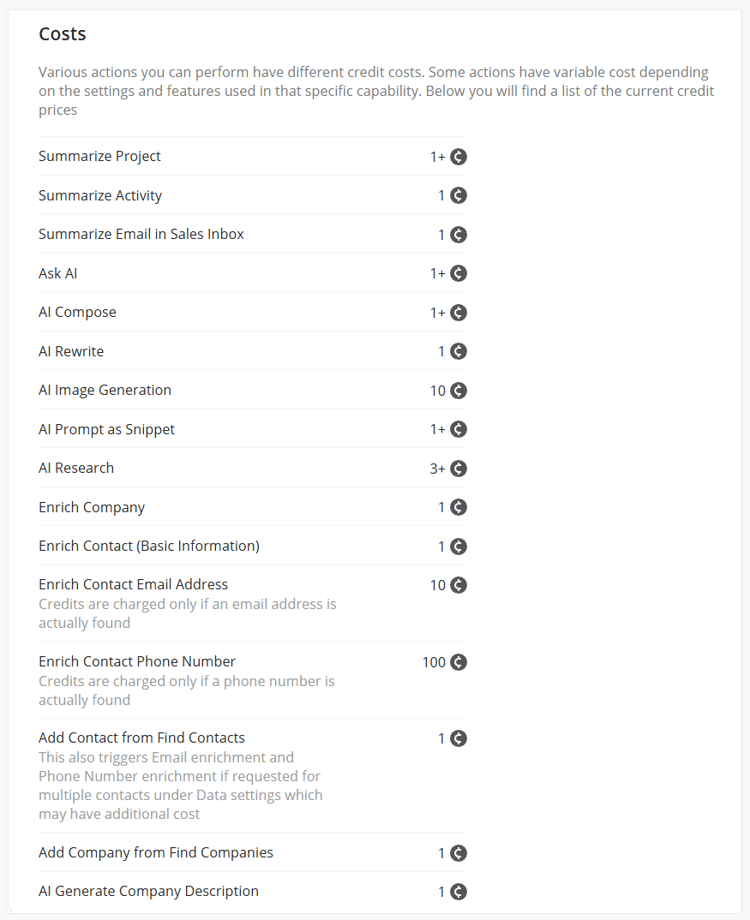
Different AI-powered actions consume different amounts of credits and costs vary depending on configuration. Below you will find a list of the current credit prices.