Popular Content
Membrain for:
The Processes List provides Membrain administrators with a centralized place to view and manage all Processes in their system. Instead of navigating between different areas of Membrain, you can see Processes across Prospecting, Sales Projects, Account Growth Projects, Tickets, and Flows from a single location.
This is especially useful when managing multiple Processes, reviewing their status, or finding a specific Process that needs to be updated. With filtering, sorting, grouping, and customizable columns, you can organize the list to focus on the information that's most relevant to you.
The Processes List is available to administrators from System Setup, under the Process Capabilities section.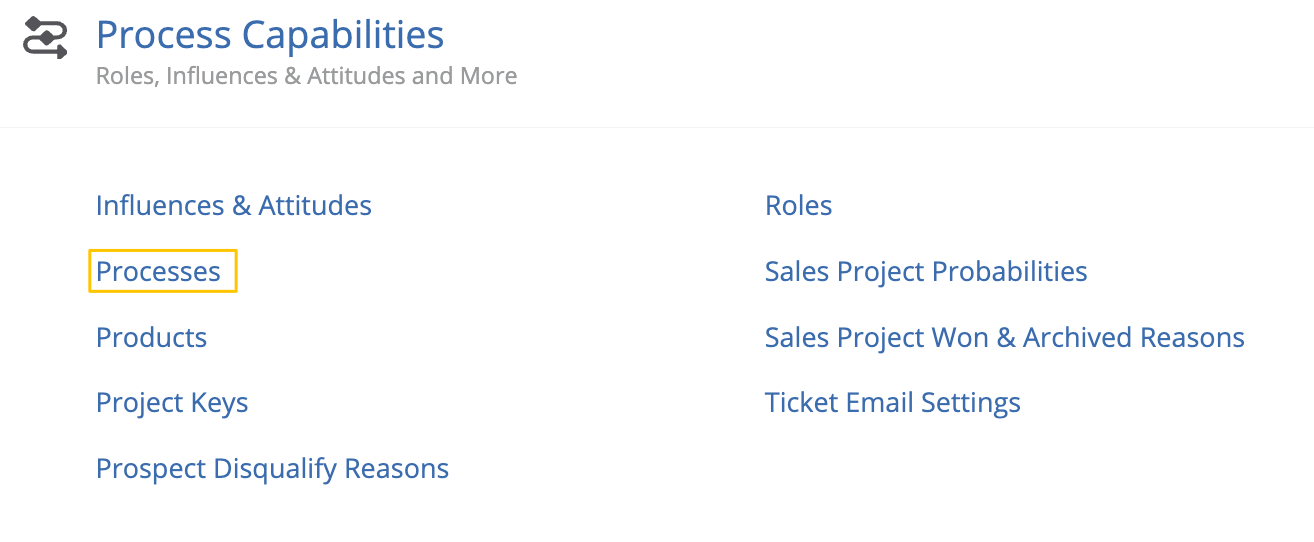
You can also quickly access it by pressing F on your keyboard while in System Setup, or clicking the magnifying glass in the top-right corner. Search for "Processes" and select it to open the Processes List.
From here, you'll see all the Processes in your system, along with information about each one, depending on how your list columns are configured.
At the top of the Processes List, you'll find several filters that allow you to narrow down which Processes are displayed.
You can filter by:
You can also use Sort By to change the order in which Processes appear, or Group By to organize them based on different properties. For example, you might group by Type to review Processes across different areas of Membrain or sort by Last Published Date to find Processes that have been published more recently.
If you're looking for a specific Process, click the magnifying glass in the top-right corner of the Processes List and search for it by name.
You can customize which information appears in the Processes List by clicking the cogwheel next to the Name column. This opens the Select List Columns dialog, where you can choose which fields to display.
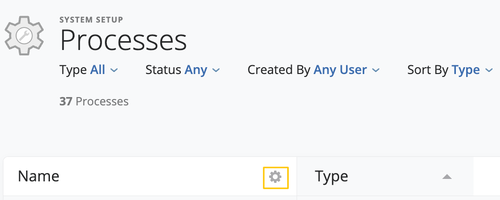
The available columns include information such as Process Type, Status, who created or last published the Process, and when it was last changed. You can also display details about the Process itself, including the number of Steps, Stages, Events, Rules, and Custom Fields, as well as the number of open or closed Projects associated with it.
To configure your list, select the columns you want to display from the available options on the left. You can then rearrange the selected columns by dragging them into your preferred order on the right. Up to 20 columns can be displayed at once.
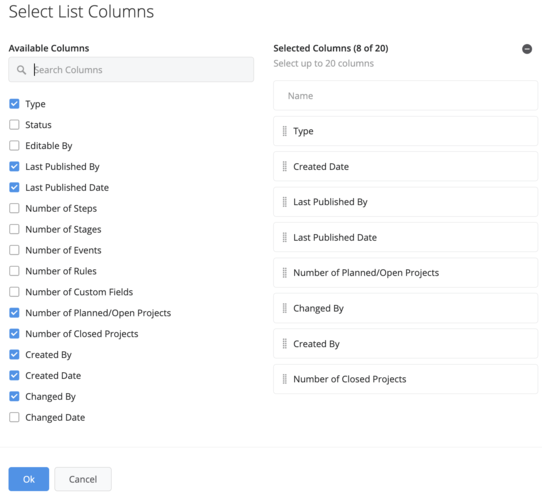
Once you're happy with your selection, click OK to apply your changes. This allows you to focus on the Process information that matters most when reviewing or managing your setup.
When you find the Process you're looking for, click its name in the list to open it directly in the Process Editor.
From there, you can review its configuration and make any necessary changes to the Process.
For example, you might use the Processes List to find an inactive Prospecting Process, review when it was last published, and open it to check its configuration. Rather than searching through individual areas of Membrain, you can quickly find the Process and access its settings from one place.
By combining filters, search, sorting, grouping, and customizable columns, the Processes List makes it easier to maintain an organized overview of the Processes your team uses throughout Membrain.