Popular Content
Membrain for:
Membrain's AI Assistant gives you a conversational way to work with the information already in Membrain. You can ask questions, review information, and take action on your data without having to navigate between different parts of the system yourself.
The AI Assistant works with the context of what you're currently viewing, helping make your conversations more relevant from the start. It can also make changes in Membrain on your behalf, provided you have the appropriate permissions.
Accessing the AI Assistant
You can open the AI Assistant by clicking the AI Assistant icon in the left-hand menu, just above the Sales Inbox. You can also press A on your keyboard to open it.
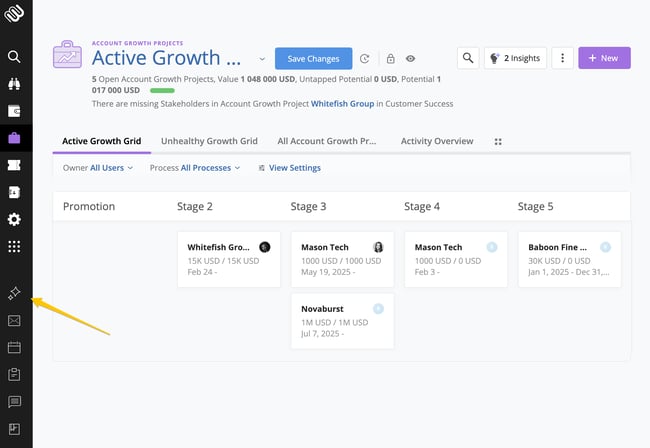
The AI Assistant opens as an overlay on top of Membrain, allowing you to continue working without leaving what you're currently viewing. If you need more space, you can minimize the Assistant from the top-right corner and return to it when you're ready.
On the left side of the Assistant, you'll find the option to start a New Chat along with your previous conversations. The right side is where you'll work with the Assistant and see its responses.
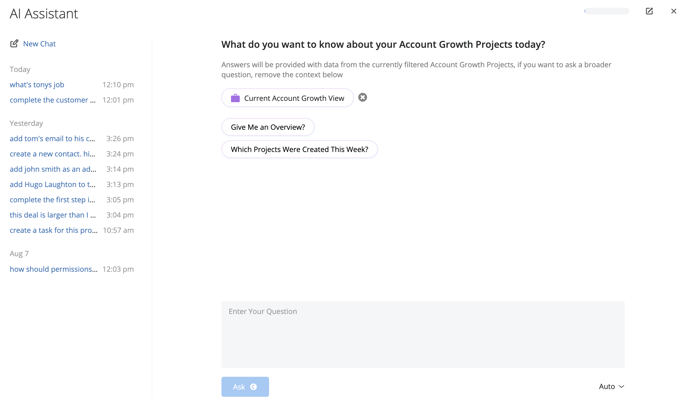
When you open the AI Assistant, it automatically uses what you're currently viewing in Membrain as its initial context.
For example, if you're viewing your Account Growth Projects, the current Account Growth Projects view is used as context. If you're inside a specific Account Growth Project, that Project becomes the context instead.
Based on this context, the AI Assistant also provides dynamically generated questions that you can select to quickly get started.
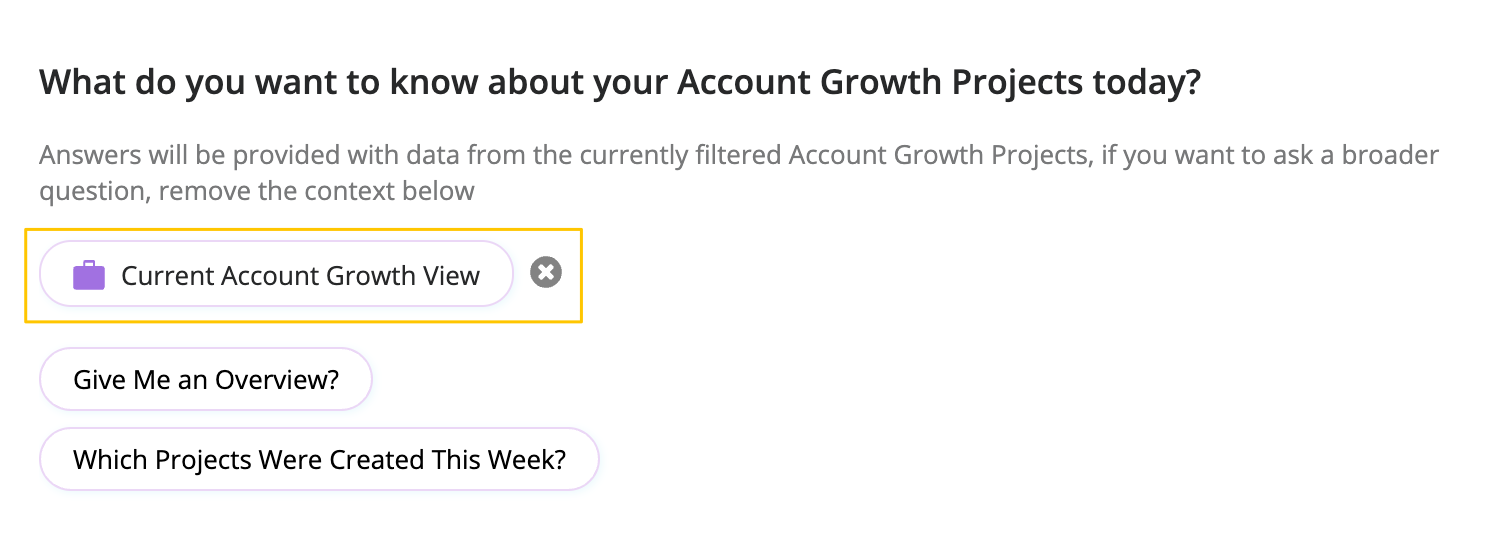
You aren't limited to the context that was automatically selected. Click the X next to the current context to remove it and choose something else.
You can select Project to search for a specific Prospect, Sales Project, Account Growth Project, Ticket, or Flow.
You can also select Other to work from other areas of Membrain. This includes different list views and other areas such as your Dashboard, Content Hub, Calendar, Tasks, Comments, and Sales Inbox.
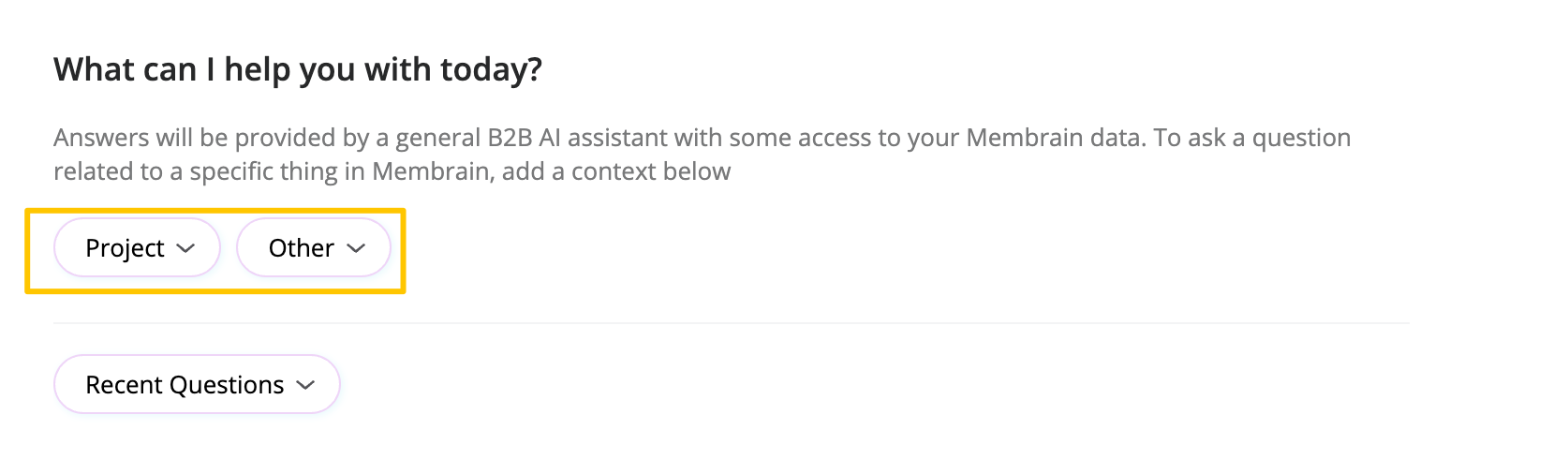 This allows you to decide what information the AI Assistant should consider when answering your question.
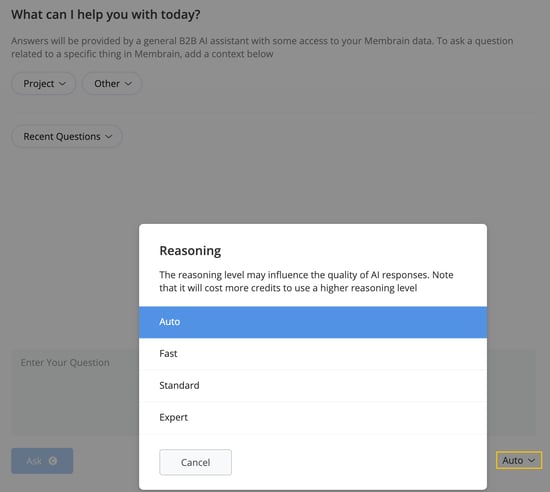
Before asking your question, you can choose how much reasoning you want the AI Assistant to use.
The reasoning selector is found next to the question field and includes Auto, Fast, Standard, and Expert.
Higher reasoning levels can be useful when working through more complex requests, but they may also consume more AI credits. Choose the level that makes sense for what you're asking the Assistant to do.
You can add additional context to give the AI Assistant more information to work with. Additional context can be added before you send your first message or at any point after you've started the conversation.
Click the + next to the current context to add another supported context. You can add Projects or other supported areas of Membrain depending on what you want the Assistant to consider.
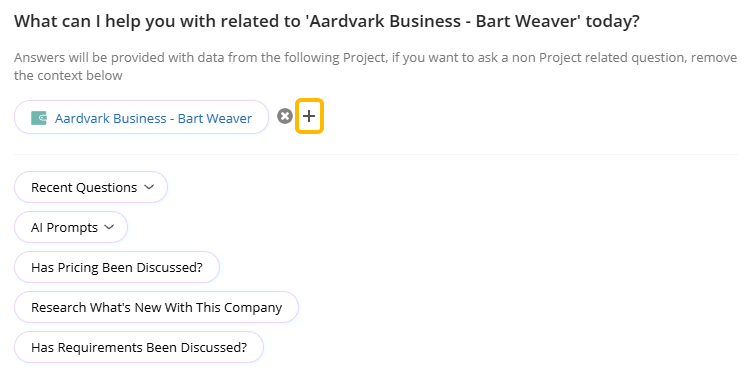
For example, you could open the AI Assistant from a Sales Project and add another Project before asking your first question if you want the Assistant to compare them. You could also start your conversation with one Project and add another later as your conversation develops.
The context you've already provided remains part of the conversation, allowing you to build up the information available to the Assistant as needed.
Once your context is set, enter your question or request into the question field.
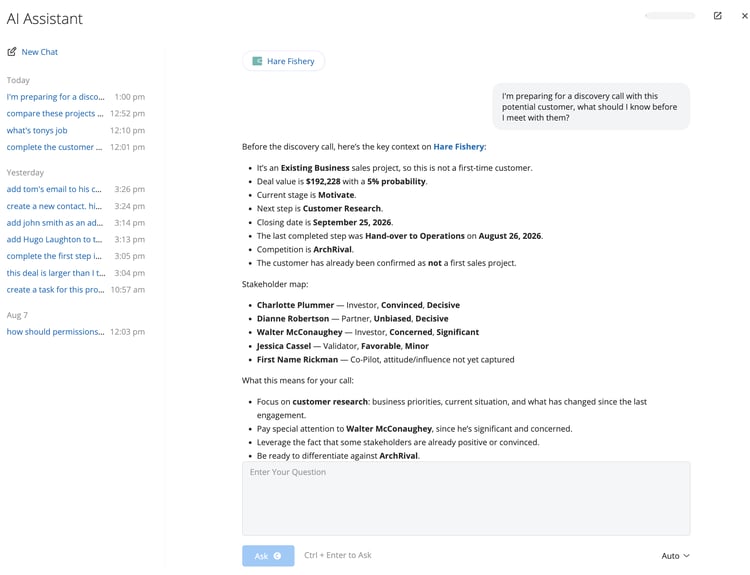
What you ask doesn't have to be limited to finding information. The AI Assistant can also take action in Membrain, such as creating and updating records, working with stakeholders and activities, progressing eligible Process Steps, and more.
Any actions performed by the AI Assistant respect your existing Membrain permissions. If you have permission to make the requested change, the Assistant can make that change directly.
For a complete overview of the information AI can access and the actions it can perform, see our article on What You Can Do with Membrain AI and MCP.
When working with context in the AI Assistant, you can also use AI Prompts that have been made available to you.
Select AI Prompts to see the prompts you have access to. Prompts are organized by category, making it easier to find the right prompt for what you're working on. Prompts that haven't been assigned a category are grouped under Uncategorized.
You can browse the available categories or use the search field to find a specific prompt. When AI Prompts are created, edited, or moved between categories, the list is automatically updated and organized accordingly.
Once you select an AI Prompt, it runs immediately using the context you've provided to the AI Assistant.
This gives your team an easy way to use predefined prompts for common tasks while still taking advantage of the Project information available to the AI Assistant.
To learn more about creating, configuring, and categorizing AI Prompts, see our article on AI Prompts.
When the AI Assistant gives you a response that you want to keep, you can save it back to a Project in Membrain or copy it.
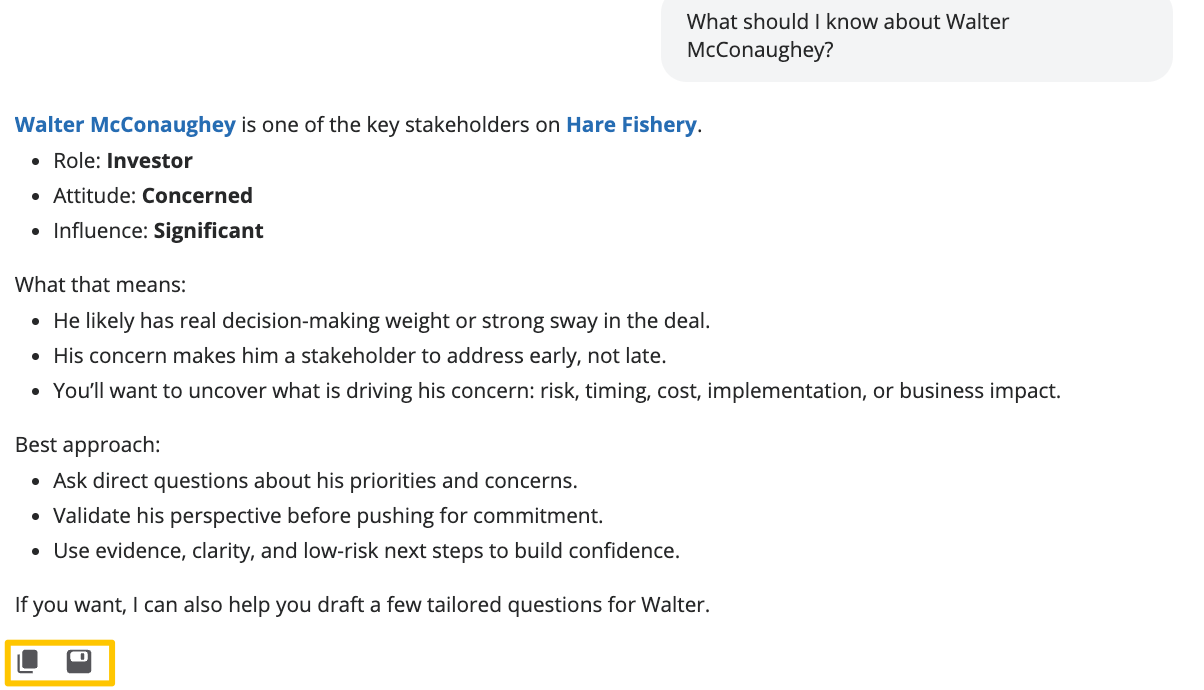
Click the Save To icon on the response and choose whether you want to save the content to a compatible text or rich text field, or to the Activity Stream as a read-only AI Note.
You aren't limited to saving the response to the Project used as context. Select another Project if you want to save the response somewhere else.
This means you can use one or more Projects to generate an answer and then save the useful result wherever it belongs in Membrain.
If you make a mistake or no longer want your latest question and response to be part of the conversation, you can remove them without deleting the entire chat.
A Delete icon is available on the most recent AI response. Click it and confirm that you want to delete the response and the question immediately before it. Once confirmed, both are removed and you can continue the conversation from where you left off.
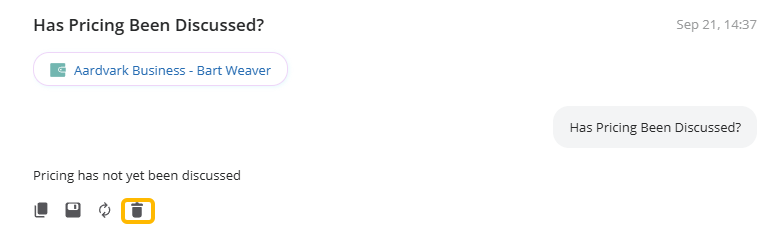
You can also remove additional context when it is the most recent item added to the conversation. This can be useful if you accidentally add the wrong Project or other context and want to continue without it.
Your previous AI Assistant conversations are shown on the left side of the overlay and grouped by date, making it easy to return to something you were working on earlier.
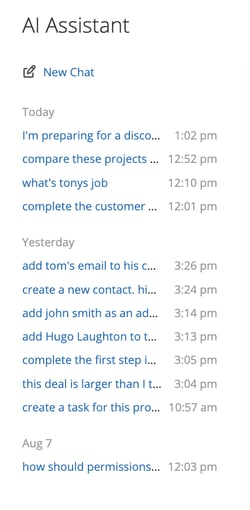
Click a previous conversation to open it and continue chatting from where you left off.
If you no longer need a conversation, hover over it and click the trashcan icon. You'll be asked to confirm before the conversation is deleted.
Imagine you're preparing for an upcoming customer meeting. You open the Sales Project and then press A to open the AI Assistant. Because you're already inside the Project, Membrain automatically adds it as the context.
You ask the Assistant to review the Project and tell you what you should know before the meeting. It can use the information available in Membrain to help you understand the current situation and identify areas worth discussing.
After the meeting, you return to the same conversation. You can tell the Assistant what changed and ask it to update relevant Project information, add or update stakeholders, and create a follow-up Task based on what you agreed with the customer.
You could then add another Project as additional context if you want to compare the opportunity with a similar one. If the resulting analysis is useful for your team, save the response to a text or rich text field or as an AI Note in the Activity Stream.
Instead of using the AI Assistant only to ask a question, you've used the same conversation to prepare, capture what changed, take action, and leave useful context behind for the next time you or a colleague returns to the Project.